
 Need help?
Do you have a question about the Akai AL2208TBK and is the answer not in the manual?
This document serves as a user manual for an AKAI LED-TV with a DVB-T/C tuner, model AL2208TBK. It provides comprehensive instructions for setup, operation, and troubleshooting, emphasizing safety and environmental considerations.
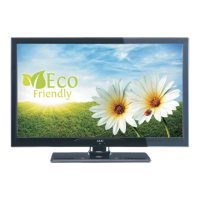
The AKAI AL2208TBK is a remote-controlled color LED television with a fully integrated digital/cable TV (DVB-T/C) tuner. It features HDMI inputs for connecting external devices with HDMI sockets, a USB input for media playback, and a SCART socket for older external devices like DVD players, PVRs, or video game consoles. The TV includes an On-Screen Display (OSD) menu system for easy navigation and configuration. It supports stereo sound, teletext, and has a headphone connection. The television is designed for automatic programming and manual tuning, offering flexibility in channel setup. It also incorporates features like automatic power down after up to six hours, a sleep timer, child lock for parental control, and automatic sound mute when no transmission is detected. NTSC playback is supported, along with Automatic Volume Limiting (AVL) and PLL (Frequency Search). For computer connectivity, it has a PC input with Plug&Play support for various Windows operating systems. An optional Game Mode is also available.
The TV can be switched on by connecting the power cord to a 220-240V AC, 50 Hz socket. From standby, it can be turned on using the power button, P+/P- buttons, or any numeric button on the remote control, or by using the side function switch. To turn off, the power button on the remote or the side function switch can be used to put the TV into standby mode. For complete power down, the power cord should be unplugged from the mains socket.
Upon first use, the TV displays a language selection screen, followed by the First Time Installation (FTI) screen where users can set their preferences. If the AERIAL option is selected, the TV will search for digital terrestrial TV broadcasts. For cable installation, users select CABLE and can manually enter frequency ranges. The TV also offers a "Store mode" option, which, when activated, illustrates the TV's features on screen, suitable for display in a store environment. If "Home Mode" is selected, "Store mode" will not be available after the first time installation.
The remote control provides extensive functionality, including standby, direct access to picture and equalizer settings, numeric buttons for channel selection, TV button for channel list, electronic program guide (EPG), menu, navigation buttons, back, favorites, volume and program up/down, info, play, language selection, rapid reverse, and colored buttons for specific functions. "My buttons" can be programmed for quick access to desired sources, channels, or links.
Media playback is a key feature, allowing users to connect 2.5" and 3.5" external hard disk drives or USB memory sticks to the TV's USB inputs. The TV supports FAT32 and NTFS disk formatting, though recording is not available with NTFS. The Media Browser menu allows playing photo, music, and movie files stored on a USB disk. Loop and shuffle modes are available for continuous media playback.
The TV menu offers various settings. In the Picture menu, users can adjust mode (Cinema, Game, Sport, Dynamic, Natural), contrast, brightness, sharpness, color, and power save mode (Eco, Picture Off, Disabled). Backlight control is available, and Noise Reduction helps improve picture quality with weak signals. Advanced settings include Dynamic Contrast, Colour Temp, Picture Zoom, HDMI True Black (for HDMI sources), Film Mode, Skin Tone, Colour Shift, and RGB Gain. A reset option restores picture settings to factory defaults (except Game Mode). For PC input, specific settings like Autoposition, H Position, V Position, Dot Clock, and Phase are available.
The Sound menu allows adjustment of volume, equalizer mode (with custom settings in user mode), balance, headphone volume, and sound mode. AVL ensures a fixed output level between programs. Headphone/Lineout option is available when connecting external amplifiers or headphones. Dynamic Bass and Surround Sound can be enabled or disabled, and Digital Out audio type can be set.
The Settings menu includes Conditional Access for modules, Language configuration, Parental settings (menu lock, maturity lock, child lock, and PIN number definition), Timers for sleep mode, Date/Time, and Sources to enable or disable input options.
Other settings include Menu Timeout, Scan Encrypted Channels, Blue Background activation/deactivation, Software Upgrade via user interface or 3 AM search and upgrade mode, Application Version display, Hard of Hearing feature, Audio Description for visually impaired viewers, Auto TV Off, Standby Search for new or missing broadcasts, Store Mode, and Power Up Mode preference.
The Install and Retune menu provides options for Automatic Channel Scan (Retune) for digital aerial, digital cable, analogue, or a combination. Manual Channel Scan and Network Channel Scan are also available. Analogue Fine Tune is for analogue channels, and First Time Installation resets all stored channels and settings to factory defaults.
For maintenance, the manual advises unplugging the TV from the wall socket before cleaning and using only a soft, dry cloth. Batteries in the remote control should be replaced when exhausted. When connecting USB devices, it's crucial to back up files to prevent data loss, as the manufacturer is not responsible for file damage. Users are warned not to repeatedly plug and unplug USB drives to avoid physical damage.
Troubleshooting tips are provided for common issues:
The manual also includes important safety information, such as warnings against unsupervised use by children or individuals with reduced capabilities, ensuring adequate ventilation (at least 10 cm free space around the set), avoiding blocking ventilation holes, and not placing the TV on sloping or unstable surfaces. It emphasizes using the device in moderate climates and ensuring the power cord plug is easily accessible and undamaged. Users are cautioned not to expose the TV to humidity, liquids, direct sunlight, or intense heat sources like open flames or electric heaters. Excessive sound pressure from earphones can cause hearing loss. For safety, the TV should be securely attached to the wall if wall mounting is an option. The presence of non-active pixels on the screen is noted as not affecting product performance, and users are advised to avoid scratching the screen.
 General
| Display Technology | LED |
|---|---|
| Smart TV | No |
| HDMI Ports | 1 |
| USB Ports | 1 |
| Aspect Ratio | 16:9 |
| Refresh Rate | 60 Hz |
| Built-in Speakers | Yes |
| Screen Shape | Flat |
| Screen Size | 22 inches |
| Display Resolution | 1366 x 768 pixels |
| HD type | HD |

 To Next Page