."$ D //#$
0#
%(
+#5$%/5
#%
5 ' &522 ' "5D)
522")A"P"$-B"&
+5
09# 75D57(%
= 4&;564+;==6)5--5/*
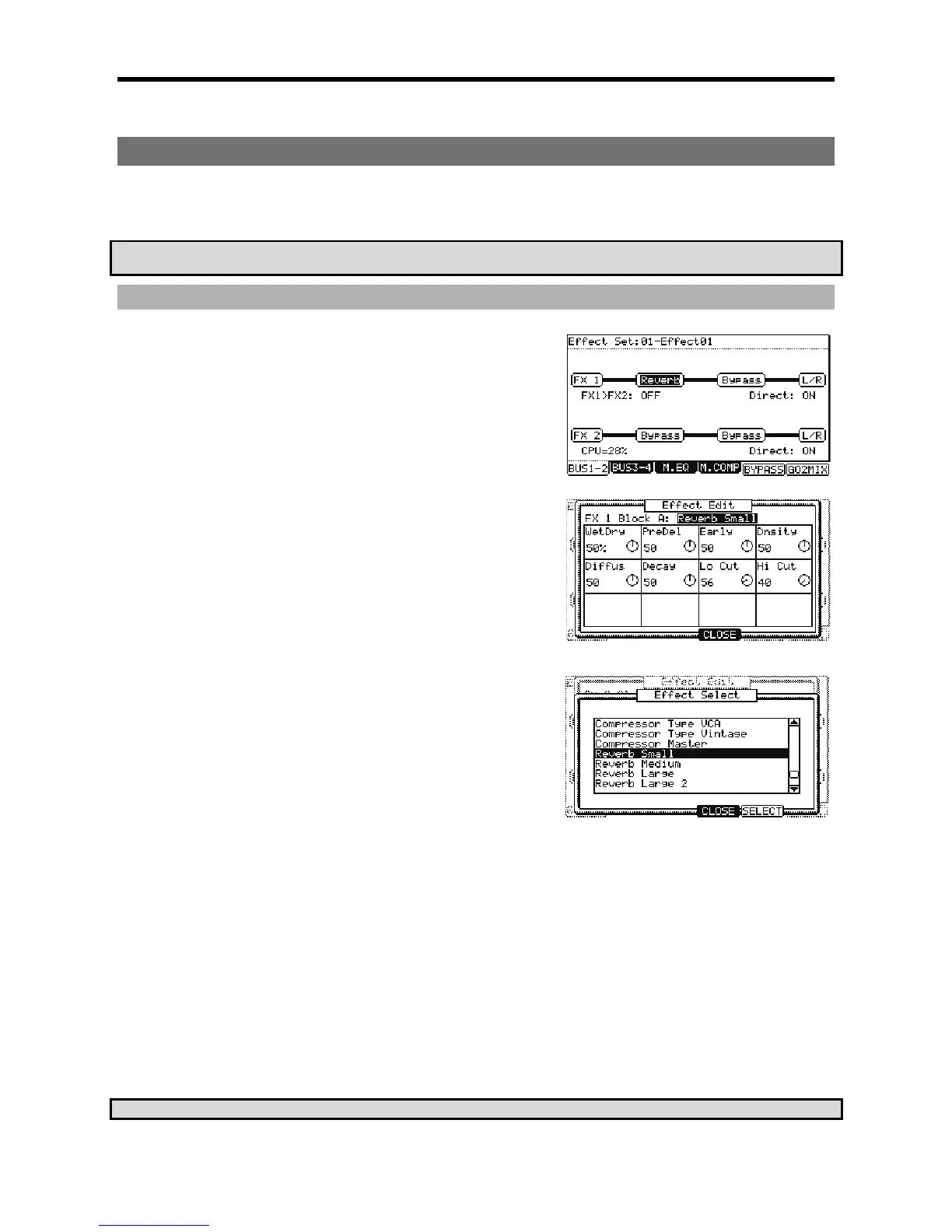
The EFFECTS page will be displayed. In this page, the signal paths of each effects
buss are displayed. Two effects can be assigned in series per buss. Busses 1 and
2 are displayed on the first page as FX1 and FX2. Press [F2] (BUS3-4) to view
busses 3 and 4. Busses 1 and 2, and busses 3 and 4 can be routed together to
allow up to four effects per bus.
@ 4-=6)(:/='@*
This will make sure that busses 1 and 2 are displayed.
G %-F=
Each effect slot is displayed as a block. When the effect is bypassed, the block will
appear above the signal path line. Each block can be selected using the
[CURSOR] buttons.
> 401;&64;++6
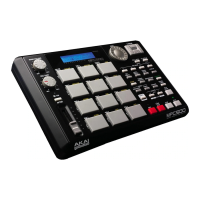
This will display the EFFECT EDIT window as shown on the right. This is where
different aspects of the effect can be edited. For more information on editing
effects, see page 135.
0,-F=(+,#4;++6
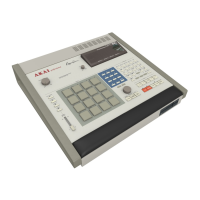
This will open the EFFECT SELECT window, where a list of effects is displayed.
B ,7%/,4-6)/5I5*
This brings you back to the EFFECT EDIT window.
C 4->6)I&/5*.5--55;0
A 4-B6)8&@0F*
This is a shortcut to take you into MIXER mode. You can also get to MIXER mode
by Pressing the [MODE] and [PAD 8] (MIXER).
K 4-=6).*
The PAD MIX page will be displayed.
= 9
This pad will be selected and its display will be highlighted.
== /-F
Here, the different effect busses can be selected. The following are available:
>
No effect will be applied to the pad.
>2
The buss effect corresponding to the selected number will be applied to the pad.
For this example, select 1.
=@ //!5/%
This controls the amount of effect will be heard when the pad is struck. For our example, set the knob to about 50%.
C1'A72-J&"M=&




 To Next Page