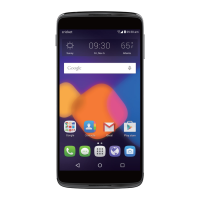
This document describes the ALCATEL ONETOUCH Idol 3 (6039Y), a mobile communication device designed for high-quality mobile communication. It offers a range of features for connectivity, communication, and entertainment.
Function Description
The ALCATEL ONETOUCH Idol 3 (6039Y) is a smartphone that allows users to make and receive calls, send and receive text and multimedia messages, manage contacts, access email, browse the internet, and utilize various applications. It supports GPRS, EDGE, 3G, and 4G networks, as well as Wi-Fi connectivity. The device features a touchscreen for interaction and physical keys for power and volume control. A unique "Reversible UI" design allows the phone to be used in an upside-down orientation while maintaining normal functionality for calls and display.
Usage Features
Basic Operation:
- Power On/Off: The device is powered on by pressing and holding the Power key. To power off, press and hold the Power key from the Home screen and select "Power off."
- Screen Lock/Unlock: Press the Power key to lock or light up the screen.
- Touchscreen Interaction: The touchscreen supports various gestures including touch (to open applications/select items), touch and hold (to access options/move items), drag (to move objects), slide/swipe (to scroll), flick (to scroll faster), and pinch/spread (to scale elements).
- Home Screen: The Home screen is customizable, allowing users to add applications, shortcuts, folders, and widgets for quick access. It can be extended horizontally to accommodate more items.
- Status Bar: Displays phone status (right side) and notification information (left side).
- Notification Panel: Drag down the Status bar to view detailed notifications and access quick settings.
- Quick Setting Panel: Allows users to enable/disable functions like Wi-Fi, Bluetooth, and auto-rotate, or change modes by touching icons.
- Lock Screen Security: Users can protect their phone and privacy by setting up various lock screen patterns, PINs, or passwords.
Communication:
- Phone Calls: Calls can be placed using the Phone application by entering a number or selecting a contact. The device supports both normal and "Reverse Mode" orientation for calls, allowing the UI to appear upright even if the phone is held upside down.
- Answering/Rejecting Calls: Slide the icon right to answer, left to reject, or upwards to reject with a preset message.
- Muting Ringtones: Press the Volume up/down key or turn the phone over (if "Turn over to mute" is enabled in Gestures settings) to mute an incoming call.
- Call Memory: Access recent, missed, and outgoing calls from the RECENT tab in the Phone application.
- Contacts: View, create, and synchronize contacts with Gmail or other applications. Contacts can be imported/exported from/to the SIM card or storage, and shared via Bluetooth or Gmail.
- Messaging: Send and receive SMS and MMS messages. Multimedia messages can include video clips, images, photos, animations, and sounds.
- Email: Set up Gmail, POP3, IMAP, or Exchange email accounts. Emails can be composed, sent with attachments, and saved as drafts.
Connectivity:
- Internet Access: Connect to the internet via GPRS/EDGE/3G/4G networks or Wi-Fi. The device automatically configures network services when a SIM card is inserted.
- Wi-Fi: Turn Wi-Fi on/off and connect to available wireless networks. Password entry is required for secured networks.
- Browser: Surf the web using the built-in Browser application.
- USB Connection: Transfer media and other files between the microSD card/internal storage and a computer using a USB cable. The device supports MTP or PTP modes.
- Mobile Data Sharing: Share the phone's mobile data connection with a computer via USB tethering or with up to eight devices by turning the phone into a portable Wi-Fi hotspot.
- GPS Satellites: Activate GPS to pinpoint location.
Applications and Storage:
- Applications: Access various built-in Google applications and other third-party applications for communication, navigation, entertainment, and more.
- Internal Storage: View the amount of internal phone storage used by the operating system, applications, and data.
- Data Backup: Back up phone settings and application data to Google Servers using a Google Account.
- Factory Data Reset: Reset the phone to erase all personal data and settings, returning it to its initial Android state. This can be done through settings or by pressing the Power and Volume up keys simultaneously if the phone cannot power on.
Accessibility:
- Hearing Aid Compatibility (HAC): The device is HAC M3 compatible, designed to assist hearing device users.
Maintenance Features
Battery Management:
- Charging: Connect the USB cable and charger to an electrical outlet. The LED indicator will light up during charging.
- Power Saving: Disconnect the charger when the battery is full, switch off Wi-Fi, GPS, Bluetooth, or background applications when not in use, and reduce backlight time to conserve power.
- Battery Life Optimization: Fully charge the battery for optimal operation (minimum 3 hours). Adjust screen brightness, extend email auto-check intervals, update news/weather manually, and exit unused background applications. Deactivate Bluetooth, Wi-Fi, or GPS when not in use.
Software Updates:
- Mobile Upgrade Tool: Download the Mobile Upgrade tool from the ALCATEL ONETOUCH website and install it on a PC to update the phone's software.
- FOTA Upgrade: Update the phone's software directly from the device via "System updates" in Settings. Data connection is required for updates.
Troubleshooting:
- Phone Not Switching On/Frozen: Charge for at least 20 minutes, or reset by pressing Power and Volume up keys. If in a boot loop, press Volume down key to enter Safe Mode.
- Phone Unresponsive: Restart by pressing and holding the Power key for more than 9 seconds.
- Phone Turning Off Itself: Check screen lock and ensure Power key is not accidentally pressed. Check battery charge level.
- Charging Issues: Use the included ALCATEL ONETOUCH charger. Allow 20 minutes for the battery charger indicator to appear if the battery is completely discharged. Ensure charging is done under normal temperature conditions (0°C to +40°C).
- Network/Internet Connectivity Issues: Try connecting in a different location, verify network coverage and SIM card validity with the operator, check Internet settings, and try connecting later if the network is overloaded.
- Invalid SIM Card: Ensure the SIM card is correctly inserted, undamaged, and activated.
- Call Issues (Outgoing/Incoming): Verify valid numbers, country/area codes for international calls, network connection, subscription status, and ensure flight mode is off. Check for call barring or forwarding.
- Voicemail Issues: Contact the network operator to check service availability and ensure the voicemail number is correctly entered.
- MMS Issues: Check phone memory availability, contact the network operator for service availability and MMS parameters, and verify the server center number or MMS profile.
- SIM Card PIN Locked: Contact the network operator for the PUK code.
- Computer Connection Issues: Install Smart Suite, ensure USB driver is installed, check if Smart Suite Agent is activated, verify computer meets Smart Suite requirements, and use the included cable.
- Download Issues: Ensure sufficient phone memory and check subscription status.
- Bluetooth Detection Issues: Ensure Bluetooth is on, phone is visible to other users, and devices are within detection range.
- Overheating: Prolonged calls, game playing, internet surfing, or complex applications can cause the phone to warm up. This is normal and will subside when these actions cease.
Safety and Use:
- Traffic Safety: Avoid using the mobile phone while driving.
- Hearing Protection: Do not listen at high volume levels for long periods.
- General Conditions of Use: Switch off the phone in health care facilities, near gas/flammable liquids, and on aircrafts. Keep the phone at least 15 cm from medical devices. Avoid disassembling the phone, as the back cover and battery are not removable. Handle with care, keep clean, and avoid adverse weather conditions.
- Chargers: Use only recommended chargers within the specified temperature range (0°C to 40°C).
- Radio Waves: The phone meets government requirements for exposure to radio waves.
- Theft Protection: Note the IMEI number (*#06#) for security purposes.
- Privacy: Respect laws regarding taking photographs and recording sounds.
- Battery Disposal: Dispose of the phone and battery according to local environmental regulations.
- Open Source Software: The device uses open source software, and corresponding source codes are available upon request.

 Need help?
 General


 To Next Page