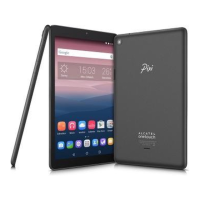
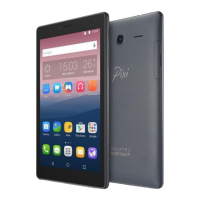
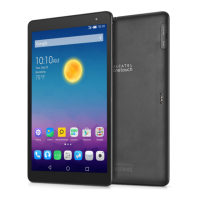
The ALCATEL ONETOUCH Pixi 3 (7) 9007X is a tablet designed for high-quality communication and entertainment. It runs on an Android operating system and supports various open-source programs.
Function Description:
The device serves as a communication and entertainment hub, allowing users to make phone calls, connect to the internet via Wi-Fi, and access a wide range of applications. It features a front and rear camera, an earphone interface, and a Micro-USB connector for charging. The tablet supports SIM and microSD cards for expanded functionality and storage.
Important Technical Specifications:
- Model: ALCATEL ONETOUCH 9007X
- SAR Limits: Meets national SAR limits of 2.0 W/kg. Specific SAR values are 1.485 W/kg for Head SAR (LTE Band 3+Wi-Fi) and 1.734 W/kg for Body-worn SAR (LTE Band 3+Wi-Fi).
- Connectivity:
- Wi-Fi: Certified by the Wi-Fi Alliance.
- Bluetooth: Bluetooth Declaration ID D026715.
- Cellular: Transceiver operates on GSM in quad-band (850/900/1800/1900 MHz), UMTS in dual-band (900/2100 MHz), and LTE in five-band (B1/B3/B7/B8/B20).
- Operating System: Android.
- Display: Features a locked screen interface by default.
- Memory: Supports microSD cards.
- Battery: Non-removable rechargeable Li-polymer battery.
- Charger: Operates within a temperature range of 0°C to 40°C.
- Dimensions: Body-worn operation requires a minimum distance of 5 mm from the body for RF exposure compliance.
- Legal Information: The Android robot is reproduced or modified from work created and shared by Google and used according to terms described in the Creative Commons 3.0 Attribution License. The device uses open-source programs like mtd, msdosfs, netfilter/iptables, and initrd licensed under GNU General Public License and Apache License. Source codes are available upon request within three years of product distribution from TCL Communication Ltd. and can be downloaded from http://sourceforge.net/projects/alcatel/files/.
Usage Features:
- Power On/Off: Press and hold the Power key to turn on. To power off, press and hold the Power key for about 3 seconds and select "Power off," or hold for about 10 seconds for a forced shutdown.
- Stand-by Mode: Press the Power key once to enter stand-by mode. The device automatically enters stand-by mode without operation. Press the Power key once to wake it up.
- Home Screen: Features three pages for apps, folders, and widgets. Swipe left or right to switch between screens.
- Lock/Unlock Screen: Slide up to unlock, slide left for the camera, or slide right for the phone call interface.
- Navigation:
- Status Bar: Drag down to open Quick settings or Notification panel; drag up to close.
- Notification Panel: Displays detailed information about notifications.
- Quick Settings Panel: Allows enabling/disabling functions and changing modes by touching icons.
- Google Search: Touch the Google Search icon to access the search engine.
- Voice Actions: Use to watch videos, send emails, set alarms, get directions, etc.
- All Apps: Touch to show the apps list interface.
- Back: Go back to the previous menu or screen.
- Home: Return to the Home screen.
- Recent Apps: Press to view recent apps.
- Apps and Widgets:
- Accessing Apps: Touch the all apps key from the Home screen.
- Widgets: Long-press an empty area on the Home screen and select "Widgets" to access the library.
- More Apps: Touch the Google Play Store icon.
- Shortcut Management: Long-press an icon in the app list or widget library to drag it to the Home screen.
- Removing App Icons: Long-press an icon on the desktop and drag it over "Remove" at the top center.
- Uninstalling Apps: Press to enter "All Apps," long-press the app icon, and drag it over "Uninstall" at the top-left.
- Wallpaper: Long-press an empty area on the Home screen and select "WALLPAPERS," or go to Settings > Display > Wallpaper.
- Wi-Fi: Turn on/off via the Wi-Fi icon in Quick settings or in Settings. Touch a network to connect, entering credentials if secured.
- Zoom: Pinch in/out with fingers in web browsers, galleries, etc.
- Settings:
- Sound & Notification: Adjust volumes, touch sounds, and screen locking sounds.
- Display: Adjust brightness, adaptive brightness, wallpaper, sleep settings, daydream, font size, and screen rotation.
- Storage: View memory status.
- Battery: Check battery power and service status.
- Apps: Check app status.
- Language & Input: Set system language and input methods.
- Backup & Reset: Back up settings and data, or perform a factory data reset.
- Date & Time: Set date, time, and format.
- About Tablet: Check legal information, tablet status, and software version.
- Phone Calls:
- Accessing Call Interface: Slide right on the lock screen or select the phone icon from the all apps screen.
- Placing a Call: Touch to display the keyboard, enter a number, or select a contact. Touch to place the call.
- Answering/Rejecting Calls: Drag the icon rightward to answer, leftward to reject, or upward to reject with a preset message.
- Hanging Up: Touch the hang-up icon.
- Onetouch Connect: Install the Onetouch Connect app to connect your tablet to your phone for calls, contacts, and messages. Enable tethering to share the network.
Maintenance Features:
- Charging: Charge the device before first use. Use only the charger recommended by TCL Communication Ltd. and its affiliates. The device cannot be charged via a USB computer connection.
- File Transfer: Connect to a computer via USB to transfer files.
- Software Updates: Install updates from trusted sources only.
- Data Protection: Remove or clear all personal information before recycling, returning, or giving away the product. TCL Communication Ltd. implements technical and organizational measures to protect personal data. Users can access, review, and edit personal information via their user account or by contacting customer service.
- Battery Care: Do not attempt to open the back cover, replace the battery, or puncture the back cover. Contact the dealer for battery replacement.
- Cleaning: Keep the device clean and dust-free.
- Environmental Conditions: Avoid exposing the device to extreme temperatures, humidity, rain, or liquids.
- Traffic Safety: Refrain from using the device while driving. Do not place it on the dashboard or within an airbag deployment area.
- Health and Safety:
- Switch off the device in healthcare facilities, near gas/flammable liquids, or in potentially explosive atmospheres.
- Maintain at least 15 cm separation from medical devices like pacemakers.
- Avoid high volume levels for long periods to prevent hearing damage.
- Take breaks when playing video games to prevent discomfort.
- Consult a doctor if experiencing symptoms like convulsions or disorientation.
- Privacy: Respect local laws regarding taking photographs and recording sounds. Obtain authorization before recording private conversations or taking photos of others.
- Theft Protection: Note the IMEI (serial number) by entering *#06# to block the device if stolen.
- Antenna: Avoid touching or degrading the built-in antenna for optimal operation.
- Accessories: Use approved accessories free of metal and ensure they position the device at the indicated distance from the body.

 Need help?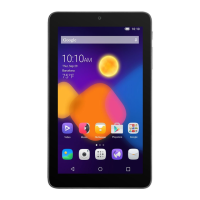


 To Next Page
 General