57
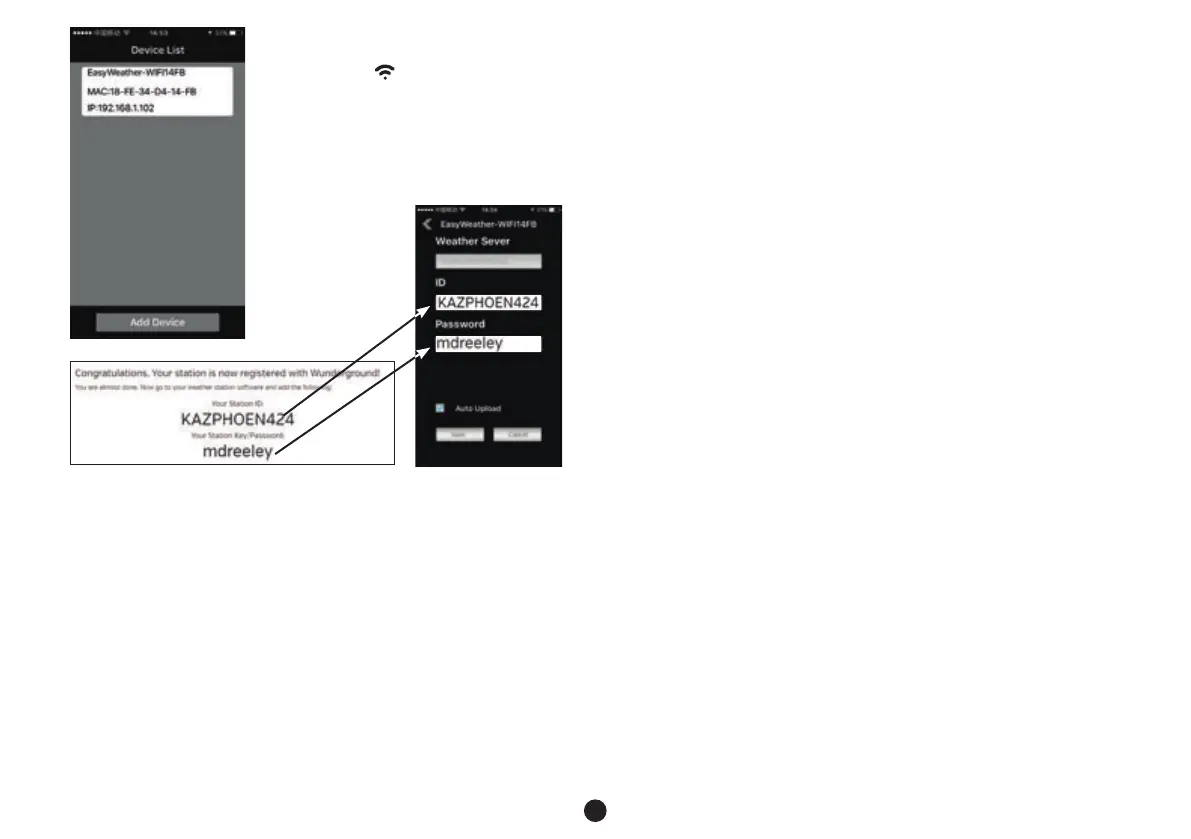
8. after several seconds the data of the we-
ather station appear on the smartphone;
the WiFi icon remains visible in the
display of the weather station.
9. now tap 1x on the data of the weather station in the display of the
smartphone and enter the following in the next screen:
• at “Server” or “Weather Server”, enter Wunderground
• at “ID” or “Station-ID”, enter the ID code you’ve obtained from
Wunderground
• at “Password”, enter the password you’ve obtained from Wunder-
ground
• leave “StationNum” (iOS only) empty
• Check “Auto Upload” or set the button to “on” to have the weather
station update itself automatically. Keep in mind that the weather
station must be connected to the internet. You may also press the
“update” button manually
• When nished, press “Save”.
As of this moment, the weather station is connected to Wunderground
via your router and the measurement data of the weather station will be
shared with the rest of the world.
The app ‘WS TOOL’ has performed its task and is longer actively
required.
Keep in mind that you may also connect to the weather sites of ‘We-
atherbug’ or ‘Weathercloud’ via the ‘Weather Server’ option.
8.3 Using Wunderground:
You can view your own measurements at Wunderground via the follow-
ing link:
http://www.wunderground.com/personal-weather-station/
dashboard?ID=STATIONID
where instead of “STATIONID” you must enter the station-ID code
obtained from Wunderground
Via the URL ‘http://www.wunderground.com/download’ various apps
from Wunderground are shown. Attention: Alecto is not responsible for
the functioning or maintenance of these apps.
For the exact operation of Wunderground and any other information and
functions, please refer to the website: www.wunderground.com


 To Next Page