Need help?
Do you have a question about the Alesis Fusion 6HD and is the answer not in the manual?
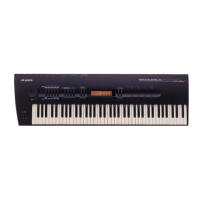
This document outlines the disassembly and E3 memory expansion module installation procedures for the Alesis Fusion 6/8HD (S60/S80) synthesizers. It serves as a service manual, providing detailed, step-by-step instructions for authorized personnel to perform internal maintenance and upgrades. The primary function of this document is to guide technicians through the process of accessing the internal components of the Fusion 6HD and 8HD models, specifically for the purpose of installing E3 Memory Expansion Modules. This upgrade enhances the device's memory capabilities, which is crucial for handling larger sample libraries, more complex patches, and improved overall performance in music production and live performance contexts.
The manual begins with a critical "ATTENTION!" notice, emphasizing the confidential and proprietary nature of the information contained within. This highlights the importance of data security and intellectual property for Alesis, LLC, and restricts access and reproduction to authorized recipients with current non-disclosure agreements. This initial warning sets the tone for a document intended for professional use, underscoring the specialized knowledge and authorization required to perform the described procedures.
The disassembly procedures are meticulously detailed, starting with the removal of the top panel and chassis bottom. For the Fusion 6HD (S60), this involves removing 14 screws, while the Fusion 8HD (S80) requires 19 screws, indicating a slight structural difference between the two models. The instructions are accompanied by clear diagrams (Fig.1 for both models) illustrating the screw locations and the direction for separating the top panel from the chassis. This visual aid is essential for ensuring correct and damage-free initial access to the device's interior.
Subsequent steps involve the removal of various internal components. For both models, the process continues with the removal of the SATA assembly, power supply PCB assembly, and fan (Fig.2). This stage requires disconnecting multiple cables and removing several screws to detach the shield plate, SATA PCB, switching power PCB, and the cooling fan. The detailed breakdown of these steps ensures that technicians can systematically dismantle the device without causing damage to sensitive electronic components or their connections. The emphasis on careful cable management and screw removal is crucial for both disassembly and subsequent reassembly.
Further into the disassembly, the manual describes the removal of the expansion digital PCB, analog IO PCB, and hard disk (Fig.3). This section involves detaching insulator sheets, cables, and specific jack nuts from the rear panel, as well as screws securing the hard disk. The precision required for these steps, particularly with delicate components like PCBs and the hard disk, underscores the technical nature of the manual. The inclusion of figures for each step provides visual confirmation of the components to be removed and their locations.
The removal of the main PCB and expansion analog PCB is also covered (Fig.4). This involves detaching more jack nuts and screws from the rear panel, as well as brass standoffs and screws securing the main PCB. These steps are critical as they provide access to the core processing units of the synthesizer, which are central to the E3 memory expansion. The meticulous enumeration of screws and nuts ensures that no fasteners are overlooked, which could lead to damage during component removal.
The manual then moves to the front panel components, detailing the removal of knobs, the wheel encoder, and their mounting nuts (Fig.5). This stage is important for accessing the display and control PCBs. Following this, the removal of the LCD module, inverter PCB, dimmer PCB, and front panel right PCB is described (Fig.6). These steps involve detaching tinfoil, screws securing the LCD module, and screws for the various PCBs, highlighting the layered construction of the synthesizer's user interface. Finally, the removal of the front panel left PCB, front panel center PCB, and LED PCB is outlined (Fig.7), completing the comprehensive disassembly process.
The core function of this manual, beyond general maintenance, is the installation of E3 Memory Expansion Modules. The installation section, "12. Installation of E3 Memory Expansion Modules," begins by stating that the process is "straight-forward," implying that with the detailed instructions provided, even complex internal work can be managed efficiently by trained personnel.
The first step for installation is to "Open up the unit," referring back to the detailed disassembly procedures for removing the top panel. This cross-referencing ensures that technicians follow the correct initial steps for their specific Fusion model (6HD or 8HD).
The installation of the first E3 Memory Expansion Module is on the Main PCB. The manual explicitly states that "No further disassembly is required to install the Main PCB's module," which simplifies this particular step. Crucially, it emphasizes that the module is "keyed to only fit in one direction" and "should fit easily." This design feature is a significant usage feature, as it prevents incorrect installation and potential damage to the module or the PCB. The instructions advise technicians to "double check the module orientation, and the connector alignment, and that the connectors on the Main PCB have no bent pins" if resistance is encountered. This preventative measure is vital for avoiding costly repairs and ensuring the longevity of the components. A detailed image (Fig. 13) clearly shows the Main PCB with the E3 SDRAM PCB installed, providing a visual guide for correct placement and orientation.
Following the Main PCB module installation, the document instructs to "Remove the Expansion Digital PCB" by referring back to the disassembly instructions. This step is necessary to install the second E3 Memory Expansion Module.
The installation of the second E3 Memory Expansion Module is on the Expansion Digital PCB. Similar to the first module, the manual reiterates that the module is "keyed to only fit in one direction" and "should fit easily." The same warnings about checking orientation, alignment, and bent pins are provided, reinforcing best practices for module installation. An image (Fig. 14) illustrates the Expansion Digital PCB with the E3 SDRAM PCB installed, offering another visual reference.
The re-installation process is then addressed, starting with "Re-install the Expansion Digital PCB." This involves reversing the earlier disassembly steps. A key maintenance feature highlighted here is the instruction to "Take special care with the cables in general and the ATA cables connected to the Expansion Digital PCB in particular, as they fit rather tightly and incorrect placement could lead to damage of the cables, or excessive flexing of the Expansion Digital PCB (potentially leading to cracked solder joints and other problems)." This warning is crucial for preventing common reassembly errors that could compromise the device's functionality and reliability. It emphasizes the importance of careful cable routing and connection to avoid stress on components.
Finally, the manual covers "Re-attach Top Panel and Verify Proper Installation and Operation." This step involves reversing the initial disassembly to close the unit. A critical usage feature for verification is to "Turn the unit on in Diagnostic Mode (hold down '1' and '8')" and run "non-destructive Diagnostic Tests." This diagnostic capability allows technicians to confirm the successful installation of the memory modules without altering any user data or settings. The instructions specifically advise against re-calibrating anything or running Media tests during this verification. The primary check is to verify that the "Memory-Processor page displays: VEngine Total Mem: {192 MB} VEngine 2 Total Mem: {192 MB}" and that the "Memory-Engine tests pass for 'Voice Engine' and 'Voice Engine 2'." This provides a clear, objective method for confirming the memory upgrade's success and the device's proper functioning.
In summary, this service manual provides a comprehensive guide for the disassembly, E3 memory expansion module installation, and reassembly of the Alesis Fusion 6/8HD synthesizers. Its function is to facilitate internal maintenance and upgrades, ensuring that technicians can perform these tasks accurately and safely. Key usage features include the keyed design of the memory modules to prevent incorrect installation and the built-in diagnostic mode for verifying the upgrade. Maintenance features are heavily emphasized throughout, with detailed instructions for careful handling of components, proper cable management, and systematic disassembly/reassembly to prevent damage and ensure the device's long-term reliability. The document's confidential nature and detailed instructions underscore its role as a professional tool for authorized service personnel.
 General
| Type | Workstation |
|---|---|
| Keyboard Type | Semi-weighted |
| Number of Keys | 61 |
| Polyphony | 64 voices |
| Presets | Over 600 presets |
| Sequencer | 16-track sequencer |
| Storage | 40GB Hard Drive |
| Audio Inputs | 2 x 1/4" TRS |
| Display | Backlit LCD |
| Connectivity | USB, MIDI |
| Sampling | Yes |
| Sound Engine | Virtual Analog, FM, Sample Playback |
| Effects | Multiple effects including reverb, chorus, and modulation |

 To Next Page