28
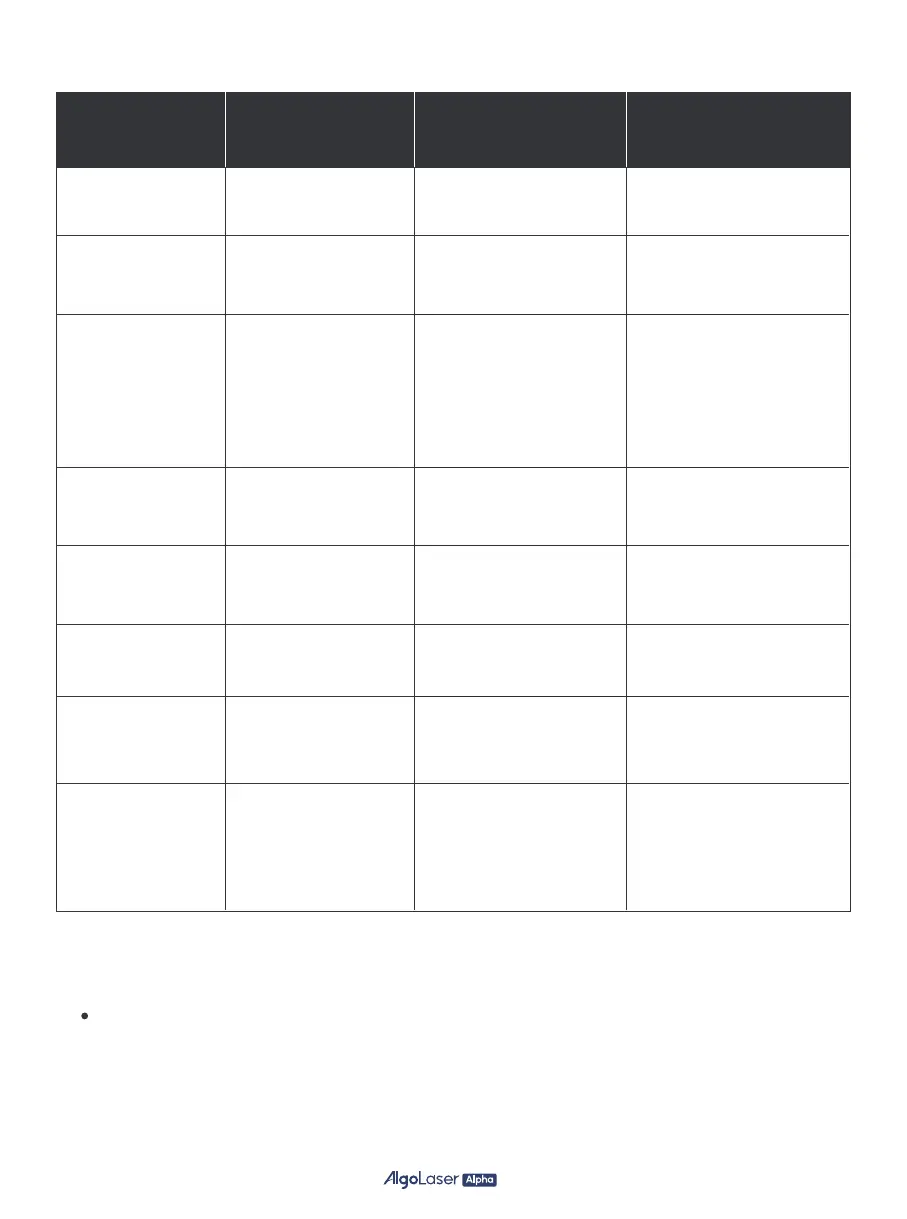
Power on
Power button short
press <0.5s
The white LED
gradually brightens
Power on Machine quickly
seeks Machine powers on
and for machine zero point
Power off
Power button long
press >1.5s
The white LED
gradually dims
Power off Machine shuts
down Machine powers
off and stops all operations
Enter upgrade mode
Enter network
configuration
Press and hold the
power button while
simultaneously pressing
the RESET button on
the control board when
the machine is in the
power-off state
Power button continuous
short press 5 times
The red, green,
and blue LEDS flash
alternately
Power off Machine shuts
down Machine powers
off and stops all operations
The lights transition
into a colorful gradient
The machine can configure
network information
through the APP
Control board reset
Press the RESET
button briefly
The lights transition
into a colorful gradient
The machine can configure
network information
through the APP
Standby
When the machine
is powered on and idle
The white light
breathes in and out
The machine is in
idle standby state
Working
When the machine is
powered on and
in operation
The cyan-blue light
remains steady
The machine is in
motion processing state
Fault indicator
When the machine
encounters a malfunction
and cannot perform
engraving movemen
The yellow light slowly
flashes and accompanied
by a “di, du” sound
The machine cannot engrave
there is a malfunction
3.1 Machine Status Explanation
3.2 How to connect the machine to a PC
Install the driver: Before installing the computer driver, please power on
the machine and connect it to the PC using a USB cable.
Then, choose the appropriate driver file based on your computer system
and proceed with the installation.
Status Action
LED Indicator
Descriptions
Result


 To Next Page
 Loading...