EasyManua.ls Logo

AlliedStar AS 100 - User Manual

AlliedStar AS 100
58 pages
Print Icon
To Next Page IconTo Next Page
Loading...
Question and Answer IconNeed help?

Do you have a question about the AlliedStar AS 100 and is the answer not in the manual?

Overview

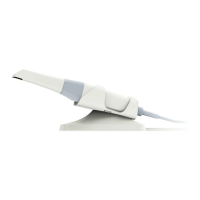
The AS 100 is an intraoral scanner designed for professional use by dentists to acquire 3D models of dental structures. It operates in conjunction with ScanPro software to facilitate various dental scanning workflows.

Function Description:

The primary function of the AS 100 is to capture 3D models of the upper jaw, lower jaw, and for buccal bite registration. It supports three main scanning workflows:

  • Common Scan Workflow: This is the default workflow for acquiring 3D models for orthodontics or general dental purposes. It involves scanning the upper jaw, lower jaw, and performing buccal bite registration. The software then combines these images to create a comprehensive 3D model, which can be uploaded to DataHub or saved locally. This workflow can be used for both partial and full arch scans.
  • Scan Body Workflow: This workflow is used when scanning dental arches containing implants or abutments. It allows for the acquisition of 3D models of the dental arch with and without the scan body. The software automatically cuts out implant areas, enabling rescanning with the scan body installed. This is particularly useful for sending models to dental laboratories for implant-supported restorations.
  • Preparation Workflow: This workflow is designed for cases where a tooth is prepared for restoration. It offers two options: scanning the tooth before and after preparation, or importing previously saved data before preparation and then scanning the prepared area. This results in two 3D models—one of the unprepared tooth and one of the prepared tooth—which can be used to create restorations that closely resemble the original tooth.

Important Technical Specifications (from the manual, where available):

  • Part Number: DD0026
  • Revision: 1.2
  • Date: 2021-12
  • Connectivity: Requires connection to a USB 3.0 SS port. Connecting to a USB 2.0 port may result in improper device function.
  • Software Compatibility: Operates with ScanPro software. Computer system requirements for the software are detailed in the AS 100 User Manual: Safety, Regulatory and Technical Specifications.
  • Scanner Tips: Reusable tips are provided. They can be high-level disinfected for up to 50 cycles and autoclaved for up to 60 cycles before needing to be discarded.
  • Automatic Shut Down: The scanner automatically shuts down if idle for more than 10 minutes.
  • Sleep Mode: The scanner enters sleep mode when placed in its holder or left idle for 10 seconds.

Usage Features:

  • AS 100 Components: The scanner includes a reusable tip, a start/stop scan button, mode indicators (for upper jaw, lower jaw, and buccal bite registration), a mode button/status indicator, a USB cable, and a USB connector.
  • Status Indicators: The device provides clear visual feedback on its status:
    • Power off: Indicator is off.
    • Connected: Solid blue light.
    • Start up: Flashing light.
    • Sleep: Breathing light.
  • Scanner Holder: The device comes with a holder that can be configured as either a desktop holder or a wall mount holder, providing convenient storage and access.
  • ScanPro Interface: The software interface features an Acquisition Step Toolbar (Scan, Refine, Finish), a Jaw/Bite Switch Toolbar (Upper Jaw, Lower Jaw, Buccal Bite Registration, Switch Upper/Lower Jaw), an Image Toolbar (Cut, Lock, Mark tooth, Delete, Quadrant Snapshot, Transparency), a Display Toolbar (True Color, Zoom fit, View orientation, Snapshot, Intraoral Camera, Undercut check, Occlusion analysis), and a Workflow Toolbar (Common scan, Config Scan, Add preparation scan, Add scan body, Preparation, Scan body).
  • Option Menu: Provides access to Import/Export scan data, Scan history, Preference settings, and About dialogs.
  • Scan History: Automatically saves scan history data for up to 30 days, with options to lock/unlock or delete records.
  • Preferences: Users can customize language, tooth numbering system (FDI/ISO or Universal), software update settings, patient information dialog on startup, tutorial animations, implant and preparation cut-out diameters, bite adjustment, hole highlight color, remote control, scanning sound, and warning sound.
  • Audio Prompts: The software can play a continuous sound during successful scanning and a short sound upon successful bite registration. A warning sound is played if scanning duration exceeds thresholds, strong light is detected, or scanning performance declines.
  • Teeth Preparation: Recommendations include retracting gingiva with restriction cords for preparation areas, thoroughly drying teeth before scanning, and re-drying moderately during the scan.
  • Scanning Approach: Recommended to start with a molar for easier identification. The scanning angle should be less than 60 degrees to ensure surface overlap and prevent alignment loss.
  • 3D Model Manipulation: After scanning, the 3D model can be rotated, moved, zoomed in/out, and viewed in true color or monochrome. Tools are available for cutting unnecessary data, locking areas to prevent updates, marking preparation/implant areas, and deleting models.
  • Occlusion Analysis: The software includes a tool for analyzing the occlusion space.
  • Snapshot and Intraoral Camera: Allows for taking 2D snapshots of the 3D model and picking up 2D intraoral images.
  • Data Management: Scanned data can be uploaded to DataHub (cloud service) or saved to a local file system.

Maintenance Features:

  • Cleaning and Disinfection: The scanner body must be disinfected regularly.
  • Sterilization: Reusable tips require high-level disinfection or sterilization after each use.
  • Tip Care: Tips are not sterilized upon receipt and must be sterilized before first use.
  • Lens Window Care: The lens window at the base of the scanner should be cleaned with a moist, lint-free cloth or lens tissue.
  • Liquid Avoidance: Avoid liquid leakage into the air outlet near the tip mount or the air inlet at the rear of the scanner to prevent damage.
  • Fogging Troubleshooting: If fogging appears on the inner surface of the lens window, mount a dry tip, place the scanner in the holder or on a desk, and wait for it to fade. If it persists for more than 24 hours, contact service.
  • Disconnection Troubleshooting: If the scanner disconnects, check if it's off, press a button or remove it from the holder to restart, click the "Scanner is not connected" icon to reconnect, or disconnect/reconnect the USB cable.

AlliedStar AS 100 Specifications

General IconGeneral
BrandAlliedStar
ModelAS 100
CategoryMedical Equipment
LanguageEnglish