Allora 2
35
An empty screen will appear for you to write your text message. In the status
part of the display an (S) icon reminds you that you’re are in the text message
mode.
When your text message is ready to send, press the Validate key . Your
list of contacts appears on the screen. Type a phone number immediately or use
the arrow keys or to choose a contact in the list.
Press Enter to send the message. You will hear a sound and see a
‘Message sent’ when the message has been sent successfully.
Press again if you also wish to send the message to another contact.
Press the Application key to go back to your Communication application.
8.5.5 Receiving text messages
As soon as you receive a text message from another person an envelope icon
will appear in the status window. You will also hear a sound. Note that the
envelope icon also indicates that there are new messages that you haven't read
yet.
To read a new message press the Application key and choose 'Read
messages'. A list of messages appears on the screen, the most recent message
at the top.
The first line shows the name of sender of the message, the second line shows
the beginning of the message. An asterisk mark * placed before the sender
means that this message has not been read yet.
Use the arrow keys or to navigate to the message that you want to
read and press the Enter key to open the message.
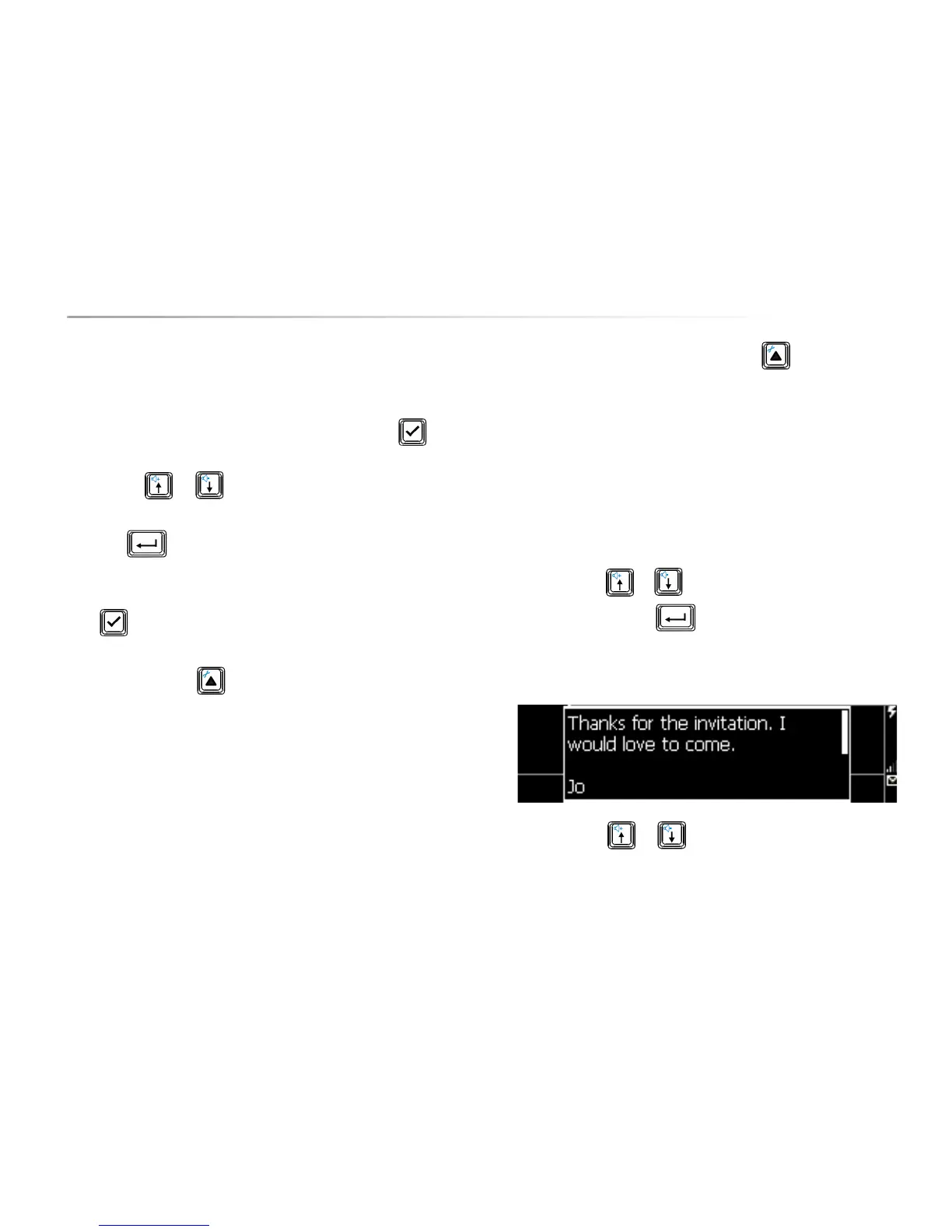
The complete message now appears on the screen.
Use the arrow keys or to navigate in the message.
You will notice that the sender, the date and the time of the message is shown at
the end of the message. You can choose to answer the message immediately


 To Next Page
 Loading...