Allora 2
37
9 - How to operate the Allora with switches.
The Allora can also be operated with 1 or 2 switches. The Allora will then show
on screen characters and features that you may need to form a message. When
the character or the sequence of characters in which the character that you
need appears, press the switch to make the selection. This operation is called
scanning.
To guide you during the scanning, the Allora will show a sequence of alpha
numeric characters that you can choose from to form a sentence or a message.
These rows are shown in the lower part of the screen, where the word
predictions normally appear. In another algorithm, the sequences are not the
rows of the keyboard but they are organized in a more efficient order. There are
two formats that can be used for scanning and these are as follows;
1. Keyboard row by row scanning.
The screen will display each line of the keyboard in rotation. Using the switch,
you can select the line upon which your desired letter is found and then scan
across to the letter. Once selected the scanning by row starts again.
2. Common letter scanning.
In this format the letters displayed are done so in order of frequency of use, for
example, letters such as vowels and commonly used consenants will be
displayed for selection first and then less common consenants will be displayed
in the following lines. This enables a more efficient scanning experience thus
reducing time when putting messages together.
9.1 Using one switch.
With one switch scanning, stepping through the different sequences is done
automatically at a certain rhythm.
Connect a switch to switch input 1 of the Allora (note that the scanning
automatically starts when the switch is plugged in) and set the correct
parameters as follows:
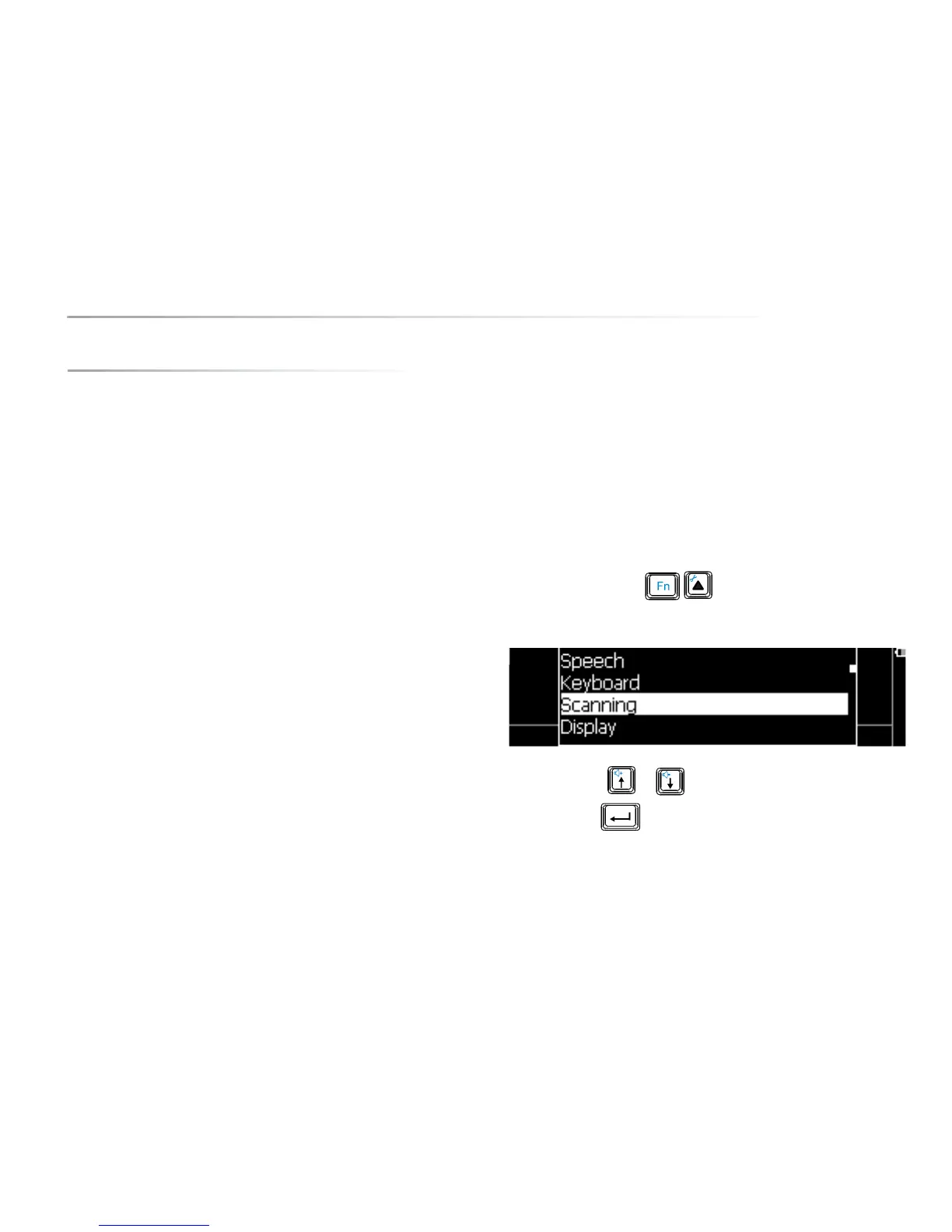
Press the key combination . The following list appears on the
screen:
Use the arrow keys or to choose the item Scanning and select it
with the Enter key . The following parameter list appears on the screen:


 To Next Page
 Loading...