072-0500 Alphasense User Manual
OPC-R1 Optical Particle Counter Issue 1
Alphasense Ltd Page 21 of 33 February 2019
Sensor Technology House, 300 Avenue West, Skyline 120, Great Notley. Essex.CM77 7AA. UK
Tel: +44 (0) 1376 556700 - Fax: +44 (0) 1376 335899
Email: sensors@alphasense.com - Web: www.alphasense.com
Windows 8, 8.1 and 10
This procedure will guide you through the process of disabling the digital device driver verification in
Windows 8, 8.1 and 10. The method for 8.0 is different than for 8.1 and 10.
Background
64-Bit editions of Windows require digitally signed drivers. Digitally signed drivers include an
electronic fingerprint that indicates which company produced the driver as well as an indication as to
whether the driver has been modified since the company released it. This increases security, as a
signed driver that has been modified will no longer have an intact signature. Drivers are signed
using code signing certificates. The driver for the SPI converter does not have a Microsoft endorsed
signature so this protection must be circumvented.
How to Disable Driver Signature Verification on Windows 8.0
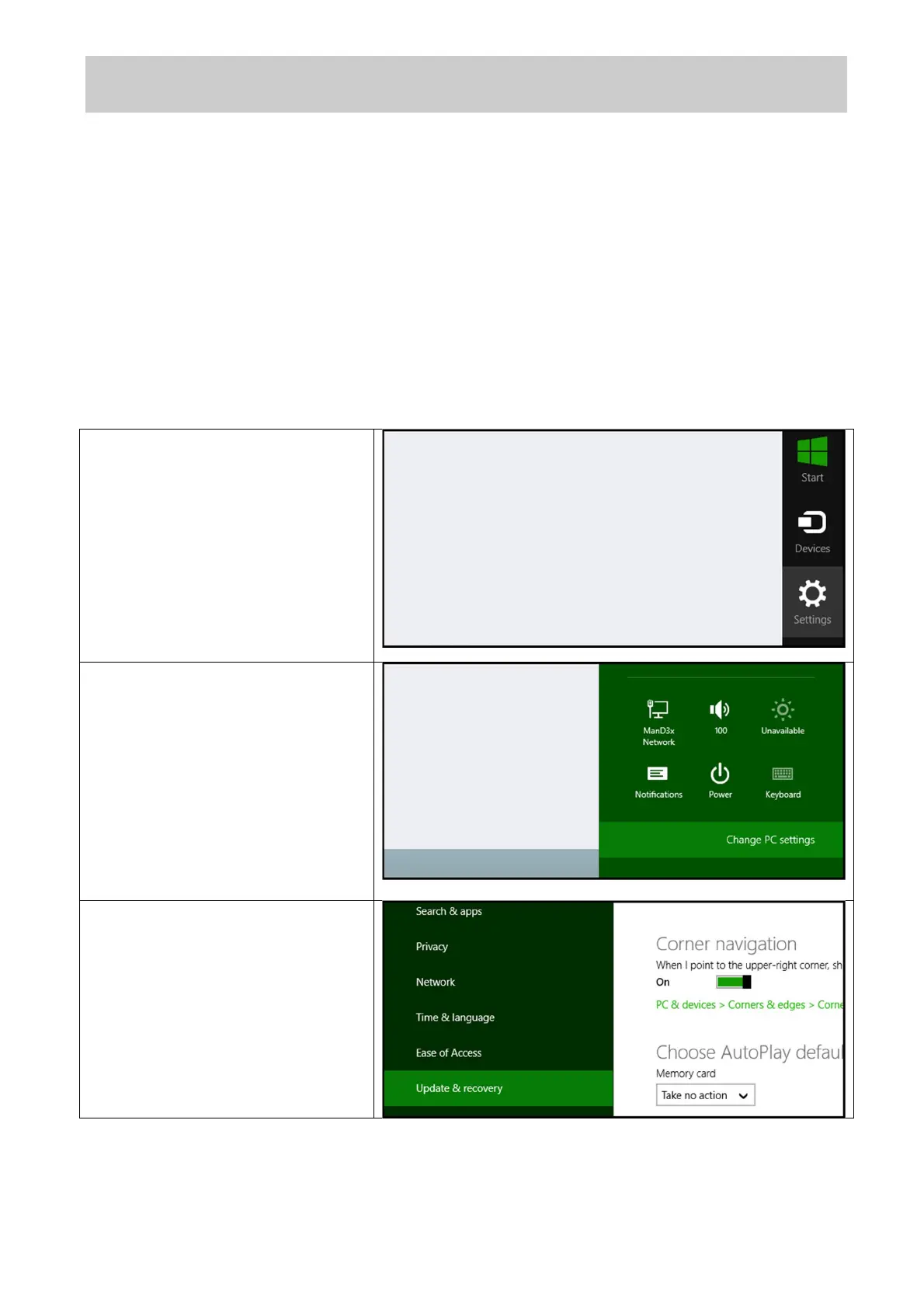
Press the Win + C keyboard
combination to bring up the Charms
Bar, then click on the Settings
Charm.
We need to head into the Modern
Control Panel, so go ahead and
click on the Change PC settings link.
When the Control Panel opens,
switch over to the “Update &
recovery” section.


 To Next Page
 Loading...