EasyManua.ls Logo

altafiber Fioptics - User Manual

altafiber Fioptics
2 pages
Print Icon
To Next Page IconTo Next Page
Loading...
CB-144AF_03.2023
Welcome to Fioptics Internet. Enjoy the fastest internet in town, with
download speeds up to 2 Gbps and symmetrical upload speeds up to 1
Gbps. We deliver the very best in advanced network technology, to bring
you all the entertainment, information and communication you need at
the speed of light.
*
Browse, upload, share and save. Manage your home
from anywhere with your homes WiFi connection + smart home devices,
available for purchase in our retail stores. Here at altafiber, we are
elevating your internet experience.
My altafiber – Free online access is available round-the-clock,
which makes reviewing and updating your account information fast,
secure and easy. Plus, you’ll find a wealth of support information and
online tours to guide you. To sign up, go online to altafiber.com and
click on My altafiber.
Pay bills • Find your closest store
Ask questions • Receive special oers
Elevate your internet experience with Whole Home WiFi from altafiber.
Whole Home WiFi provides you with fast and consistent connectivity
throughout your home. From basement to bedroom and everywhere in
between, you will have peace-of-mind connectivity for all devices, in all
rooms, at all times. Visit altafiber.com/wholehomewifi to learn more.
Special features
of the Google Home app
App Manager
Access, monitor, and
change settings. Add
additional managers
using their Google
Account login.
Monitor Network
See what’s connected
to your network and
how much bandwidth
you’re using.
Network Check
Test Internet speed
to your home.
Family WiFi
Labels let you pause
several devices at
once, schedule a
pause, and set up site
blocking.
Guest WiFi
Create a separate
network for your
guests.
Priority Device
Prioritize Internet
trac to a device.
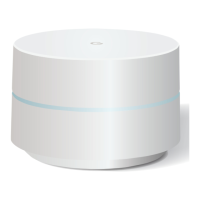
Google Wifi Point
*Fastest Internet based on residential 2 Gbps download/1 Gbps upload speeds as of 2/17/23 WiFi speeds may vary based on
your environment.
What’s inside:
Google Wifi Point Google Power Adapter Ethernet Cable Quick Start Guide
(Not needed)
Internet
Installation Instructions
Question and Answer IconNeed help?

Do you have a question about the altafiber Fioptics and is the answer not in the manual?

Summary

Google Home App Features

App Manager

Access, monitor, and change app settings, including adding managers.

Monitor Network

View connected devices and monitor bandwidth usage on your network.

Network Check

Test the internet speed delivered to your home.

Priority Device

Prioritize internet traffic for specific devices on your network.

Family WiFi

Label devices to pause usage, schedule downtime, or block sites.

Guest WiFi

Create a separate, secure Wi-Fi network for your guests.

Whole Home WiFi Benefits

Locate Your Fioptics Wiring

Power and Connect Your Device

Download and Install the App

Adjust WiFi Settings

Smartphone Configuration

Configure WiFi settings like IPv6 and DNS via the app on your smartphone.

Tablet Configuration

Configure WiFi settings like IPv6 and DNS via the app on your tablet.

Troubleshooting Connection Issues

No Internet (Pulsing Amber)

Check ONT power and ensure the Wifi Point is connected.

Connection Issue (Pulsing Red)

Perform a factory reset on the Google Wifi Point for issues.

No Power (No Light)

Ensure the Google Wifi Point is plugged into a working power outlet.

Overview

This document serves as an installation guide and feature overview for Fioptics Internet, an internet service provided by altafiber, emphasizing the use of Google Wifi Points and the Google Home app for management.

Fioptics Internet Service

Fioptics Internet offers high-speed internet connectivity, boasting download speeds up to 2 Gbps and symmetrical upload speeds up to 1 Gbps. The service is designed to provide advanced network technology for entertainment, information, and communication needs, ensuring fast browsing, uploading, sharing, and saving. It also supports managing the home network and smart home devices from anywhere via the home's WiFi connection.

Whole Home WiFi

Whole Home WiFi, powered by altafiber, aims to provide fast and consistent connectivity throughout the entire home, from basement to bedroom. This ensures peace-of-mind connectivity for all devices in all rooms at all times. More information is available at altafiber.com/wholehomewifi.

Included Components:

The installation kit includes:

  • Google Wifi Point: The primary device for establishing the WiFi network.
  • Google Power Adapter: Used to power the Google Wifi Point.
  • Ethernet Cable: For connecting the Google Wifi Point to the data jack or ONT.
  • Quick Start Guide: (Not needed, as this document serves as the guide).

Special Features of the Google Home App (for Google Wifi Management):

The Google Home app is central to managing the Fioptics Internet service and Google Wifi Point. Key features include:

  • App Manager: Allows users to access, monitor, and change network settings. Additional managers can be added using their Google Account login.
  • Monitor Network: Provides visibility into connected devices and their bandwidth usage.
  • Network Check: Enables users to test the internet speed to their home.
  • Priority Device: Allows users to prioritize internet traffic to a specific device, optimizing performance for critical tasks.
  • Family WiFi: Offers features like pausing internet access for several devices at once, scheduling pauses, and setting up site blocking to manage screen time and content.
  • Guest WiFi: Facilitates the creation of a separate network for guests, keeping the main network secure and private.

My altafiber Account Management:

altafiber provides a free online portal, "My altafiber," accessible 24/7. This platform allows users to:

  • Review and update account information quickly and securely.
  • Access support information and online tours.
  • Pay bills.
  • Find the closest altafiber store.
  • Ask questions.
  • Receive special offers. The My altafiber app is available for download on Google Play and the App Store.

Installation Instructions:

Step 1: Locate the Fioptics Wiring

  • Data Jack: The data jack is typically labeled and found near the TV or in a home office. It features a blue or orange port and should not be confused with a standard telephone jack.
  • ONT (Optical Network Terminal): Alternatively, users can connect directly to their ONT, usually located in the basement or garage. If difficult to find, look for where the black fiber cable enters the house. The ONT should be plugged in, and its power indicator light should be lit. Examples of ONTs from Nokia, Alcatel-Lucent, and Calix are provided, showing their power indicators.

Step 2: Power and Connect

  1. Plug the Google Power Adapter into a nearby electrical outlet.
  2. Connect the power adapter to the power port of the Google Wifi Point.
  3. Connect one end of the Ethernet cable to the LAN port of the Google Wifi Point.
  4. Connect the other end of the Ethernet cable to the data jack or any LAN port of the ONT.

Step 3: Download the App

  1. Download and open the Google Home app on a smartphone or tablet.
  2. If you do not have a Google account, you will need to register for one within the Google Home app to complete the installation.
  • Google Wifi Point Light Indicators:
    • Solid Blue: The device is starting up.
    • Pulsing Blue: The device is ready for setup.
    • Solid White: The device is online.

Step 4: Adjust WiFi Settings (Using the Google Home App)

  • From your smartphone:
    1. Tap the Settings icon.
    2. Under "Features," select "Nest Wifi."
    3. Scroll down and select "Advanced Networking" and enable IPv6.
    4. Select "DNS" or "DNS Settings" and change the setting to "ISP."
    5. Tap "Save."
  • From your tablet:
    1. Tap the gear icon in the top right corner to open Wifi Settings.
    2. Select "Advanced Networking" and enable IPv6.
    3. Select "DNS" or "DNS Settings" and change the DNS setting to "ISP."
    4. Tap "Save" at the top of the screen.
    • A QR code is provided for a tutorial video if further assistance is needed.

Troubleshooting No Internet Connection:

  • Pulsing Amber Light (Wifi Point has no internet connection):
    1. Check that the ONT's power light is on (refer to Step 1 for location).
    2. Ensure the ONT is plugged into a power outlet.
  • Pulsing Red Light (Wifi Point has an issue):
    1. Perform a factory reset: Press and hold the button on the back of the Google Wifi Point for approximately 10 seconds. The light will flash white, then blue. Release the button when it flashes blue.
  • No Light (No power):
    1. Ensure the Google Wifi Point is plugged into a working electrical outlet.

Support Information:

For self-help tips, tutorials, and more, or to contact altafiber:

  • Website: altafiber.com/selfinstall
  • YouTube: YouTube.com/altafiber
  • Phone: 513.565.9890

Technical Specifications (Internet Speed):

  • Download Speeds: Up to 2 Gbps
  • Upload Speeds: Up to 1 Gbps
  • Note: WiFi speeds may vary based on the environment.

altafiber Fioptics Specifications

General IconGeneral
Brandaltafiber
ModelFioptics
CategoryWireless Router
LanguageEnglish

Related product manuals