This document describes the SriHome HD Webcam, models SH001 and SH003, providing details on its function, technical specifications, usage, and maintenance.
Function Description
The SriHome HD Webcam is designed for video communication and recording, offering high-definition video capture. It connects to a computer via USB and can be used with various video calling and conferencing applications. The webcam features a built-in microphone for clear audio and can be used for tasks such as video calls, online meetings, and recording video clips. Both models support automatic white balance and color correction, ensuring good image quality in various lighting conditions. The SH001 model is a manual focus webcam, allowing users to adjust the focus ring for optimal clarity, while the SH003 model features autofocus, automatically adjusting the focus by detecting movement in front of the camera.
Important Technical Specifications
Model: SH001 / SH003
Resolution:
- 1080p (1920×1080)
- 720p (1280×720)
- VGA (640x360)
Video Image Format: YUV / MJPG / H.264
Frame Rate: 15-30fps
Exposure: Automatic white balance, Automatic colour correction
Lens Parameter:
- Focal length: 3.6mm, 2 MPx
- Angle of View: 90°
Audio: Built-in Microphone, clear audio
Driver Type: USB Plug&Play
Software Support: Supports various chat tools and video conferencing software (e.g., Netmeeting, MSN, Yahoo, Skype, Facebook, YouTube, Facetime, QQ, Wechat, etc.)
System Compatibility: Windows XP and newer, Linux, MacOS, Android TV
USB Cable Length: 1.5 m
Weight:
Accessories: Bracket (for SH003)
Item Size (L×W×H):
- SH001: 120×50×40 mm
- SH003: 95×60×60 mm
Packing Size (L×W×H):
- SH001: 110×170×30 mm
- SH003: 110×100×72 mm
Certification: CE, FCC, RoHS
Usage Features
Product Overview:
The webcam consists of an HD Lens, Noise Reduction Microphone, and a Focus Ring (for SH001). It is equipped with a Flexible Clip/base for easy placement and a Tripod Attachment point.
Setting Up:
- Place your webcam: The flexible clip/base allows for versatile placement on monitors, laptops, or flat surfaces.
- Connect to your computer: Plug the USB cable into an available USB 2.0/3.0 port on your computer. The device is Plug&Play, meaning it should be recognized automatically by most operating systems.
- Enable camera access: For Windows, navigate to Settings > Privacy > Camera and ensure "Allow apps to access your camera" is turned on. For Mac, go to Apple menu > System Preferences > Security & Privacy > Privacy tab > Camera, and check the box next to the application you wish to grant access to.
Focus Adjustment:
- Manual focus (SH001): Rotate the focus ring to adjust the lens focal length until the video signal is clear.
- Auto-focus (SH003): The webcam automatically adjusts focus by detecting movement in front of the camera, ensuring the clearest state.
Video Calling Requirements:
To use the webcam for video calls, you need a computer with speakers (or a headset), a video-calling application (e.g., Skype, FaceTime, Zoom), and a stable internet connection (DSL, T1, or WiFi).
Viewing Camera on Mac:
Mac users can use the pre-installed Photo Booth app to preview camera images, capture still frames, and record video clips. Select the camera from the "Camera" menu within Photo Booth if multiple devices are attached.
Recording Video:
- Mac OS: Use the Photo Booth application. Select "Video recording" to start and stop recording.
- Windows: Search for "Camera" in the Start menu, then double-click to preview, record, and test the camera.
Audio Settings:
- Windows: Go to Control Panel > Sound and select the webcam as the default communication device for playback and recording.
- Mac OS: Go to System Preferences > Sound and select the webcam as the default device for sound input and output.
- In video/audio calling applications, ensure the webcam is selected for both speaker and microphone.
Troubleshooting:
- Windows 7 driver issue: If Windows 7 prompts for a driver, test the webcam directly in applications like Skype/Zoom as Windows 7 support has ended.
- Microphone not working: If the microphone is recognized but not working, navigate to Computer Management > Device Manager > Sound, video and game controllers, right-click the HD Webcam USB option, select "Uninstall device," unplug and replug the USB cord. The webcam should reinstall automatically.
- 1080p not reached: Ensure your system's processing power (CPU speed) and network bandwidth meet the requirements of your video calling application.
- Flickering/banding: Adjust the frequency response rate (50 Hz or 60 Hz) in your video capture software's control panel to match your region's lighting. Avoid aiming the camera directly at a light source.
- Abnormal color (Windows): Download PotPlayer software, add the camera, and adjust brightness or other image settings within PotPlayer.
- Color cast in photos: Ensure the lighting environment is free of strong, non-standard colored light (e.g., green, blue, intense light from walls/floors).
- Blank/black screen during preview:
- If the camera uses H.264 encoding and your PC system doesn't support H.264 decoding, download a compatible video previewing application.
- Test with a different USB port or another PC.
- Ensure the PC recognizes the camera device.
- Verify that your operating system and computer configuration meet the camera's requirements.
- Check if the video preview feature is enabled in the application or if privacy settings prohibit access.
- Adjusting image parameters (Skype): In Skype, go to Settings > Audio & Video > Webcam settings to adjust brightness, contrast, and other parameters.
Linux Support:
The webcam supports Linux systems with UVC drive-free protocols. If not, manual installation of the Linux UVC driver may be required.
Maintenance Features
General Care:
- Avoid contact with the lens using hands or sharp/rough objects. Use a clean, soft cloth for cleaning.
- Do not use the device in hot, cold, dusty, or humid conditions.
- Avoid dropping the device or subjecting it to strong shocks, as this can damage the lens or cause malfunction.
- Do not expose the device to extremely low or high temperatures.
- Do not place or throw anything on the device.
- Comply with national legislation; do not use the device for illegal purposes.
- Use the device only for its intended purpose and in accordance with the manual.
- Avoid sudden temperature changes to prevent moisture condensation inside the device. If condensation occurs, allow the device to dry completely before reuse.
Cleaning:
- Do not clean the device while it is switched on.
- Use a soft, lint-free cloth to clean the exterior of the device.
- Do not use abrasive cleaners.
Warranty Conditions:
A new product purchased from Alza.cz sales network is guaranteed for 2 years. For repairs or services under warranty, contact the seller and provide the original proof of purchase. The warranty does not cover damage from improper use, natural disasters, unauthorized intervention, mechanical damage by the buyer, natural wear and aging, exposure to adverse external influences (e.g., sunlight, electromagnetic fields, fluid intrusion, overvoltage), or modifications/alterations to the product design or use of non-original components.
Disposal (WEEE):
This product must not be disposed of as normal household waste. It should be returned to the place of purchase or a public collection point for recyclable waste, in accordance with EU Directive 2012/19/EU (WEEE). Proper disposal helps prevent negative environmental and health consequences. Contact local authorities for details on proper disposal.

 Need help?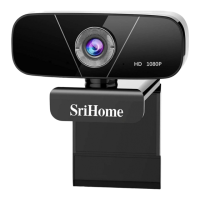

 To Next Page
 General