EasyManua.ls Logo

Amalock DB101 - User Manual

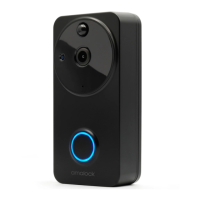
Amalock DB101
2 pages
Print Icon
To Next Page IconTo Next Page
Loading...
Set up Instructions
for Video Doorbell and Camera
For use with
DB101, CAM200A, CAM400
SMART DEVICES
DOWNLOAD
THE APP
1. Download the Amalock App from
the App store and register.
2. Open the back of the doorbell with the
screwdriver supplied and remove the
tabs from the base of each battery and
place back inside of unit ensuring
connection.
(Not required for the CAM200A
or CAM400)
3. The device will now say ‘The camera is
now ready for pairing’ whilst the push
button is flashing blue.
4. Open the Amalock app and tap the ‘+’
at the top right.
5. For CAM200A or CAM400 Select
‘Video and Surveillance’
6. For DB101 Select ‘Smart Doorbell’
7. At the bottom of the screen tap on the
circle next to the text ‘Make sure the
indicator…..’ to show an orange tick.
8. Tap ‘Next’
9. Add your Wi-Fi password
10. Show the barcode to the device
as shown.
11. When you hear a bleep the device and
phone will pair.
12. To name the device tap on the
pen symbol.
13. Tap Done’ and your phone will then
show you live video streaming
For 2-way Audio.
1. The device is default set to one-way talk,
so tap on the ‘pen’ symbol top right to
take you to settings.
2. Tap ‘Basic Function Settings’ then tap
‘Talk Mode’ to change to Two-Way Talk.
For PIR motion adjustment
1. Go to Advanced Settings and tap ‘PIR’
to adjust to Low, Medium, High or O
as desired
To Pair the Indoor Chime (Not required
for CAM200A and CAM400)
1. Plug into 3 Pin socket and the device
will play the default ring tone once at the
maximum volume.
2. Select from the various chimes using the
up and down selector on the left side then
press and hold in the volume control
button for about 5 seconds until you here
a single “ding”. The pairing mode will be in
pairing mode for 8 seconds.
3. Press the doorbell button twice to pair.
4. Both devices are now paired.
5. To adjust the volume, short press in the
top button until desired volume
is reached.
DB101
CAM200A
CAM400
Question and Answer IconNeed help?

Do you have a question about the Amalock DB101 and is the answer not in the manual?

Summary

Video Doorbell and Camera Setup Guide

General Setup and Pairing

Download app, register, and follow steps for initial device pairing and Wi-Fi connection.

Configure 2-Way Audio

Adjust settings to enable two-way talk functionality on your device.

Adjust PIR Motion Detection

Customize motion sensitivity levels for PIR alerts to Low, Medium, High, or Off.

Pair Indoor Chime

Instructions for pairing the wireless indoor chime with the doorbell device.

Device Installation and Management

Fitting the Backplate

Guidance on installing the backplate securely and preventing theft.

Share Device Access

Steps to share device access with other users via email or mobile number.

Accessing Recordings

Instructions on how to view recorded video footage.

Frequently Asked Questions

Answers to common questions regarding device usage, limits, and troubleshooting.

Overview

This document provides comprehensive setup instructions and frequently asked questions for Amalock Smart Devices, specifically the DB101 Video Doorbell, CAM200A, and CAM400 Cameras. It covers initial setup, audio features, motion detection, indoor chime pairing, device sharing, and recording playback.

Function Description

The Amalock Smart Devices, including the DB101 Video Doorbell and CAM200A/CAM400 Cameras, are designed to enhance home security and convenience. The video doorbell allows users to see and communicate with visitors remotely, while the cameras provide surveillance capabilities. Both devices integrate with the Amalock App, offering live video streaming, motion detection alerts, and recording functionalities. The system supports two-way audio communication, allowing users to speak with visitors or monitor their property effectively. The indoor chime, compatible with the DB101 doorbell, provides an audible alert within the home when the doorbell is pressed. The devices are designed for ease of use, with a straightforward pairing process and intuitive app controls.

Usage Features

Initial Setup and Pairing:

  1. App Download and Registration: Begin by downloading the Amalock App from your device's app store and registering an account.
  2. Battery Installation (DB101 only): For the DB101 Video Doorbell, open the back with the supplied screwdriver, remove the tabs from the battery bases, and insert them into the unit, ensuring proper connection. This step is not required for the CAM200A or CAM400.
  3. Pairing Mode: The device will announce "The camera is now ready for pairing," and the push button will flash blue, indicating it's ready for pairing.
  4. App-Based Pairing: Open the Amalock App and tap the '+' icon in the top right corner.
  5. Device Selection: For CAM200A or CAM400, select 'Video and Surveillance'. For DB101, select 'Smart Doorbell'.
  6. Indicator Confirmation: At the bottom of the screen, tap the circle next to the text "Make sure the indicator..." to display an orange tick.
  7. Proceed to Next Step: Tap 'Next'.
  8. Wi-Fi Password Entry: Enter your Wi-Fi password into the app.
  9. Barcode Scan: Show the barcode displayed on your phone screen to the device.
  10. Pairing Confirmation: The device will emit a bleep, confirming successful pairing with your phone.
  11. Device Naming: Tap the pen symbol to name your device for easy identification.
  12. Live Streaming: Tap 'Done' to access live video streaming from your device on your phone.

Two-Way Audio:

  • Default Setting: The device is initially set to one-way talk.
  • Enabling Two-Way Talk: To enable two-way communication, tap the 'pen' symbol in the top right corner of the app to access settings.
  • Adjusting Talk Mode: Navigate to 'Basic Function Settings' and then tap 'Talk Mode' to switch to 'Two-Way Talk'.

PIR Motion Adjustment:

  • Accessing Settings: Go to 'Advanced Settings' within the app.
  • Adjusting Sensitivity: Tap 'PIR' to adjust the motion detection sensitivity to 'Low', 'Medium', 'High', or 'Off' as desired, allowing you to customize alerts based on your environment.

Indoor Chime Pairing (DB101 only):

  • Powering the Chime: Plug the indoor chime into a 3-pin socket. It will play the default ringtone at maximum volume.
  • Selecting Chime Tone: Use the up and down selector on the left side to choose your preferred chime tone.
  • Entering Pairing Mode: Press and hold the volume control button for approximately 5 seconds until you hear a single "ding." The chime will remain in pairing mode for 8 seconds.
  • Pairing with Doorbell: Press the doorbell button twice to complete the pairing process. Both devices will now be paired.
  • Adjusting Chime Volume: Short press the top button on the chime repeatedly until the desired volume level is reached.

Device Sharing:

  • Accessing Sharing Settings: In the app, go to 'Others' in settings.
  • Initiating Sharing: Select 'Share Device'.
  • Adding Users: Select 'Add Sharing'.
  • User Information: Enter the email or mobile number of the other user. The other user must have downloaded and registered with the Amalock App. Once entered, the user will be automatically added.

Recordings:

  • Accessing Recordings: To view recordings, simply navigate to 'Playback' within the Amalock App.

Maintenance Features

Backplate Fitting (DB101 only):

  • Careful Installation: When sliding the doorbell onto the fixing plate, ensure that the locating lugs are not broken. The manufacturer is not responsible for damage caused by improper installation.
  • Theft Prevention: To secure the doorbell and prevent theft, use the supplied security screws and allen key to fasten the doorbell to the fixing plate at the base.

SD Card Management:

  • Pre-installed SD Card: The devices are typically fitted with a 16GB memory SD card for local storage of recordings. Users do not need to install one initially.

Troubleshooting and Support:

  • General FAQs: For common questions, refer to the 'FAQ & Feedback' section under 'OTHERS' in the app settings.
  • Wi-Fi/4G Signal Issues: If experiencing delays in notifications (typically 1-2 seconds, or 4-5 seconds on 4G), check your Wi-Fi or 4G signal strength. If problems persist, contact your internet service provider to check your Wi-Fi speed and signal strength.

System Capacity:

  • Multiple Users: Up to 20 other users can be added to a single camera.
  • Multiple Indoor Chimes: An unlimited number of indoor chimes can be connected to the doorbell within the same household.
  • Multiple Doorbells/Cameras: An unlimited number of doorbells or cameras (CAM200A/CAM400) can be connected to the app. This allows for comprehensive coverage, such as a front door and a tradesman entrance, or multiple surveillance points.

This comprehensive guide ensures users can effectively set up, operate, and maintain their Amalock Smart Devices for optimal home security and convenience.

Amalock DB101 Specifications

General IconGeneral
Audio Frequency Response300Hz - 3.4kHz
Two-Way AudioYes
Operating Voltage12-24V AC/DC
Current Consumption500mA
Signal-to-Noise Ratio≥50dB