Features of Books
To access these book features while reading, tap
the top center of your screen.
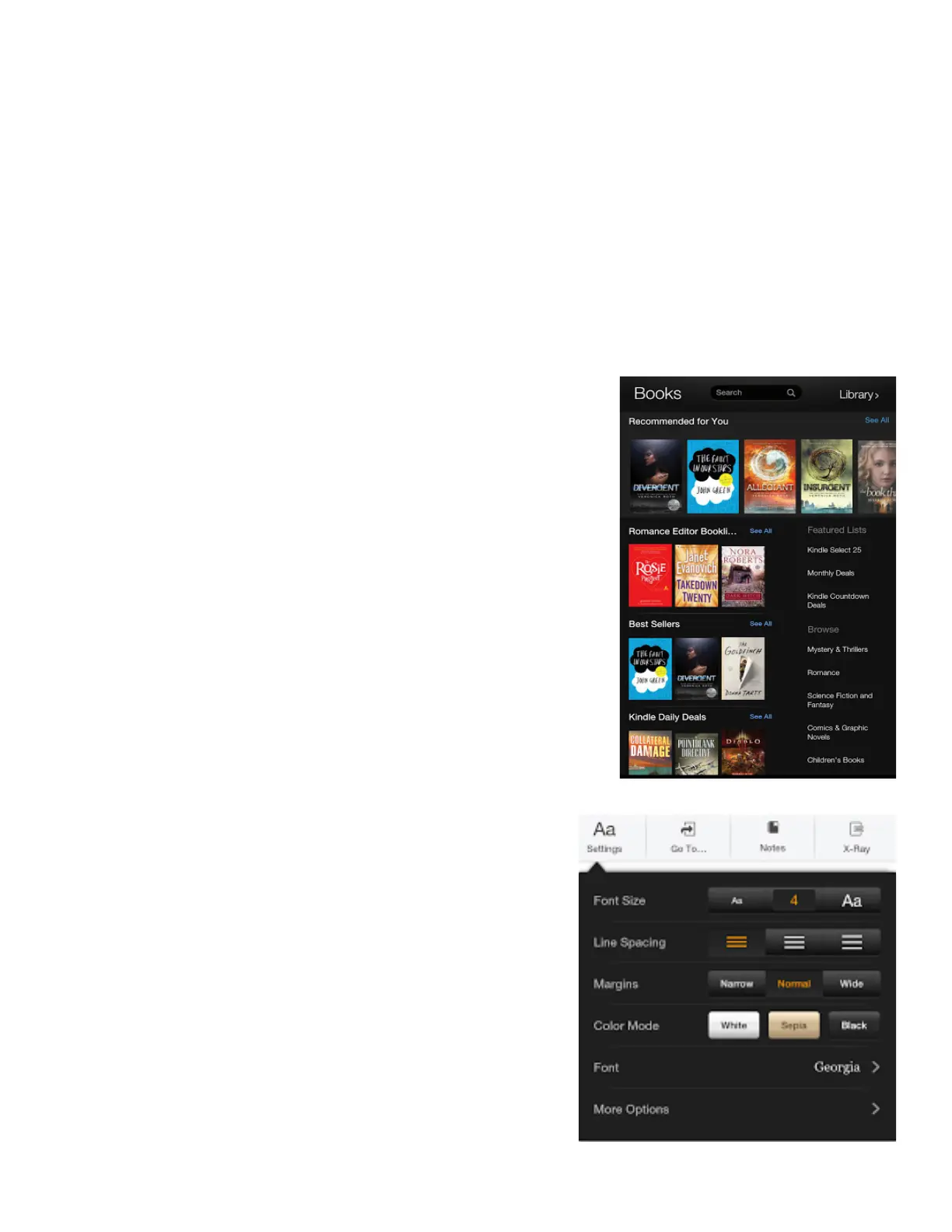
Settings (Figure 2.2)
• Font size
• Line spacing
• Margins
• Color Mode
• Font
• More options
- Popular highlights
- Text-to-speech
Go To…
• Go to page or location
• Sync to furthest page read
• Tells you the number of pages and the current page
you’re on
Notes
• Lists your notes, highlights, and bookmarks
X-Ray
• Tells you the frequency of the appearance of certain
characters or terms on a page, in a chapter, or in the
entire book.
Comments
• Review the book
• See other’s reviews of the book
• Requires wireless network connection
• Share on facebook and twitter
Bookmark
• Creates a bookmark on a page
Reading speed
• Evaluates the number of minutes left that it will take
you to nish the chapter
• Tells you the percentage of the book you have read.
Purchasing Books from Amazon
You have two options for purchasing books from Amazon. You may either:
1. Tap “Shop” from the options bar near the top of your screen.
2. Tap “Books” under the Digital Products” menu to the left of your screen.
OR
1. Tap “Books” in the menu bar.
2. Tap “Store” in the top right of the screen.
From here (Figure 2.1)...
• You may search for a specic book by typing the title or a keyword into the search bar near the
top of your screen.
• You may also search for books by looking through the “Recommended for You” bar, the
“Editor’s Picks,” “Best Sellers,” “Daily Deals,” etc.
• If you are a Prime Amazon member, you may borrow books that are available through Prime for
no cost.
Figure 2.2
Figure 2.1





 To Previous Page