
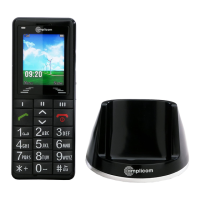
What to do if my Amplicom PowerTel M6000 Cell Phone screen is frozen?
- AAndrew FullerAug 11, 2025
If your Amplicom Cell Phone screen is frozen or unresponsive when pressing keys, remove the battery for 3 minutes and then try again.
What to do if my Amplicom PowerTel M6000 Cell Phone screen is frozen?
If your Amplicom Cell Phone screen is frozen or unresponsive when pressing keys, remove the battery for 3 minutes and then try again.
Why is my Amplicom PowerTel M6000 Cell Phone battery not charging?
If your Amplicom Cell Phone battery is not charging or is empty, ensure the phone is correctly placed in the charging unit, and that the charging unit is properly connected. Clean the contact surfaces on both the phone and charging unit using a soft, dry cloth. If this doesn't work, charge the mobile for 4 hours. Note that the battery may be defective.
What does "Insert SIM" message mean on Amplicom PowerTel M6000 Cell Phone?
If the message "Insert SIM" appears on your Amplicom Cell Phone display, make sure that the SIM card has been installed correctly. If the issue persists, contact your service provider for further assistance.
Why does my Amplicom PowerTel M6000 Cell Phone have no signal?
If you have no signal quality displayed on your Amplicom Cell Phone, you may not have a network connection. Try moving to a different location. If the problem persists, contact your service provider.
Why is my Amplicom PowerTel M6000 Cell Phone keypad not working?
If the keypad on your Amplicom Cell Phone is not functioning or is functioning very slowly, it may be due to low temperatures reducing the operating speed of the display. Try using the phone in a warmer location.
Overview of phone's physical components and their labels.
Step-by-step instructions for inserting SIM and battery.
Detailed guide on how to charge the phone's battery.
Procedures for powering the phone on and off.
Identifies all physical keys and parts of the mobile phone.
Explains the meaning of various icons shown on the phone's display.
Steps for taking, rejecting, ending, and making calls.
Turning Bluetooth on/off and connecting to headsets.
Setting up emergency contacts and call centre numbers.
How to initiate, send, and manage emergency calls.
Recording SOS messages and activating the fall down alarm feature.
Addresses frequent phone issues like power, display, and network connectivity.
Important advice on handling, accessories, and preventing hearing damage.
Details the warranty period, exclusions, and claim process.
| Display Size | 2.4 inches |
|---|---|
| Rear Camera Resolution | 2 MP |
| Standby Time | Up to 300 hours |
| Loudspeaker | Yes |
| Hearing Aid Compatibility | M4/T4 |
| Display Type | TFT |
| Operating System | Proprietary |
| Connectivity | Bluetooth 3.0 |
| Network | GSM |
| Key Features | Big buttons, SOS button |