The ANPVIZ U-Easy Series IP Camera is a versatile surveillance device designed for both indoor and outdoor use, offering a wide range of shapes and functions. It supports monitoring by multiple cameras on the same device, compatible with Android and iOS mobile phones and tablets, Windows PC, and Mac. All cameras are equipped with a LAN port and Wi-Fi module, supporting wired and wireless connectivity.
Function Description:
The U-Easy Series IP Camera functions as a standalone video recorder and can be accessed and controlled via mobile application, PC/MAC software, or a PC browser. It offers real-time surveillance, recording, and various customizable settings to suit different security needs.
Important Technical Specifications:
- Connectivity: LAN port and Wi-Fi module for both wired and wireless connections.
- Mobile Application: Compatible with "Camhi" app on Google Play and App Store for Android and iOS devices.
- PC/MAC Software: "HiP2P" software for Windows and Mac (Note: Mac software has a more simplified interface, with many functions exclusive to Windows).
- Default Network: "IPCAM-XXXXXX" with password "01234567" for initial mobile connection.
- Default PC/Browser Login: Username "admin", password "admin".
- Fixed IP Address (for direct PC connection without router): 192.168.1.88.
- Video Format: H264 (proprietary format, requires "HiPlayer" or "FileConverter" for playback/conversion).
- Recording: Supports continuous recording, alarm recording, and planned recording to an SD card (up to 128GB) or PC hard drive.
- Alarm Features: Motion detection with up to 4 customizable zones, adjustable sensitivity, audio alarm (model-dependent), email notifications with pictures, video recording to SD card, and FTP server transmission of pictures and videos.
- PTZ Control: Available for PTZ camera models, including zoom in/out, focus in/out, and preset positions.
- Audio: Input/output volume control (for cameras with audio function).
- OSD (On-Screen Display): Customizable information display on the screen.
- Image Adjustment: Image correction, flip, mirror, and image mode adjustment (for professional users).
- Network Protocols: Supports HTTP/RTSP/RTMP (for professional users).
- DDNS: Dynamic DNS support (for professional users).
- ONVIF: Compatible with ONVIF NVRs.
- P2P: Peer-to-peer technology for remote access.
- Time Zone: Default GMT+8, adjustable.
- Included Accessories: 1 Antenna, 1 Power adapter, 1 LAN cable, 1 User manual, 1 set of Screws for mounting.
Usage Features:
- Easy Setup:
- Mobile Application: Download "Camhi," connect to the camera's Wi-Fi network (IPCAM-XXXXXX, password "01234567"), then configure the camera to connect to your home Wi-Fi network. Add the camera by scanning a QR code, UID, or searching the LAN.
- PC/MAC Software: Download "HiP2P," connect the camera to power and router via LAN cable, ensure PC/MAC and camera are on the same local network. Run "HiP2P," use "Auto-Add" to find and add the camera, then configure Wi-Fi settings.
- PC Browser: Download "Search Tool," connect the camera to power and router via LAN cable. Run "Search Tool" to find the camera's IP, double-click to open the browser interface, log in with "admin/admin," and configure Wi-Fi settings.
- Remote Access: Access the camera remotely via mobile app or PC software once connected to Wi-Fi.
- Recording Management: Enable/disable continuous recording, set recording length, video quality, and schedule recordings. Videos can be saved to an SD card or PC hard drive.
- Alarm Configuration: Set motion detection areas and sensitivity, define actions upon alarm (notifications, recording, email, FTP upload).
- Playback: View recorded videos from SD card (Online) or local device memory (Local).
- User Management: Manage users within the PC software.
- System Settings: Reboot camera, reset to factory defaults, update software, and view device information.
- Direct PC Connection: If no router is available, connect the camera directly to a PC via LAN cable, modify PC IP to 192.168.1.20, then access the camera via browser at 192.168.1.88.
Maintenance Features:
- Password Reset: If the password is forgotten, the camera must be reset to factory default settings.
- SD Card Management: Check SD card storage and format it as needed. The camera automatically overwrites the oldest recordings when the SD card is full. Manual deletion is also possible by formatting the SD card.
- Troubleshooting:
- No Camera Wi-Fi Network: Reset the camera to factory defaults and search again.
- Wi-Fi Disconnection: Ensure Wi-Fi SSID and password use standard English letters and numbers, and that network encryption is not AES+TKIP (which is not supported).
- Incorrect Time: Adjust the camera's time zone and enable DST if applicable.
- False Alarms: Define specific detection areas to reduce false alarms, as the camera detects pixel changes, which can be triggered by pets, trees, insects, or sudden light changes.
- No Alarm Notifications on Smartphone: On Android, check battery management/optimization settings to allow the "Camhi" app to run in the background.
- FTP Transmission Issues: Ensure an SD card is installed in the camera for video transmission to the FTP server, as the camera may lack sufficient internal memory.
- H264 Video Playback: Use "HiPlayer" or "FileConverter" software from the Anpviz website to play or convert H264 recorded videos.
- Camera Disconnection: Check network connectivity, power supply, and infrared LED functionality. If issues persist, reset the camera to factory defaults.
- Support: Contact the service team via email at support@anpvizsecurity.com for any questions or issues.

 Need help?
 General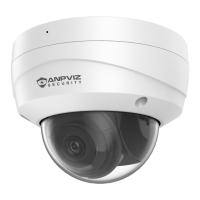

 To Next Page