2. Remove the ethernet cable, it may caused by IP or MAC conflict;
3. Try with another 48V power supply adaptor, it may caused by a faulty power
supply adaptor or power shortage;
4. Remove the hard drive from the NVR;
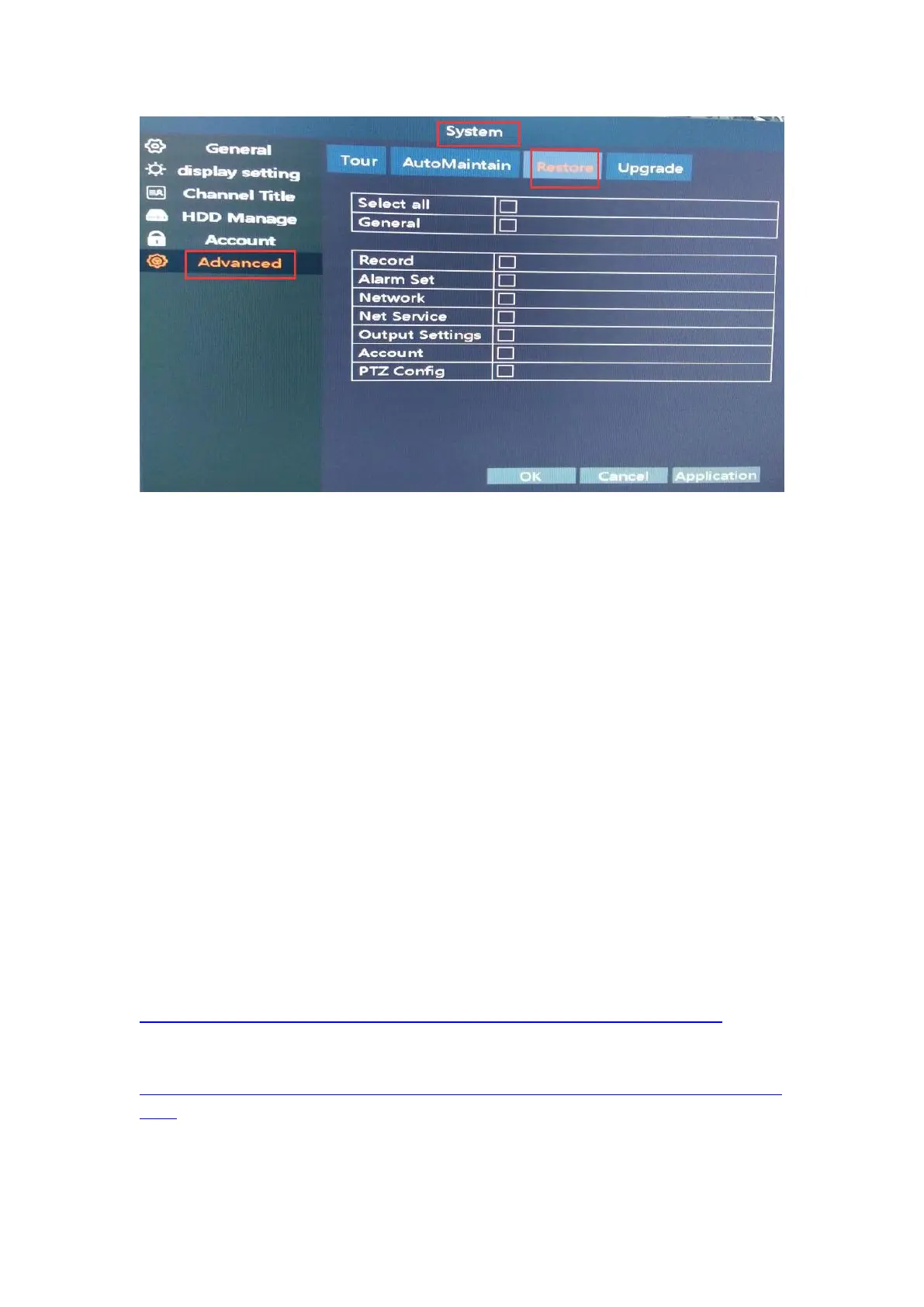
5. If tried all but still no good, then you will need to update the NVR version, please
send email to support@anran-cctv.com
Tip: If it stops reboot after removed the hard drive, we advise you to install the hard
drive to your PC to format and install it back to NVR. or change a new hard drive
directly.
6. APP Issue
Make sure your camera system have connect to the router with a net cable and
please right click the mouse, than go to the “Main Menu--Network--Phone APP”, you
will find the Network Status. Please make sure the Network Status is “Connected”
firstly. Otherwise, you will fail to remote access the system on APP. Then follow steps
below to setup:
1. Mobile App setup:
https://drive.google.com/open?id=1A-wFO6hxfLBwoa3uG0PNotcEOhYwkL2h
2. PC setup:
https://anran-cctv.com/faq-items/q45-how-to-view-poe-camera-system-on
-pc/



 To Next Page