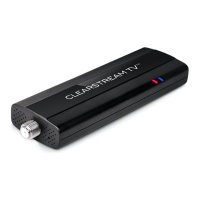
Model # CLEARTV Made in China
Call to Learn.
Toll-Free Helpline:
1-877-825-5572
Technical Assistance is available Monday – Friday, 9:00 am to 9:00 pm
and Saturday – Sunday, 10:00 am to 6:00 pm, Central Time.
09/2017
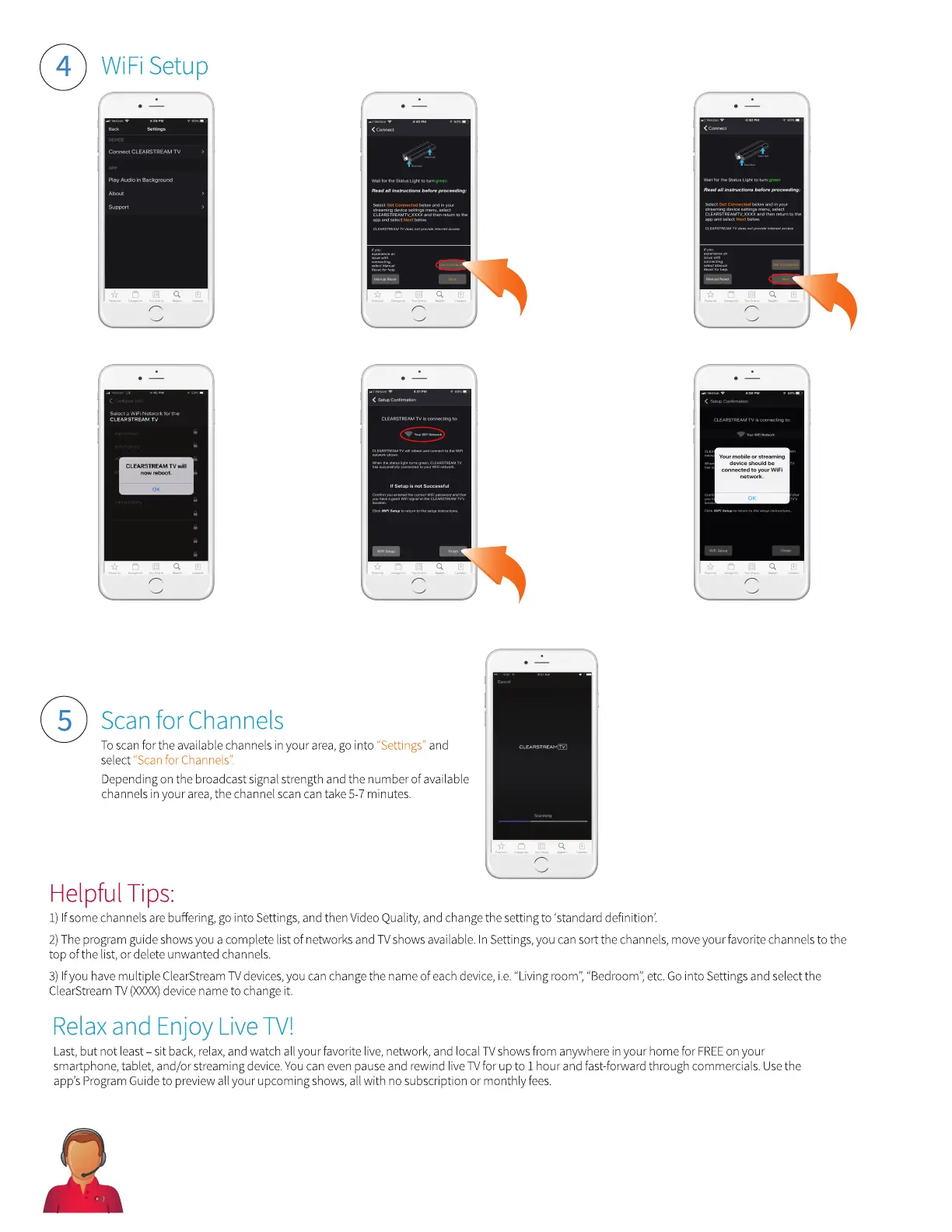
Launch the
ClearStream TV app
and select the
Settings menu and
then select Connect
CLEARSTREAM TV.
Select Get Connected and then
choose “CLEARSTREAMTV_XXXX”
from the list of available wireless
networks. This will allow you to
connect the ClearStream TV as
an access point, so you can
connect ClearStream TV to your
home WiFi network in the
following steps.
Return to the
ClearStream TV
app and select
Next.
Select your Home
WiFi network to
connect the
ClearStream TV, and
enter your home WiFi
password. The
ClearStream TV will
reboot to finalize the
WiFi Setup process.
Select OK and wait
for the status light to
turn green on the
ClearStream TV
device.
ClearStream TV should now be
connected to your WiFi network.
Select Finish.
Select OK.
Follow the
instructions
below to scan
for TV
channels.


 To Next Page