EasyManua.ls Logo

Antennas Direct Clearstream TV User Manual

Antennas Direct Clearstream TV
3 pages
To Next Page IconTo Next Page
Page #1 background imageLoading...
Page #1 background image
Download the FREE ClearStream TV companion app from the app store.
ROKU USERS: Roku streaming devices do not support the initial WiFi Setup of the ClearStream TV. Complete the initial WiFi Setup with
an iOS or Android smartphone or tablet.
How it Works:
Download the App
1
2
3
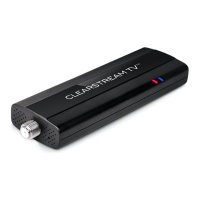
When the device powers on, you will see blue and red status lights. This indicates ClearStream TV is starting up.
When the status light turns green, this means ClearStream TV is on and ready for use.
It may take 1-3 minutes before the status light turns green.
Power Setup
MINIMUM OS REQUIREMENTS: Android 4.2 or above, iOS 8.4 or above, tvOS 10.2 or above, Roku v7.50 b4099 or above, and Amazon Fire devices from 2013 or newer.
Connect ClearStream TV™ to your TV Antenna
Before connecting ClearStream TV to a home WiFi network, the device
needs to be powered on. First, plug the power adapter into a wall
outlet, and then connect the other end to ClearStream TV.
ClearStream TV works with any HDTV antenna, and connects using a standard coaxial cable, just like
the one used to connect the antenna directly to a TV.
Be sure the antenna is positioned in the best location to receive broadcast signals, and ClearStream TV
is within 20 . of WiFi signals, with no obstructions to facilitate proper reception.
Status Lights
Question and Answer IconNeed help?

Do you have a question about the Antennas Direct Clearstream TV and is the answer not in the manual?

Antennas Direct Clearstream TV Specifications

General IconGeneral
BrandAntennas Direct
ModelClearstream TV
CategoryAdapter
LanguageEnglish

Summary

ClearStream TV Setup Process

Download the Companion App

Download the free ClearStream TV companion app from your device's app store to get started.

Connect ClearStream TV to Antenna

Connect the ClearStream TV to your HDTV antenna using a standard coaxial cable.

Power Setup and Status Lights

Plug in the power adapter to power on the ClearStream TV and observe status lights during startup.

Configure WiFi Connection

Connect the ClearStream TV to your home WiFi network via the companion app.

Scan for Available Channels

Initiate a channel scan within the app's settings to find broadcast TV channels.

Helpful Tips and Usage Guide

Troubleshooting and Optimization

Adjust video quality for buffering issues and manage channel lists for better viewing.

Enjoying Live TV Features

Utilize pause, rewind, and fast-forward features for live TV content without subscriptions.

Regulatory and Warranty Information

FCC Compliance Statement

Details on FCC rules compliance, including conditions for operation and interference.

Limited Warranty Details

Information on the ninety (90) day limited warranty against defects in materials and workmanship.