Wired Network Setup
How to connect your MRX/AVM to your network. A network connection is required for accessing the Web UI, streaming con-
tent, and for running Anthem Room Correction.
Ethernet Connection: The simplest way to connect your MRX/AVM to your network is by connecting it via Ethernet cable.
This option isn’t always available, but it will provide the quickest setup and most secure network connection. To connect via
Ethernet, simply take an ethernet cable that is connected to your network and plug it into the MRX/AVMs Ethernet port on the
rear of the unit.
ETHERNET
Wireless Network Setup
NOTE: When using a wireless connection (WiFi or Bluetooth), both antennae’s must be connected to the unit.
iOS Wi-Fi Connection: Ensure your Apple device is connected to the wireless network you wish to connect the Receiver/
Processor to.
1. Enter the Wi-Fi Settings Menu.
2. Locate MRX/AVM under “Set up new AirPlay speaker.”
3. Select the unit you wish to connect and allow it to connect to your network.
NOTE: The Receiver/Processor will appear as MRX/AVM in the AirPlay speaker menu.#
Android Wi-Fi Connection: Download and open the Google Home application. You should be prompted that there is a
device available for setup. If not, tap “x” followed by “Setup a Device”. Select the MRX/AVM and follow the instructions on
screen. To listen to cast audio from any supported application on your MRX/AVM, ensure your device is connected to the
same network as the MRX/AVM. Tap the Chromecast built-in icon from within the application and select the MRX/AVM as the
playback device.
NOTE: If you connect to your network before connecting speakers, you will not hear the connection chime.
Unit Setup
An introduction to setting up your MRX/AVM. Full details on the setup can be found in the manual on our website:
manuals.anthemav.com/mrx-avm/en
Anthem Web User Interface
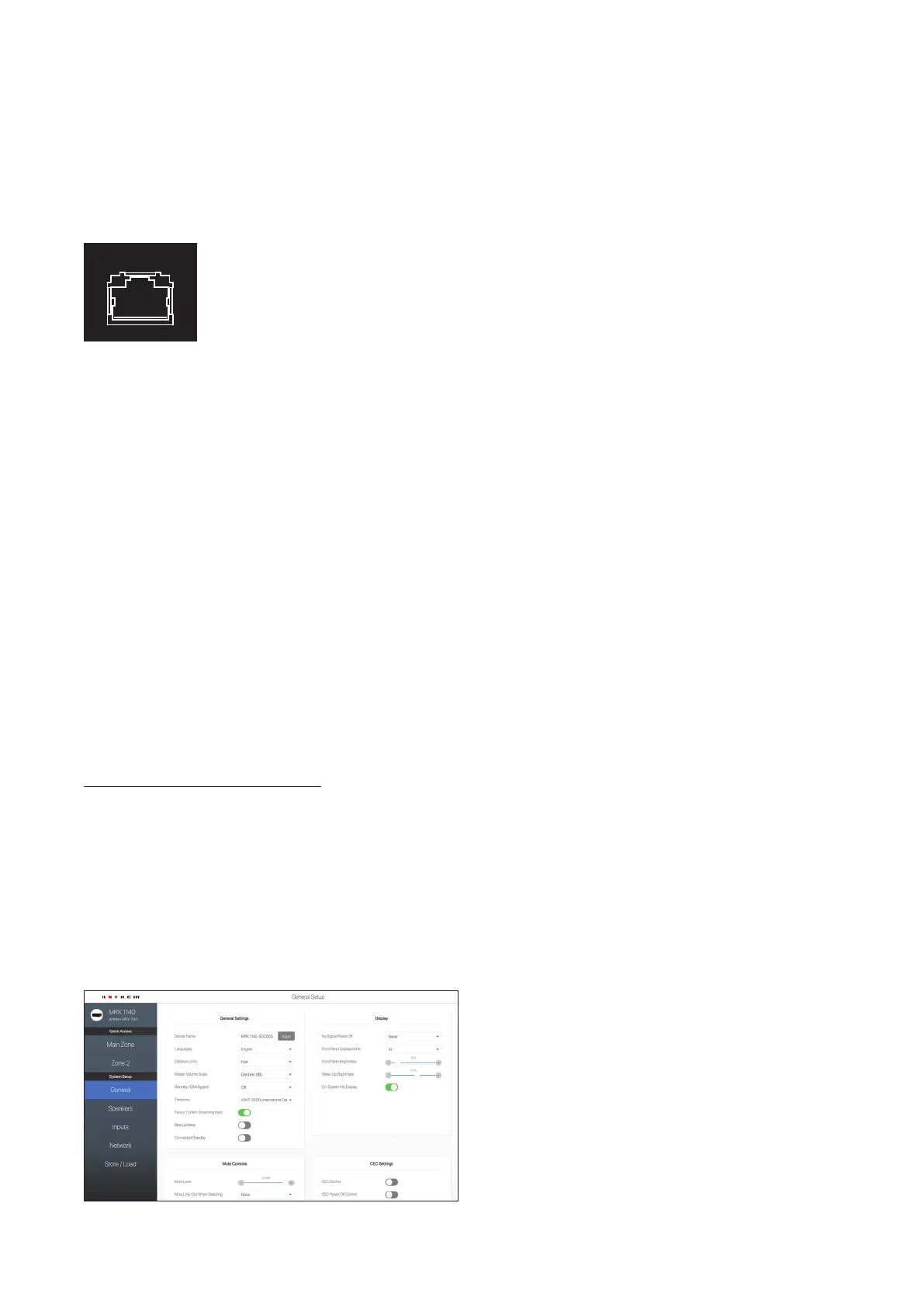
The Anthem Web User Interface is a new addition to the MRX/AVM line. With your MRX/AVM on the network you can adjust
menu settings with a device connected to the same network as the MRX/AVM; a phone, tablet or computer will work as it
resizes to the screen you are using.
To access the Anthem Web User Interface, you will first need to identify your MRX/AVMs IP address. This can be found by
entering the MRX/AVM Front Panel Menu: Setup Menu > Network/Control > IP Configuration. Once you have your IP
address you will need to use a browser such as Safari or Google Chrome. After opening your browser, enter the IP address
into the URL bar.


 To Next Page
 Loading...