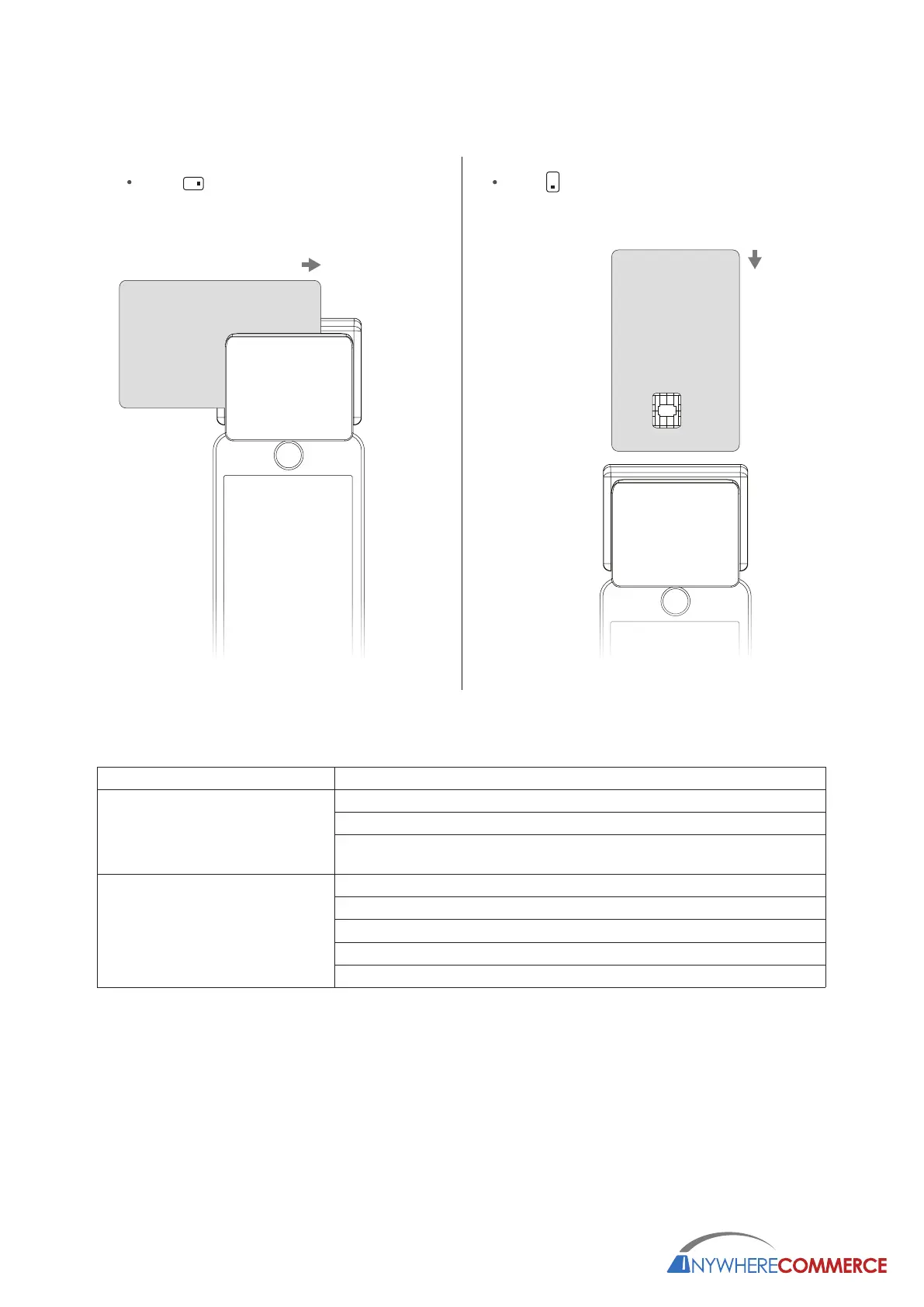
Step 6
Swipe or insert the card when prompted by your payment application
Insert
** Leave the card in Walker until the payment application prompts you
to remove the card.
WARRANTY
Walker has a six month warranty for manufacturing defects. The warranty is void if the serial number has been
tampered with or removed.
Please contact your merchant services provider for support.
Swipe
Remove and reconnect Walker.
Remove any protective sleeve or case from your smartphone or tablet.
Contact your merchant services provider to make sure your smartphone or
tablet is supported.
Charge Walker if necessary.
Device does not work with your
phone or tablet
Problem Recommendations
Device cannot read your card
successfully
Check the card slots for any obstructions.
Make sure the magstripe or chip is facing the right direction.
Swipe the card with a consistent, smooth speed.
Don’t remove a chip card until prompted by your payment application.
TROUBLESHOOTING



 To Next Page