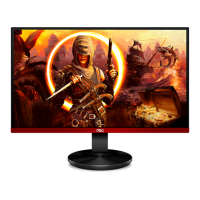
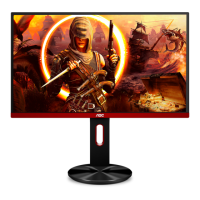
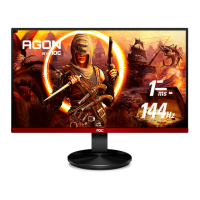
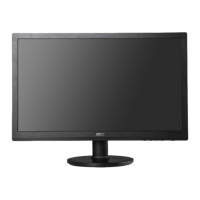
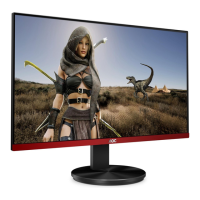
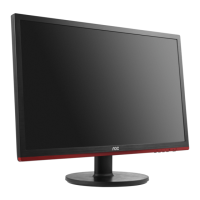
This document serves as the User Manual for the AOC LCD Monitor models 24G2SPE and 24G2SPAE, providing essential information on safety, setup, adjustment, troubleshooting, and specifications.
Function Description
The AOC LCD Monitor is designed to display visual information from a connected computer or other video sources. It supports various input types, including HDMI, DisplayPort (DP), and D-SUB (VGA), allowing for versatile connectivity with different systems. The monitor is equipped with Adaptive-Sync functionality, which works with both DP and HDMI inputs to provide a smoother gaming experience by synchronizing the display's refresh rate with the graphics card's frame rate. This feature helps eliminate screen tearing and stuttering, particularly beneficial for gaming. The monitor also includes an On-Screen Display (OSD) menu for comprehensive control over various display settings, allowing users to customize their viewing experience. Hotkeys are provided for quick access to frequently used functions like Game Mode, Dial Point, and input source selection.
Usage Features
The monitor offers a range of features to enhance user experience and display customization:
- Adjusting Viewing Angle: The monitor stand allows for tilt adjustments from -5° to 23° and height adjustments up to 130mm, enabling users to find an optimal viewing position. It is crucial to adjust the monitor by holding the stand and avoiding direct contact with the LCD screen to prevent damage.
- OSD Settings: The OSD menu is the primary interface for adjusting the monitor's display properties. It is categorized into several sections:
- Luminance: This section controls basic display parameters such as Contrast, Brightness, and Eco Mode. Eco Mode offers various presets like Standard, Text, Internet, Game, Movie, Sports, and Reading, each optimized for different content types. Gamma settings (Gamma1, Gamma2, Gamma3) allow for fine-tuning of color curves. Dynamic Contrast Ratio (DCR) can be enabled or disabled to automatically adjust contrast based on screen content. HDR Mode (HDR Picture, HDR Movie, HDR Game) provides enhanced dynamic range for compatible content, though enabling it disables manual adjustments for Contrast, Brightness, and Gamma.
- Image Setup: This section is relevant for analog inputs (D-SUB) and includes settings for Clock, Phase, Sharpness, H. Position, and V. Position. These adjustments help reduce vertical and horizontal line noise, sharpen the image, and position it correctly on the screen.
- Color Setup: Users can select different Color Temperatures (Warm, Normal, Cool, sRGB, User) to achieve desired color balance. The DCB Mode (Dynamic Color Boost) offers options like Full Enhance, Nature Skin, Green Field, Sky-blue, and AutoDetect to dynamically enhance specific color ranges. DCB Demo allows users to see the effect of DCB. Manual Red, Green, and Blue gain adjustments are also available for precise color calibration. Note that when HDR Mode is active, Color Setup items cannot be adjusted.
- Picture Boost: This feature allows users to highlight a specific area of the screen with enhanced brightness and contrast. Settings include Bright Frame (on/off), Frame Size, Brightness, Contrast, H. position, and V. position for the boosted frame. Similar to Color Setup, Picture Boost items are disabled when HDR Mode is active.
- OSD Setup: This section manages the OSD menu itself, including Language, Timeout (duration the OSD remains visible), DP Capability (for Adaptive-Sync), H. Position, V. Position, Volume, Transparence, and Break Reminder. The Break Reminder feature can alert users after continuous work for more than one hour.
- Game Setting: This section provides specialized settings for gamers:
- Game Mode: Offers presets tailored for different game genres (FPS, RTS, Racing) and three customizable Gamer modes (Gamer 1, Gamer 2, Gamer 3). These modes optimize dark level details, image quality, response time, and color saturation.
- Shadow Control: Adjusts the visibility of dark areas in games, allowing users to see details in shadows without overexposing bright areas.
- Overdrive: Enhances the response time of the pixels, with options like Weak, Medium, Strong, and Boost, to reduce motion blur.
- Game Color: Adjusts color saturation for a more vibrant gaming experience.
- LowBlue Mode: Reduces blue light emission, with presets for Reading, Office, Internet, and Multimedia, to minimize eye strain.
- MBR (Motion Blur Reduction): Adjusts motion blur reduction, available only when Adaptive-Sync is off and the vertical frequency is 75 Hz or higher.
- Adaptive-Sync: Toggles the Adaptive-Sync feature on or off.
- Frame Counter: Displays the vertical frequency on the screen.
- Note that when HDR Mode is active, Game Setting items (Game Mode, Shadow Control, Game Color, Low Blue Mode) cannot be adjusted.
- Extra: This section includes Input Select (to choose the video source), Auto Config (for automatic picture adjustment on D-SUB), Off Timer, Image Ratio (Wide or 4:3), DDC/CI (to enable/disable Display Data Channel/Command Interface support), and Reset (to restore all OSD settings to default).
- Hotkeys: Dedicated buttons on the monitor provide quick access to:
- Source/Auto/Exit: Switches input sources and performs auto-configuration for D-SUB.
- Game Mode/<: Cycles through Game Mode presets.
- Dial Point/>: Toggles a crosshair overlay for improved aiming in games.
- Menu/Enter: Opens the OSD menu and confirms selections.
- Power: Turns the monitor on or off.
Maintenance Features
Proper maintenance ensures the longevity and optimal performance of the monitor:
- Cleaning: The monitor cabinet should be cleaned regularly with a water-dampened, soft cloth. For the screen, use a soft cotton or microfiber cloth that is damp and almost dry, ensuring no liquid enters the case. Always disconnect the power cord before cleaning.
- Ventilation: Ensure adequate space around the monitor for proper air circulation to prevent overheating, which can lead to damage or fire.
- Handling: Avoid placing the monitor on unstable surfaces or pushing objects into its slots. Do not spill liquids on the monitor. During operation or transportation, avoid severe vibration, high impact, knocking, or dropping the monitor.
- Power Safety: Operate the monitor only from the specified power source. If your home's power type is uncertain, consult a dealer or power company. The monitor uses a grounded plug; if your outlet doesn't accommodate it, have an electrician install the correct outlet or use a safe adapter. Unplug the monitor during lightning storms or prolonged periods of disuse to prevent damage from power surges. Avoid overloading power strips and extension cords.
- Troubleshooting: The manual provides a comprehensive troubleshooting guide for common issues such as the power LED not being on, no image on the screen, fuzzy or ghosting pictures, flickering or wave patterns, the monitor being stuck in "Active Off-Mode," missing primary colors, improperly sized or centered images, color defects, and horizontal/vertical disturbances. Solutions often involve checking cable connections, adjusting OSD settings, or rebooting the computer.
- Wall Mounting: Instructions are provided for attaching the monitor to a VESA-compatible wall mounting arm (purchased separately). It emphasizes removing the base, following the arm manufacturer's instructions, and ensuring proper alignment and cable reconnection. Warnings regarding tilt angles and pressing the screen during adjustment are reiterated.

 Need help?
 General

 To Next Page