7
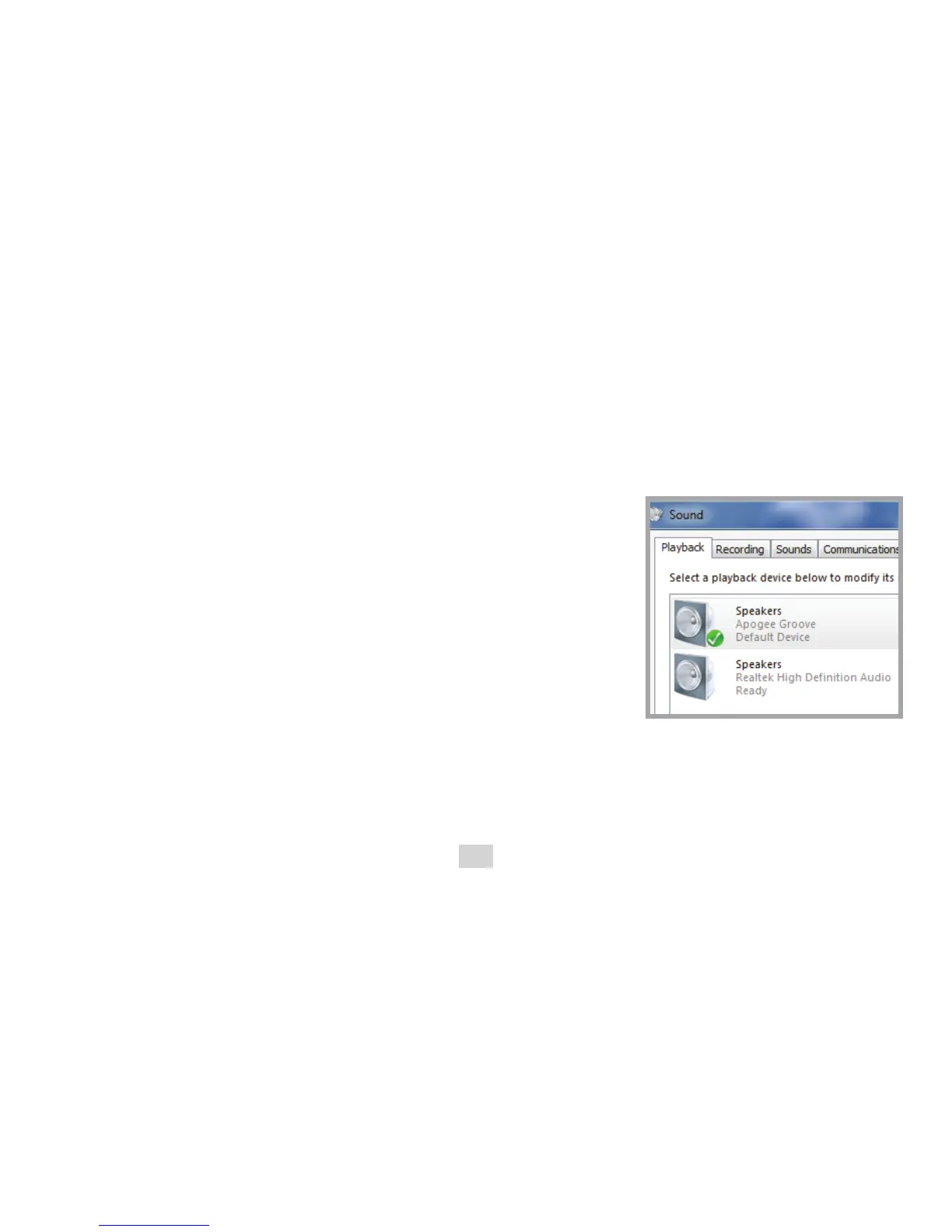
Select Groove as the Output Device
To select Groove as your output device in Windows:
1. Click Start
2. In the Search bar, type “Manage audio devices”
3. Select “Manage audio devices” from the search results
4. In the Sound screen, select the “Playback” tab
5. Select Apogee Groove from the list
6. Click the “Set Default” button
7. Click OK to close the Sound screen
Audio played from iTunes, Windows Media Player,
and other general programs will output through Groove.



 To Next Page