4 - Apple Cinema Display (20-inch)
Symptom Charts
USB device not working
1. Check for bent pins in the ADC connector. If pins are slightly bent, carefully straighten.
If pins are severely bent, replace cable. Also, inspect or have the customer inspect the
display port on the computer for broken pin dividers. If the display port is damaged it
must be repaired before inserting the ADC connector.
2. Plug the display into a computer with a known-good ADC display port, then boot the
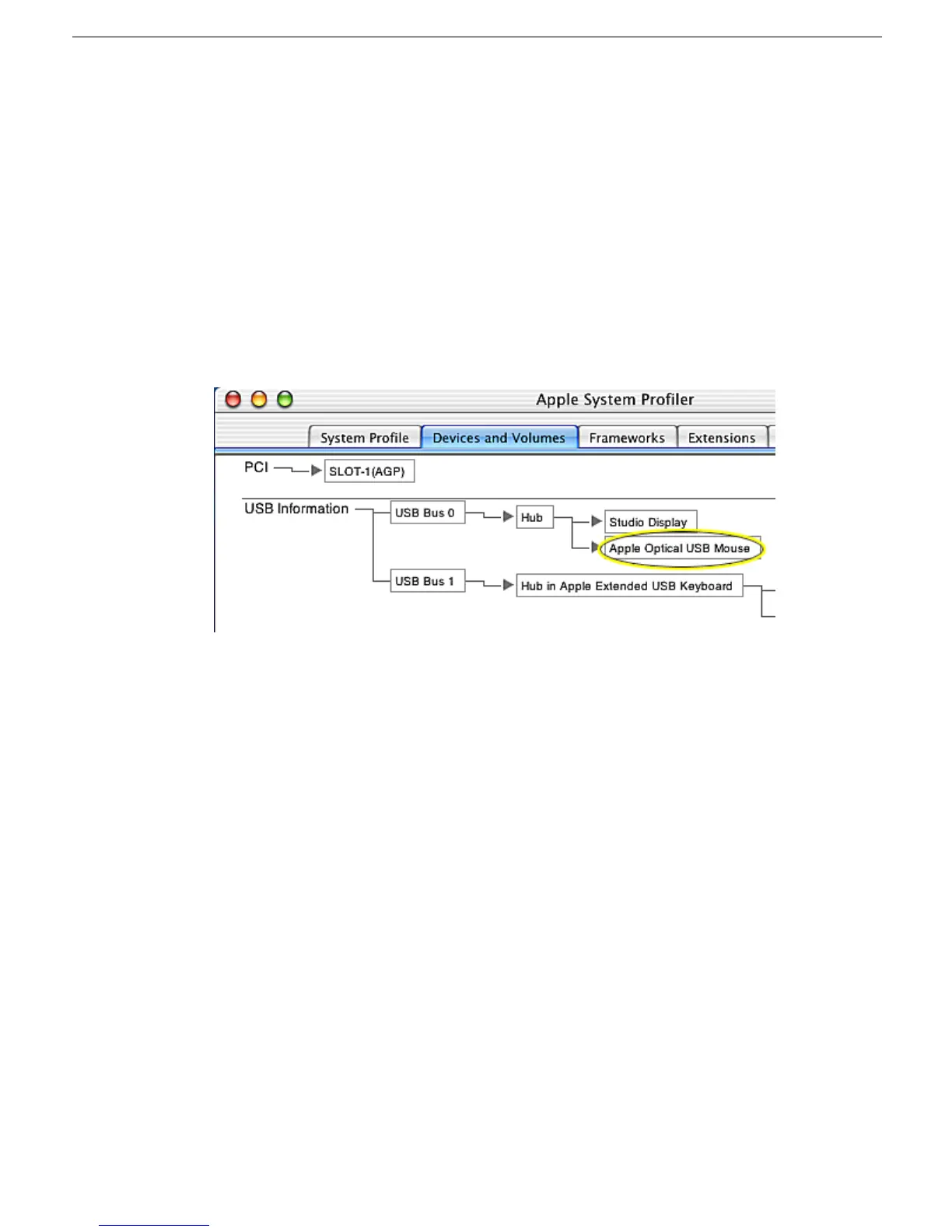
computer. On the back of the display, connect a known-good USB device into one of
the USB ports, then check Apple System Profiler to see if it is recognized. Check both
USB ports.
Note: x+R, refreshes the Apple System Profiler list when USB devices are changed.
• If the device is recognized, the customer’s USB device may be the issue.
• If not, check the J7 and J8 USB connections and cables. If not that, replace the
main board.
Power switch not working
1. Review Knowledge Base article 58813 to verify that the touch switches have not been
disabled.
2. Check J6 and verify that the cable is connected to the power touch switch cable
connector.
3. Replace the touch switch.
4. Replace main board.
Launch switch not working
1. Review Knowledge Base article 58813 to verify that the touch switches have not been
disabled.
2. Check J4 and verify that the cable is connected to the launch touch switch cable
connector.
3. Replace the touch switch.
4. Replace main board.



 To Next Page