2 | P a g e
Begin by going to:
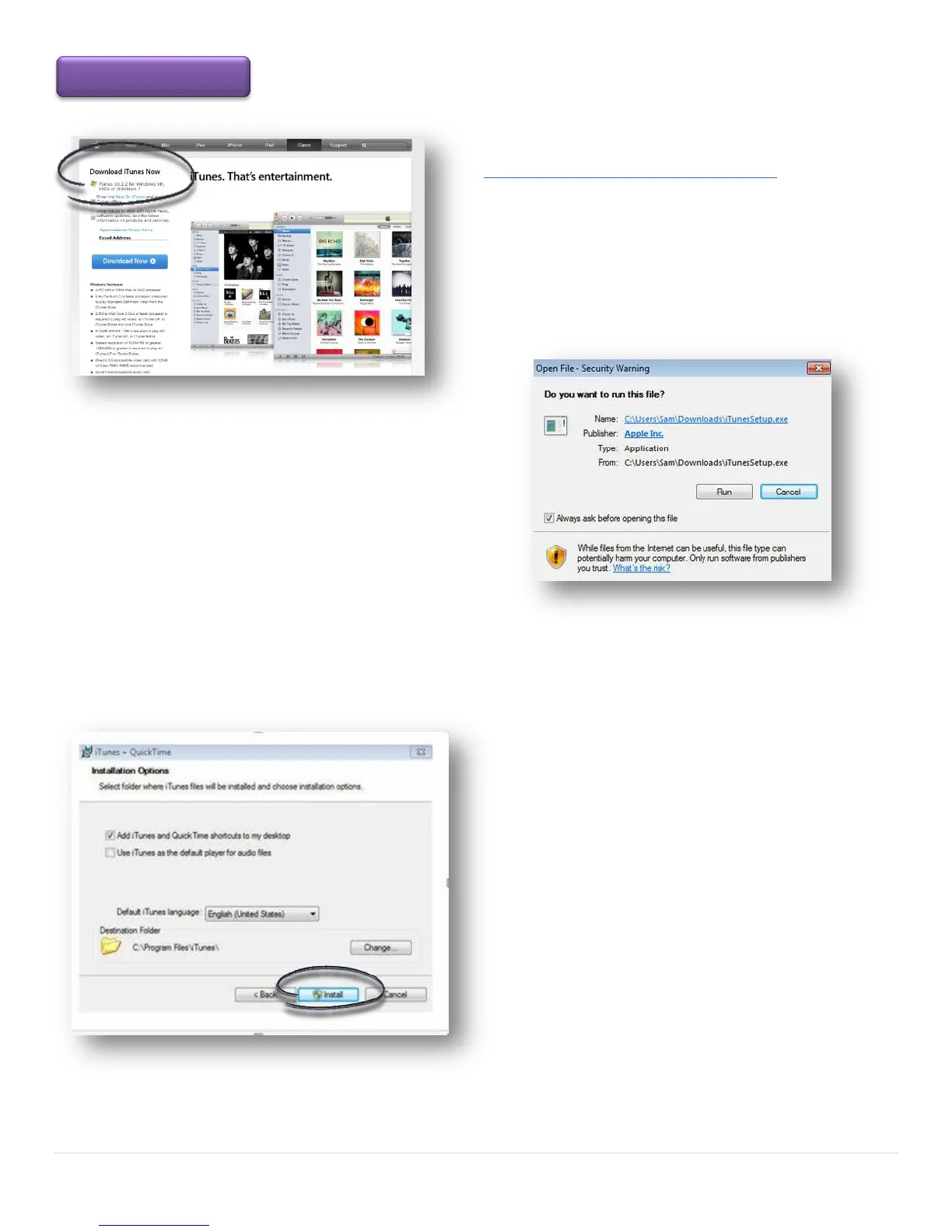
http://www.apple.com/itunes/download/ to download the
correct version of iTunes for your computer. The website
should automatically recognize that you are using a PC and
the 32-bit version of Windows.
Enter the email address and decide if you want to receive
newsletters from Apple and then click the Download Now
button.
Windows will ask if you want to Run or Save the file.
Select the Run button. If you choose Save it will save
the installer program in your default downloads.
The install process will begin. You will be prompted to agree to additional iTunes terms and conditions. Click the Agree,
Next, Run and Continue buttons, as you are prompted.
After agreeing to terms and the basic installation,
iTunes will ask you to choose some installation options.
You will need to choose:
Add iTunes and QuickTime shortcuts to my desktop - This will place the
iTunes and QuickTime icons on your desktop for easy access. ITunes will also
be added to your Start menu regardless of what you choose here.
Use iTunes as the default player for audio files – Uncheck this feature.
Default iTunes language - Choose the language you want iTunes to be in.
Destination Folder - This is where iTunes and its files will be installed. Unless
you have a reason to change it, use the default setting.
Click the Install button and once the process is complete click Finish. You will be asked to restart your computer.



 To Next Page