Five things to do to secure your new iPad
Set up email Account on your iPad
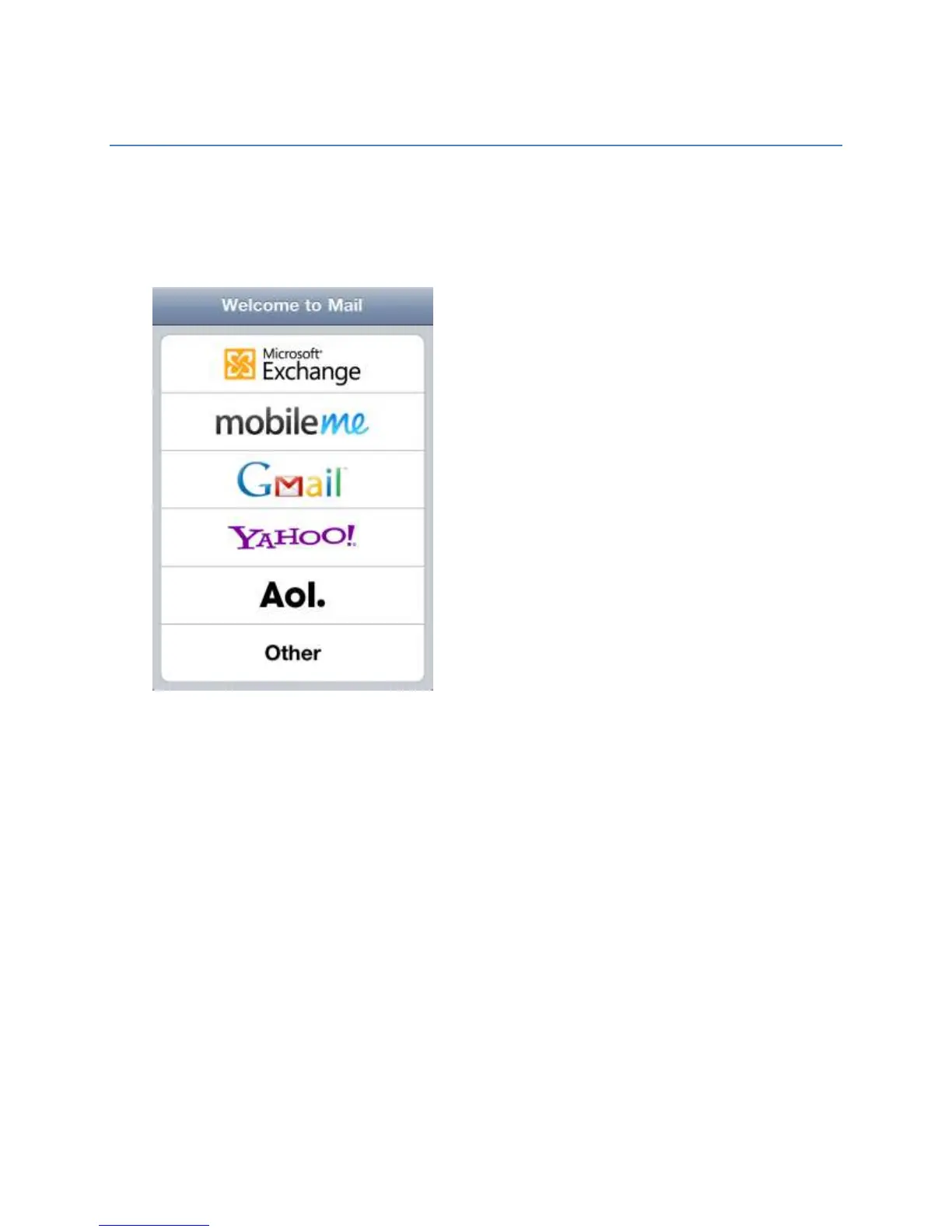
Follow these steps to set up the first email account on your iOS device.
1. Tap Mail on the Home screen of your iOS device.
2. Select your email provider. If you don't see your email provider listed, tap Other >
Add Mail Account.
3. Follow the steps and provide the required information to configure your account.
If you already have an email account set up and you want to modify its settings, tap
Settings > Mail, Contacts, Calendars, tap the name of your account, and then your
email address. Then tap any information you want to adjust.
If you want to add another account, tap Settings > Mail, Contacts, Calendars > Add
Account… and follow the onscreen instructions.
Apple maintains a database of the most common email settings. These settings are
automatically configured on your device during setup. If the database doesn't automatically
configure the settings and you don't know them, please contact your email provider and
gather the settings on this document.



 To Next Page