The iPod
Having sync’d with your iTunes library or having downloaded music or videos to your Wad directly via
the iTunes, with one tap your iPad becomes your iPod. Here you can access your audio and visual
entertainment, create and manage playlists, or use the Genius option to do it for you.
HOW TO USE AND SETUP “FIND MY IPAD”
Way back before iOS 4.2 there was a really great feature that subscribers to Apple’s MobileMe service
enjoyed. As part of the service you could locate your lost iPhone by having it show up on a map from within
MobileMe. Things have changed and here is how you can now use this great service to not only find a lost
iPad, but for free.
Find My iPad For Free
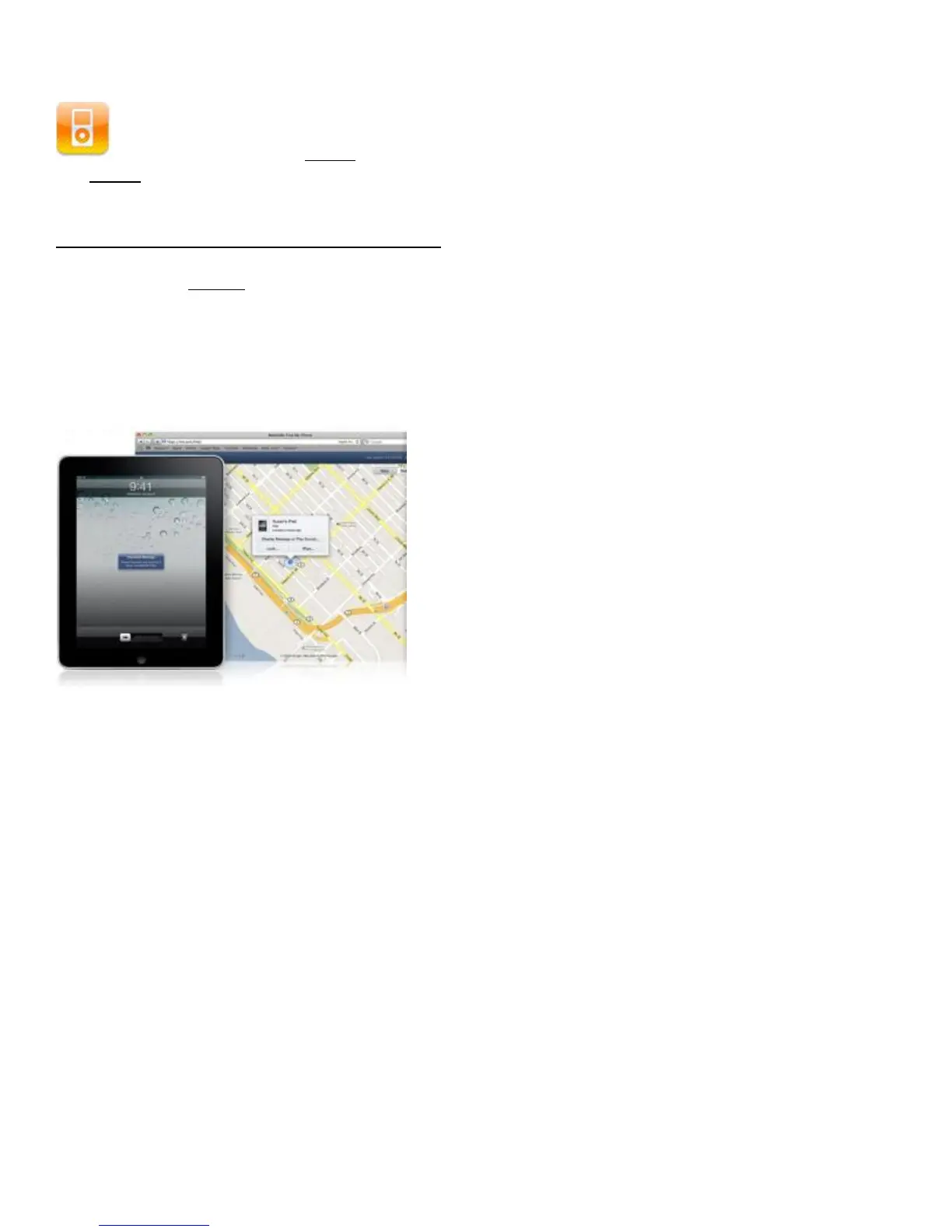
As long as you are running iOS 4.2 on your iPad then you can now enjoy the benefit of finding your lost device
for free. And we are going to show you how to do it.
Once you download and launch the Find My iPad app, you can sign in to locate your missing iPhone, iPad, or
iPod touch on a map and have it display a message or play a sound. You can even remotely lock the device, or
wipe it to permanently delete all of your data if you think that it won’t be returned.
Note: For added security, the app will automatically sign you out after 15 minutes or you can manually sign
out at any time.
Features
• Locate your iPhone or iPad on a map
• Display a message and optionally play a sound for two minutes at full volume (even if your device is set to
silent)
• Remotely set a passcode lock on your device, or lock it using your existing passcode
• Remotely wipe your device to permanently erase all of your personal data



 To Next Page