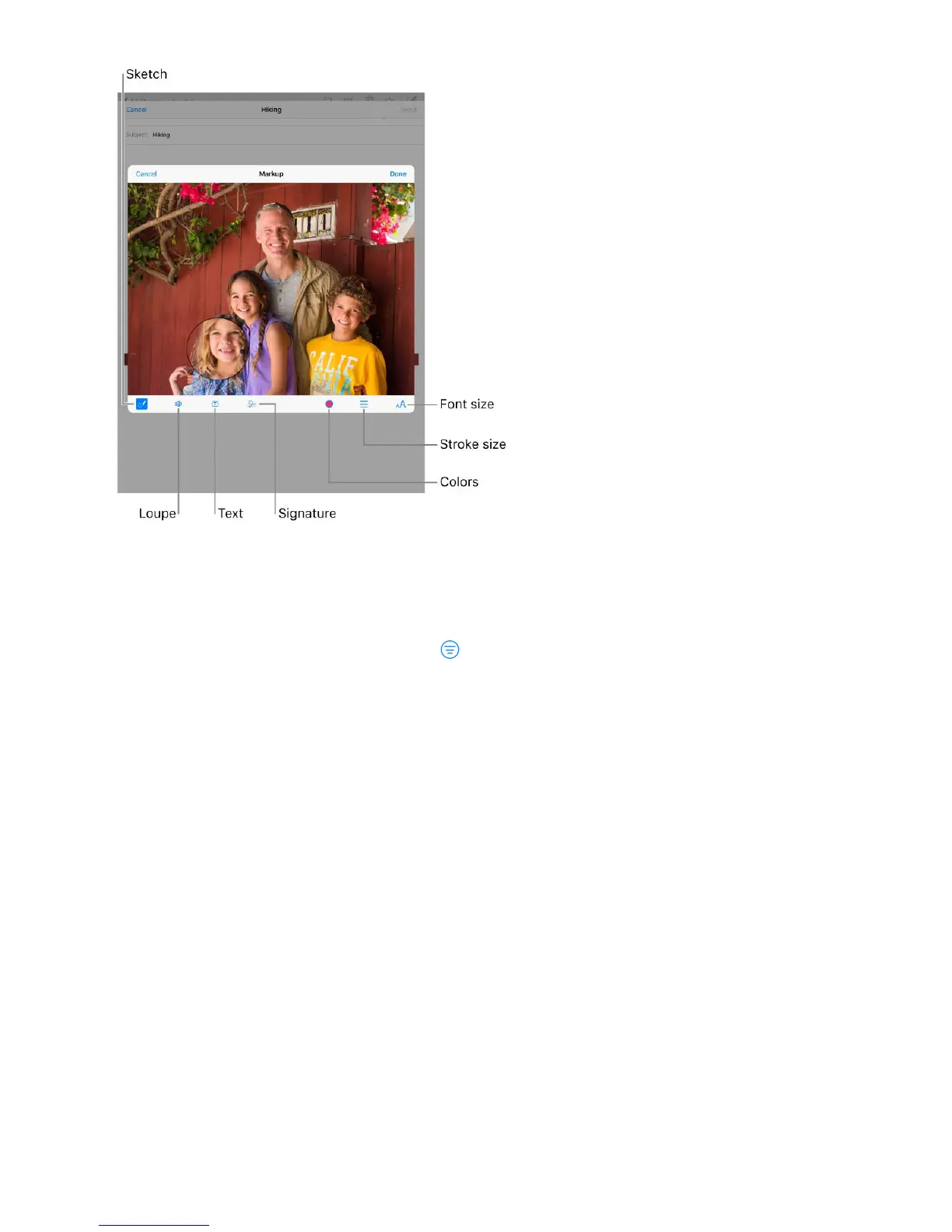
Open an attachment with another app. Touch and hold the attachment until a menu
appears, then tap the app you want to use to open the attachment. Some attachments
automatically show a banner with buttons you can use to open other apps.
See messages with attachments. Tap to turn on filtering, then tap “Filtered by” and
turn on “Only Mail with Attachments.” You can also use the Attachments mailbox, which
shows messages with attachments from all accounts. To add it, tap Edit while viewing the
Mailboxes list.
Add an attachment. See .
Send large attachments. Mail Drop lets you send files that exceed the maximum size
allowed by your email account. Tap Send when youʼre ready to send a message with
large attachments, then follow the onscreen instructions to use Mail Drop.
Work with multiple messages
Move or mark multiple messages. While viewing a list of messages, tap Edit. Select
some messages, then choose an action. If you change your mind, shake iPad
immediately to undo.
Write messages



 To Next Page