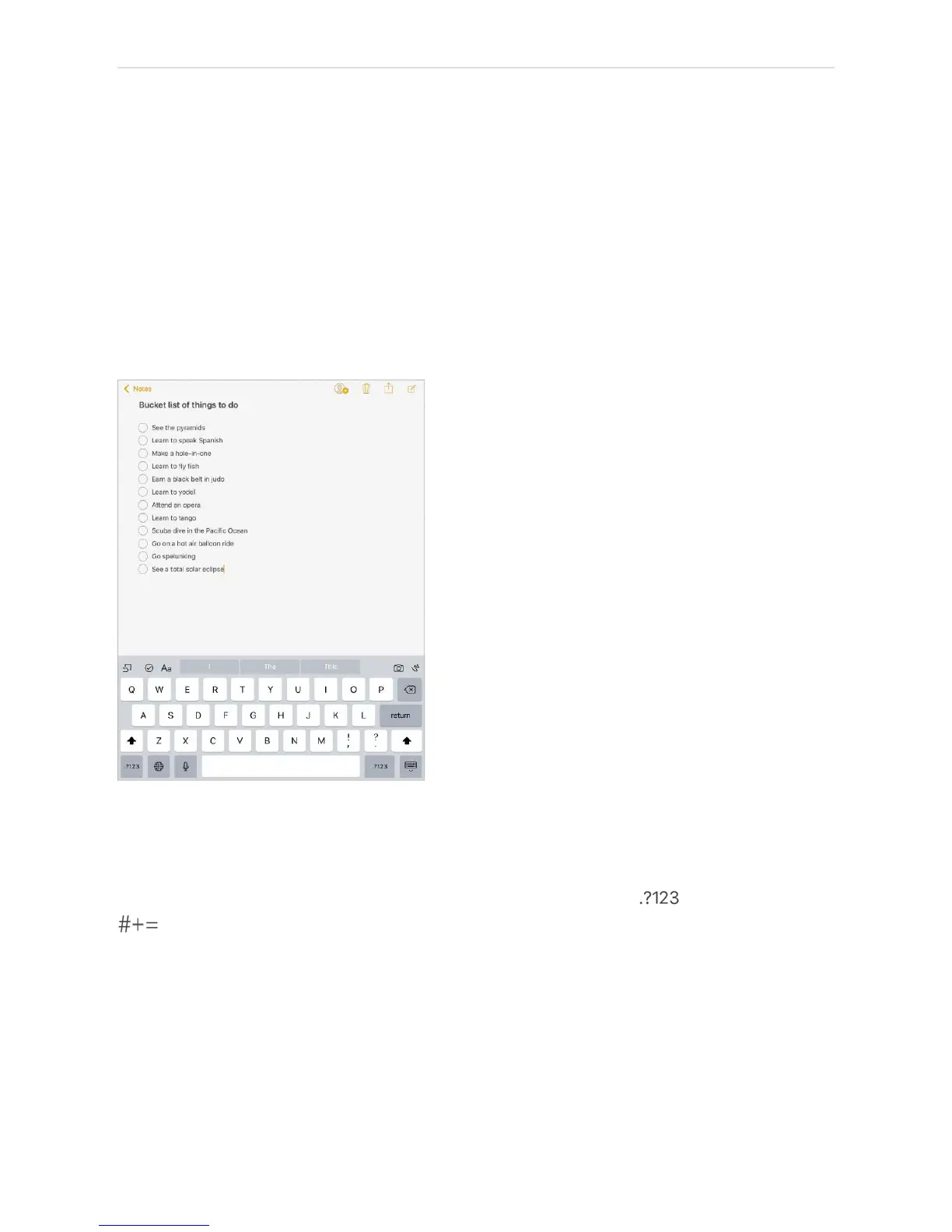
Enter text
Type and edit text
Tap a text field to see the onscreen keyboard, then tap letters to type.
You can also rest your fingers on the onscreen keyboard, then start typing normally. The
placement of the keys invisibly adjusts based on where youʼve rested your fingers. If you
stop typing, the placement of the keys resets after two seconds (iPad Pro, iPad 5th
generation, iPad Air and later).
Type uppercase letters. Tap Shift or touch the Shift key and slide to a letter.
Turn on Caps Lock. Double-tap Shift.
Enter numbers, punctuation, or symbols. Tap the Number key or the Symbol key
.
Enter accented letters or other alternate characters. Touch and hold a key, then slide
to choose one of the options.



 To Next Page