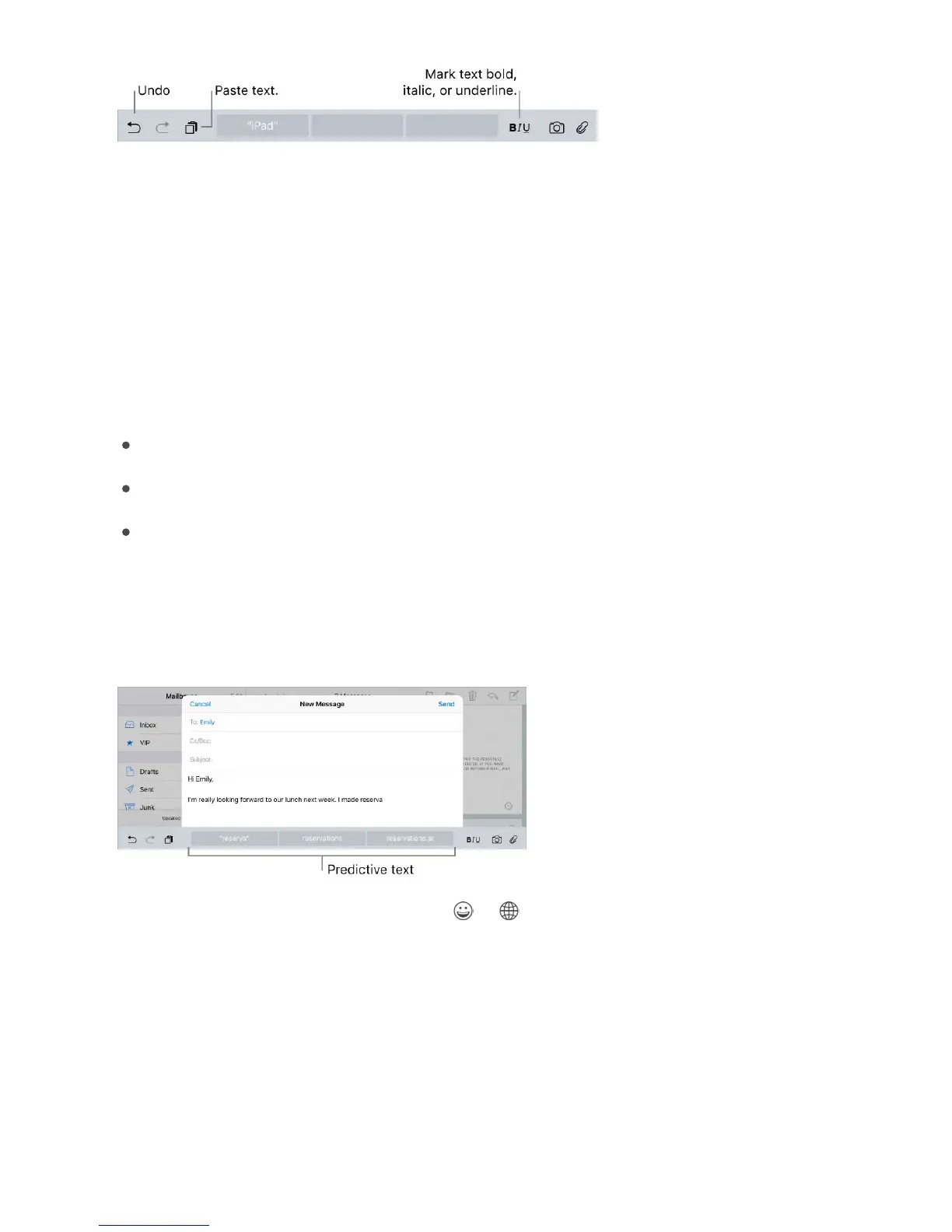
Undo the last edit. Use the Shortcut Bar, or shake iPad, then tap Undo.
Justify text. Select the text, then tap the left or right arrow (not always available).
Predictive text
As you write, the keyboard predicts your next word, suggests emoji that could take the
place of your word, and makes suggestions based on your recent activity and information
from your apps (not available in all languages). For example, when you type something
like:
“My number is,” your phone number appears as an option.
“Iʼm available at,” the free time in your calendar pops up as an option.
“Iʼm at,” your current location appears as an option when youʼre typing in Messages.
Tap a word to choose it, or accept a highlighted prediction by entering a space or
punctuation. When you tap a suggested word, a space appears after the word. If you
enter a comma, period, or other punctuation, the space is deleted. Reject a suggestion
by tapping your original word (shown as the predictive text option with quotation marks).
Turn off predictive text. Touch and hold or , then slide to Predictive.
Dictate
If you like, you can dictate text instead of typing it. Make sure Enable Dictation is turned
on (go to Settings > General > Keyboard). On iPad Pro models, you can use dictation
when youʼre not connected to the Internet.



 To Next Page