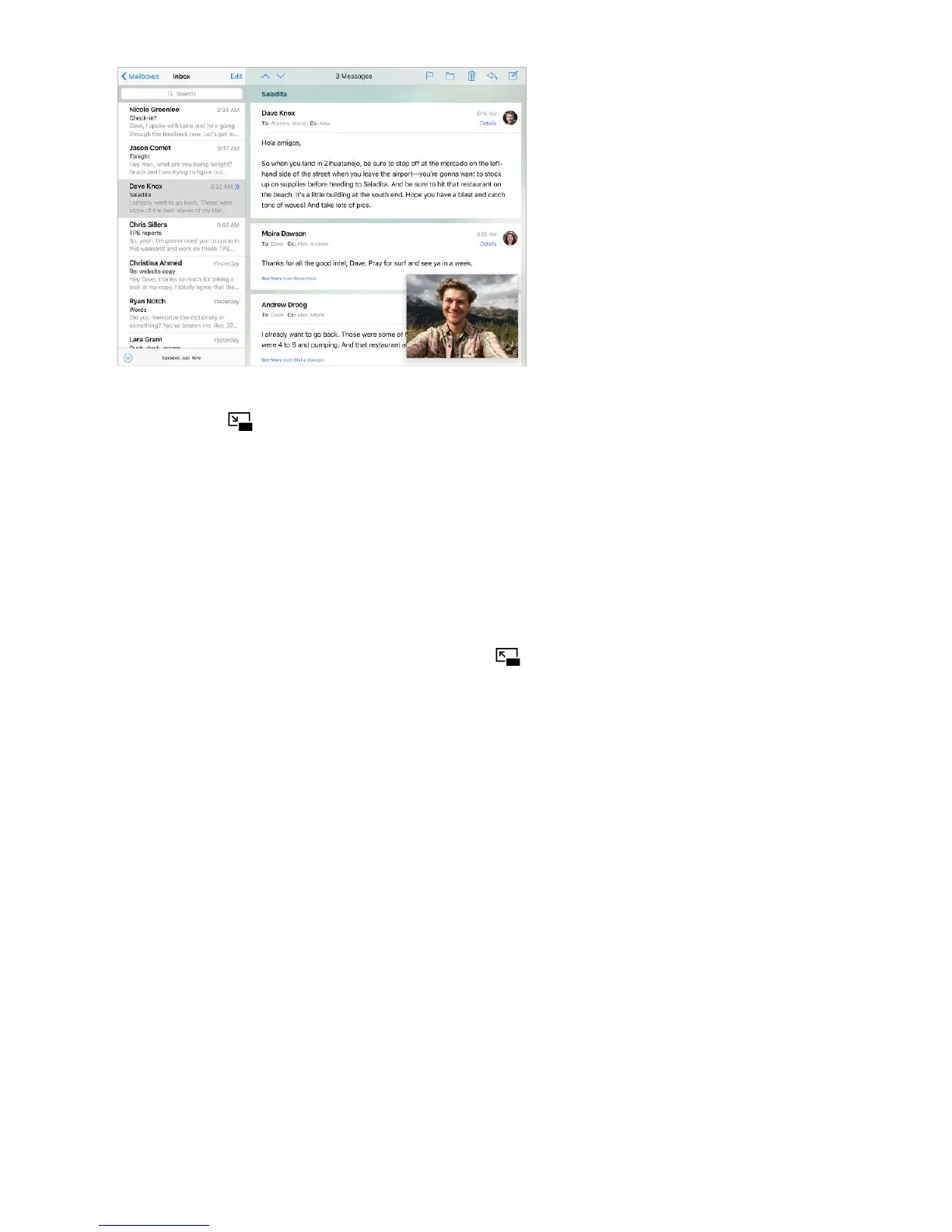
Use Picture in Picture. When watching a video or using FaceTime, press the Home
button or tap . Your video screen scales down to a corner of your display so you can
see the Home screen and open other apps.
Resize the video window. Pinch open the small video window to make it larger. Then
pinch closed to shrink it again.
Move the video window. Drag the small video window to a different corner of the
screen. Drag it off the left or right edge of the screen if you need it out of the way for a
bit.
Return FaceTime or video to full screen. Tap in the small video window.
Turn Picture in Picture off. Go to Settings > General > Multitasking, then turn off
Persistent Video Overlay.
Sounds and silence
You can change or turn off the sounds iPad plays when you get a FaceTime call, text
message, email, tweet, Facebook post, reminder, or other event.
Tip: If youʼre not hearing or seeing incoming calls and alerts when you expect, swipe
up from the bottom edge of the screen to open Control Center, then check to see if Do
Not Disturb is on.
Set sound options. Go to Settings > Sounds for options such as alert tones and
ringtones, and ringer and alert volumes.
If you want to temporarily silence incoming FaceTime calls, alerts, and sound effects, see
.
Do Not Disturb



 To Next Page