Do Not Disturb
Do Not Disturb is an easy way to silence iPad, whether youʼre going to dinner or to sleep.
It keeps FaceTime calls and alerts from making any sounds or lighting up the screen.
Turn on Do Not Disturb. Swipe up from the bottom edge of the screen to open Control
Center, then tap . When Do Not Disturb is on, appears in the status bar.
Even if Do Not Disturb is on, calls and messages from your emergency contacts in
Medical ID still come through as usual, and Alarms still sound. If you turned on
Emergency Bypass for texts or calls from a contact, those sounds come through, too.
Schedule Do Not Disturb. Go to Settings > Do Not Disturb.
You can schedule quiet hours, allow FaceTime calls from your Favorites, and allow
repeated FaceTime calls to ring through for those emergency situations. You can also set
whether Do Not Disturb silences iPad only when itʼs locked, or even when itʼs unlocked.
Charge and monitor the battery
iPad has an internal, lithium-ion rechargeable battery. For more information about the
battery—including tips for maximizing battery life—go to the
.
WARNING: For important safety information about the battery and charging iPad, see
.
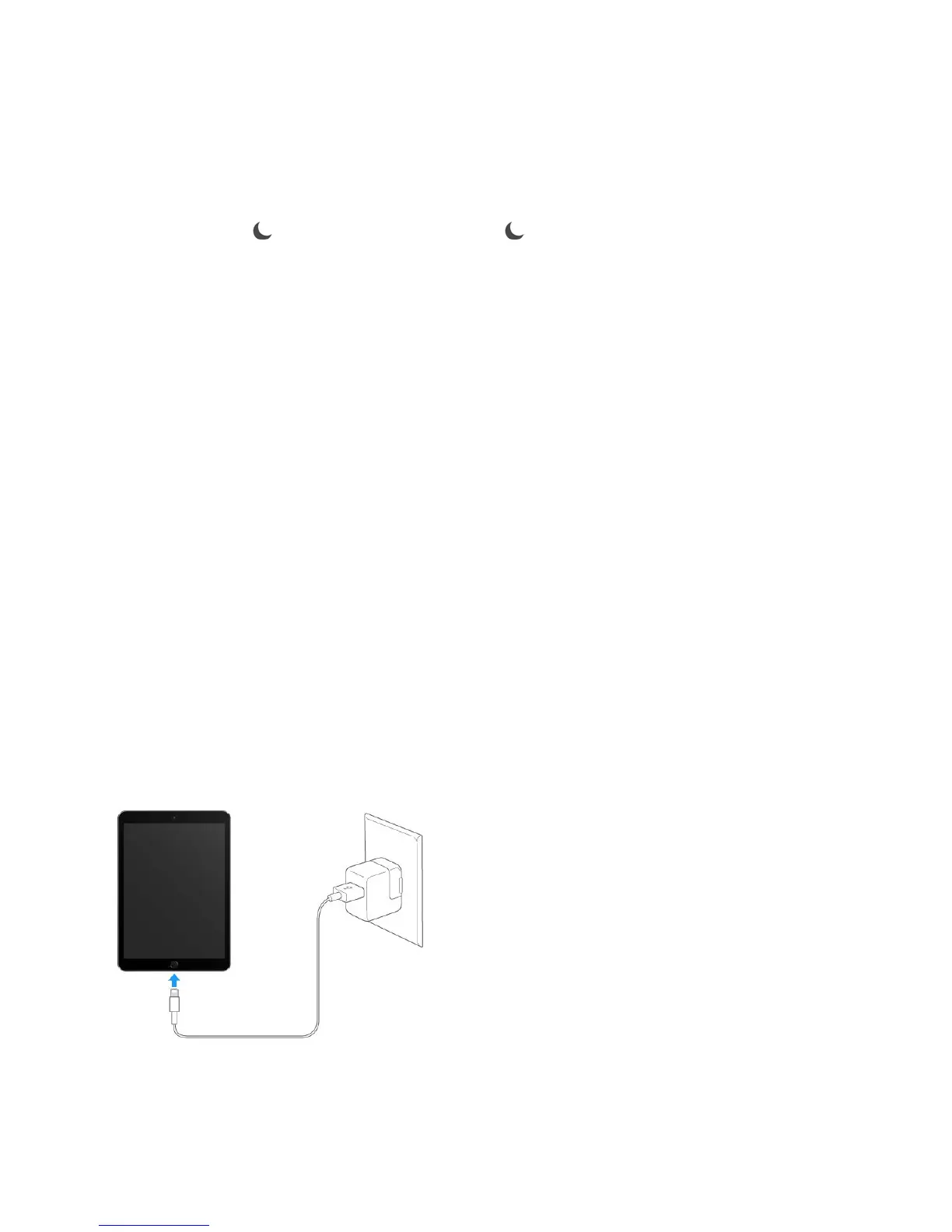
Charge the battery. The best way to charge the iPad battery is to connect iPad to a
power outlet using the included cable and USB power adapter.
Note: Connecting iPad to a power outlet can start an iCloud backup or wireless iTunes
syncing. See and .
Apple Lithium-ion Batteries
website
Important safety information
Back up iPad with iCloud Backup Sync with iTunes



 To Next Page