Search the web
Search the web. Enter a URL or search term in the search field at the top of the page,
then tap a search suggestion, or tap Go on the keyboard to search for exactly what you
typed. If you donʼt want to see suggested search terms, go to Settings > Safari, then turn
off Search Engine Suggestions (below Search).
Quickly search a site youʼve visited before. Enter the name of the site, followed by
your search term. For example, enter “wiki einstein” to search Wikipedia for “einstein.”
Go to Settings > Safari > Quick Website Search to turn this feature on or off.
See your favorites when you enter an address, search, or create a new tab. Go to
Settings > Safari > Favorites, then select the folder containing your favorites.
Search the page. To find a specific word or phrase on the current page, tap , then tap
Find on Page. Enter the word or phrase in the search field to search. Tap to find other
instances.
Choose your search engine. Go to Settings > Safari > Search Engine.
Add bookmarks and favorites
Bookmark the current page. Tap (or touch and hold ), then tap Add Bookmark.
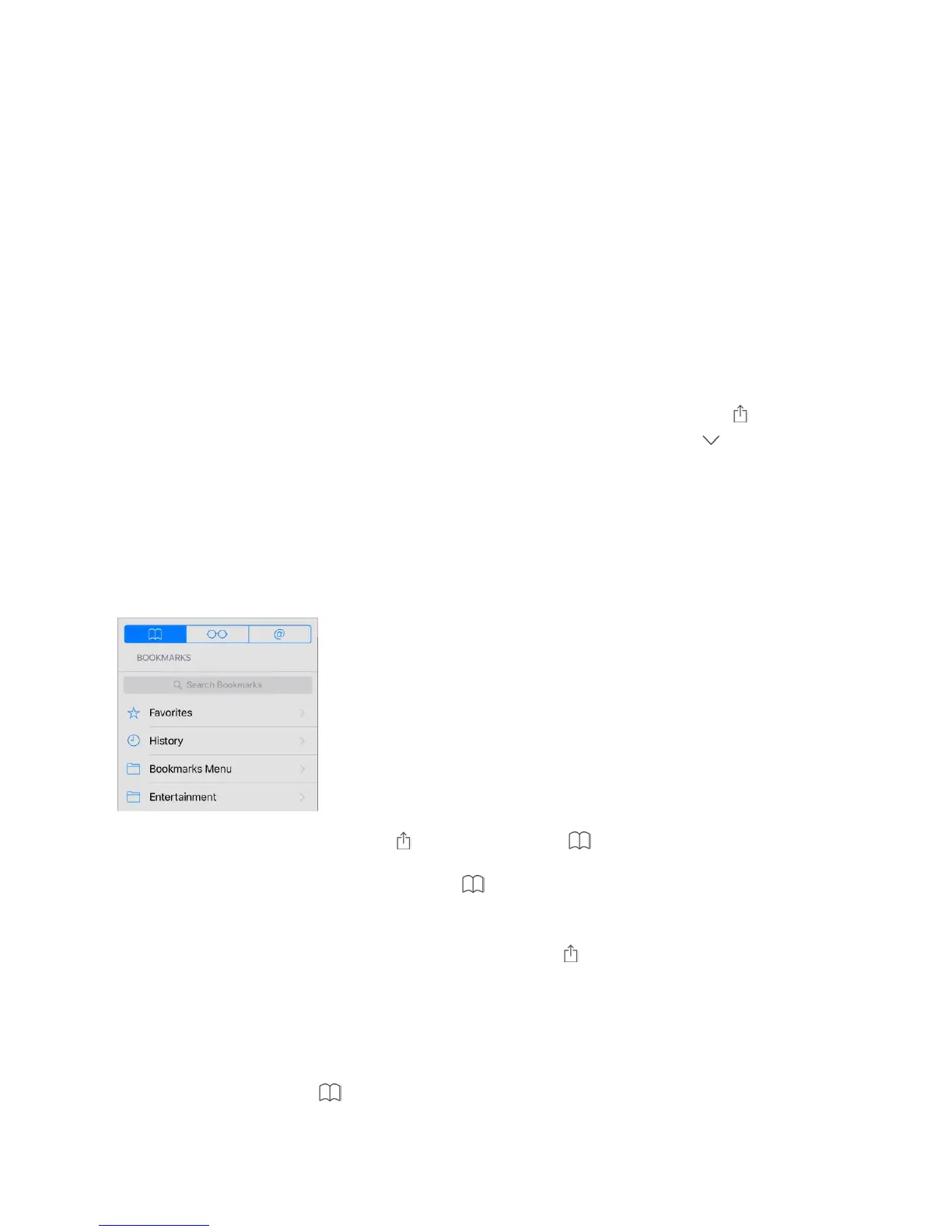
View and organize your bookmarks. Tap , then tap the Bookmarks tab. To create a
folder for bookmarks, tap Edit.
Add a webpage to your favorites. Open the page, tap , then tap Add to Favorites.
Quickly see your favorite and frequently visited sites. Tap the search field to see your
favorites. Scroll down to see frequently visited sites. (To avoid seeing a list of these sites,
go to Settings > Safari, then turn off Frequently Visited Sites.)
Edit your favorites. Tap , tap the Bookmarks tab, tap Favorites, then tap Edit to
delete, rename, or change the order of favorites.



 To Next Page