Installing (and Uninstalling) Apps
|
79
3. Swipe your finger left or right at the bottom of the screen to view a different
group of apps.
4. Tap the New, What’s Hot, or Release Date tab at the top of the screen. The
New tab lists the latest apps, the What’s Hot tab lists the most popular of the
new apps, and the Release Date tab lists apps chronologically by the dates
they were first made available.
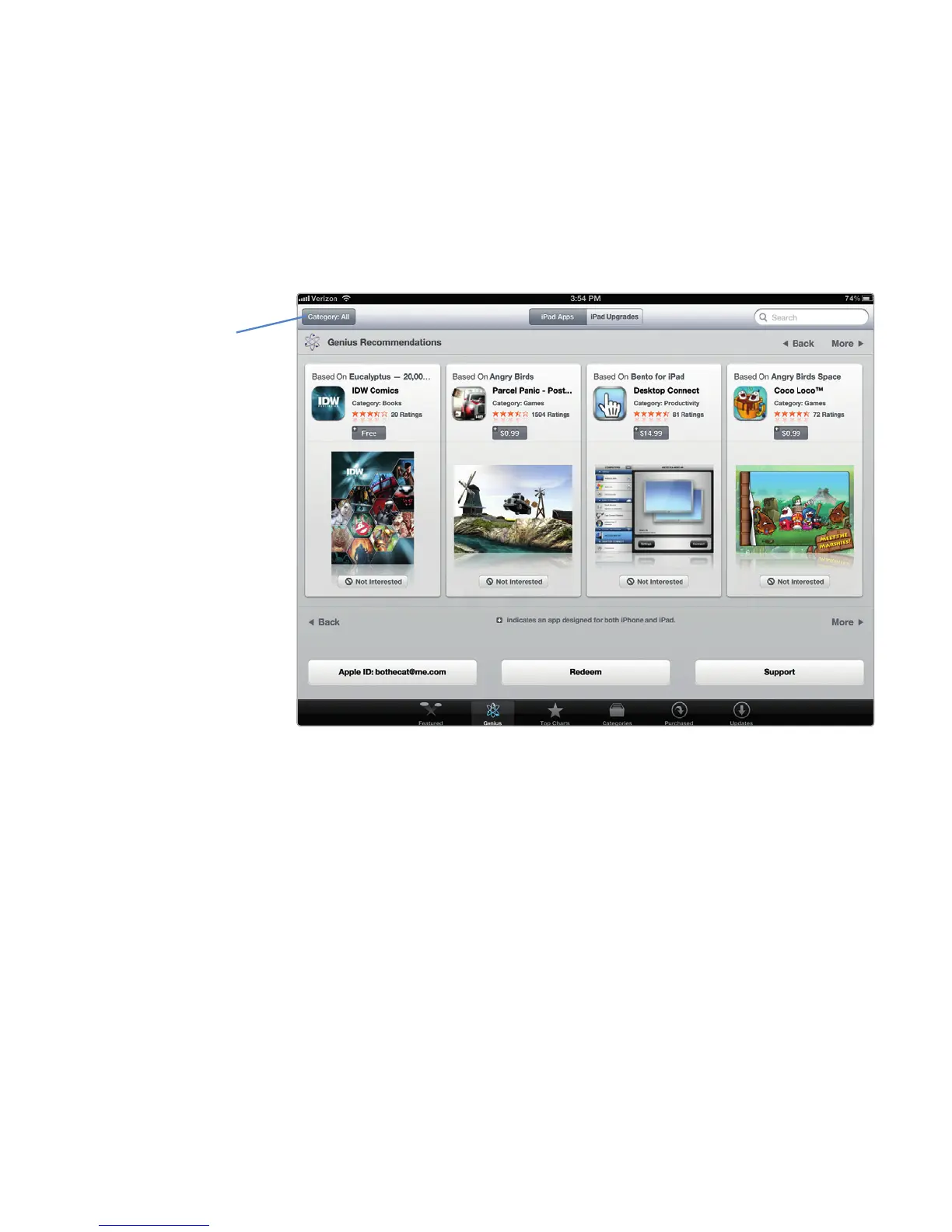
5. Tap the Genius icon at the bottom of the screen. (The first time you do this,
you’ll need to turn this Genius feature on.) A list of apps, similar to what
you’ve already downloaded, appears on the screen, as shown in Figure 11-2.
6. Tap the Top Charts icon. A list of the most popular commercial and free
apps appears, as shown in Figure 11-3.
7. Tap the Categories icon. A list of different app categories appears.
8. Tap the Updates icon at the bottom of the screen. If you have any apps that
need updating, you’ll see a list of them here.
9. Tap the Featured icon at the bottom of the screen and then tap the Search
field in the upper-right corner of the screen. The virtual keyboard appears at
the bottom of the screen.
10. Type a word or phrase that describes the type of app you want to find, such
as horoscope or medical, and then tap the Search key on the virtual key-
board. A list of apps that matches your criteria appears. You can restrict your
search results to look only for Free apps, find the newest apps, search by
category, and so on, as shown in Figure 11-4.
FIGURE 11-2: The Genius feature lists apps that are similar to ones
already installed on your iPad.
Restrict results
to a category



 To Next Page