78
|
Chapter 11
What You’ll Be Using
To install and uninstall apps on your iPad, you’ll use the following:
> The iPad’s USB cable
iTunes on your computer
> An Internet connection
(Wi-Fi or 4G)
The App Store
Finding Apps on Your iPad
Before you can install apps on the iPad, you need to visit the App Store and find
an app that you want. You can visit the App Store directly through your iPad or you
can use iTunes on your computer.
The advantage of accessing the App Store on your iPad is that after you
download an app, you can start using it right away. The drawback is that your iPad
needs an Internet connection to access the App Store.
The advantage of using iTunes on your computer to access the App Store is
that you can download apps much faster than you can on the iPad. The drawback
is that after you download an app into iTunes, you’ll need to transfer that app to
your iPad before you can start using it.
To find an app for your iPad, follow these steps:
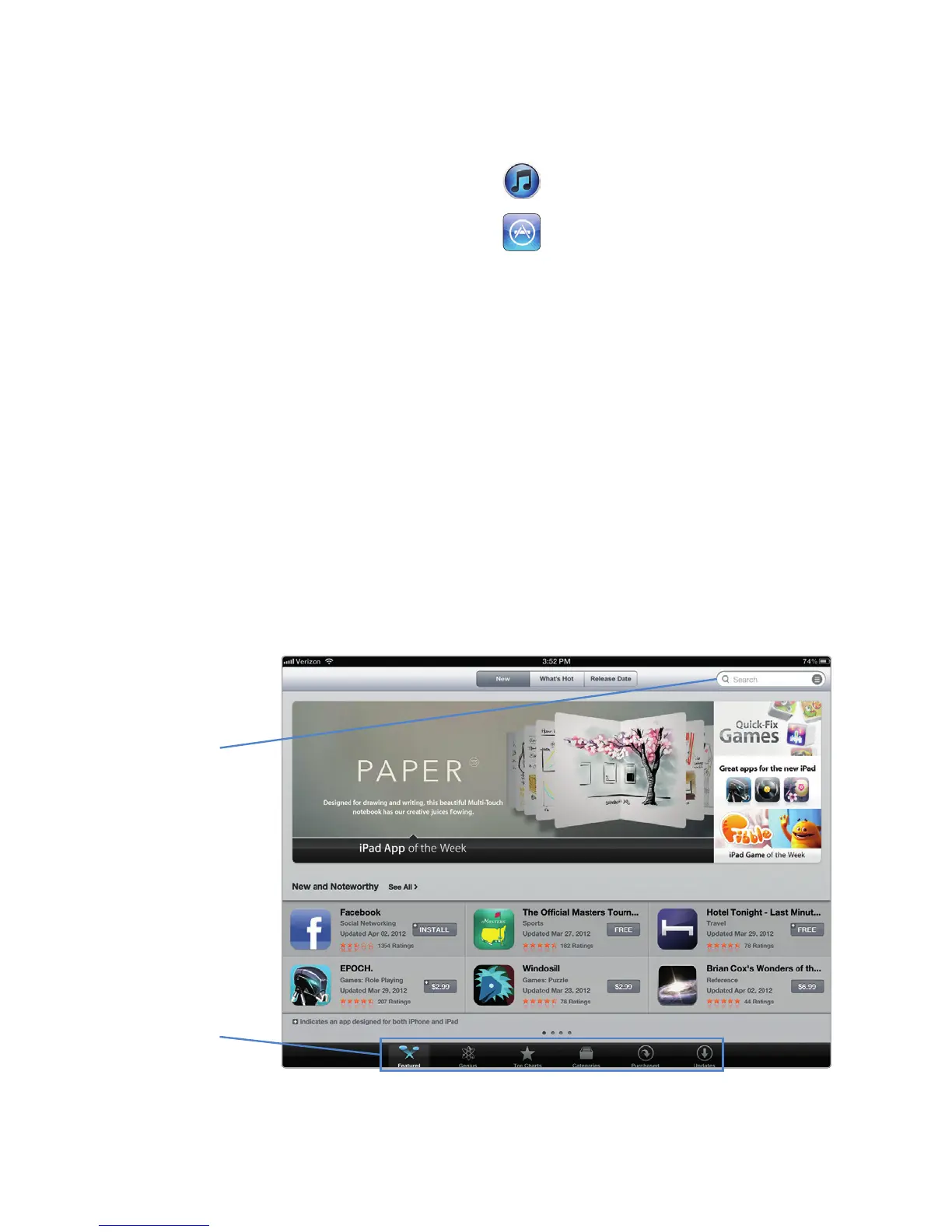
1. From the Home screen, tap App Store. The App Store screen appears.
2. Tap the Featured icon at the bottom of the screen. The Featured list of iPad
apps appears at the bottom of the screen, as shown in Figure 11-1.
FIGURE 11-1: The Featured list shows certain apps that Apple wants
people to notice.
Search for the
app you need
Easy ways to
browse the
App Store



 To Next Page