Browsing with Safari
|
89
5. (Optional) Tap one of the website addresses in the displayed list.
6. Tap the Go key on the virtual keyboard. Your chosen website appears.
7. Tap the Back arrow icon. Your previous web page appears.
8. Tap the Forward arrow icon. The web page you viewed after the current one
now appears.
9. Place two fingertips on the screen, and move them away from each other to
zoom in on the currently displayed web page.
10. Place two fingertips on the screen, and move them closer together to zoom
out on the currently displayed web page.
11. Double-tap a column of text. Safari zooms to the column. Double-tap again,
and Safari zooms out.
12. Tap the top of the Safari screen, without hitting the address or search bar.
You jump all the way to the top of the page you were reading.
13. Tap any link on the currently displayed web page. The new page opens.
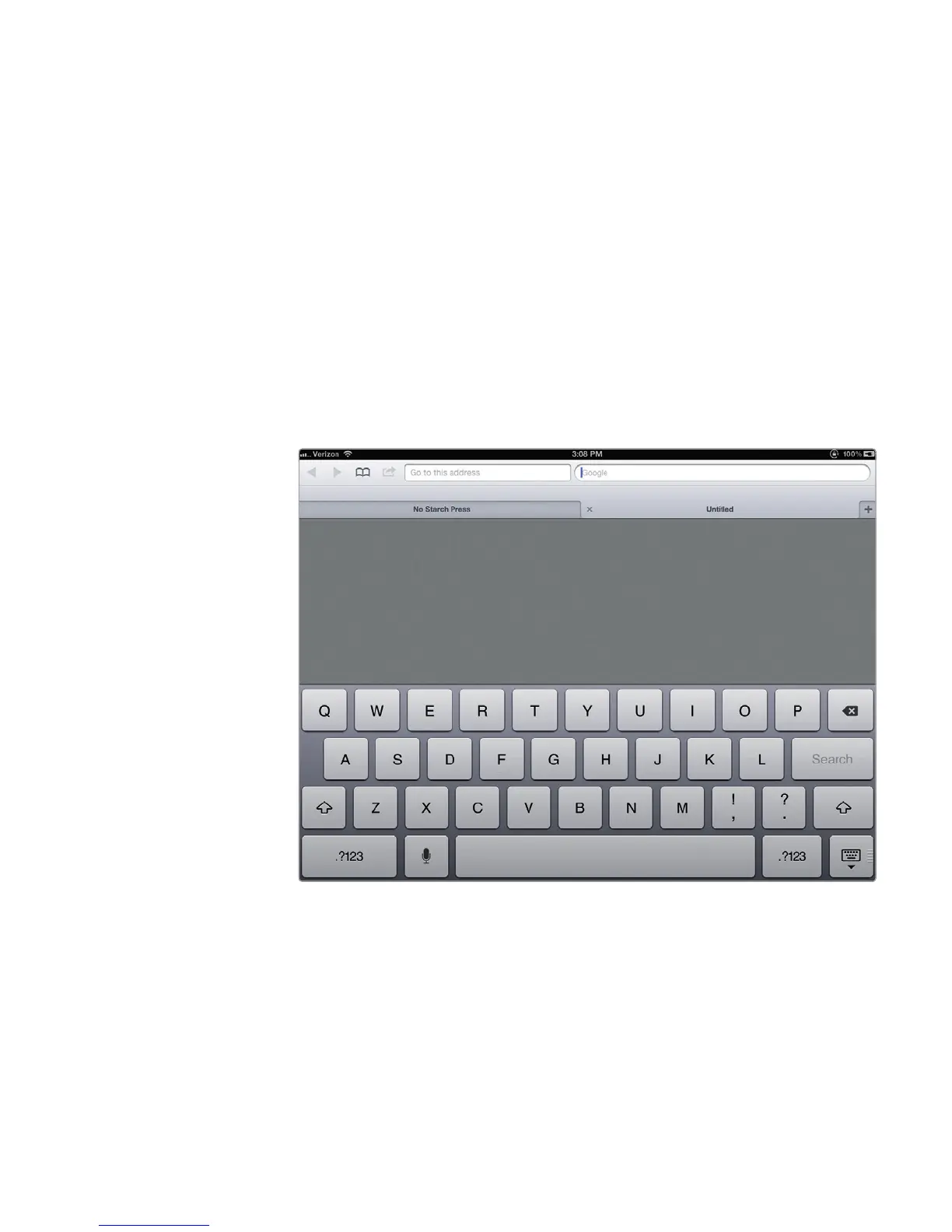
14. Tap the New Tab icon. Safari displays an Untitled tab and the virtual key-
board, as shown in Figure 12-2.
15. Type a website address such as www.apple.com. Your newly created tab
displays the website.
16. Tap the two tabs to see how you can quickly switch between the two differ-
ent websites displayed in each tab.
17. Click the Close button that appears on the left edge of the tab.
FIGURE 12-2: After tapping the New Tab icon, you can search, choose
a bookmark, or enter an address in the Address Bar.



 To Next Page