98
|
Chapter 13
Q NOTE: Ideally, keep your website names short.
Long website names take up more space if you
store them in the Bookmarks Bar.
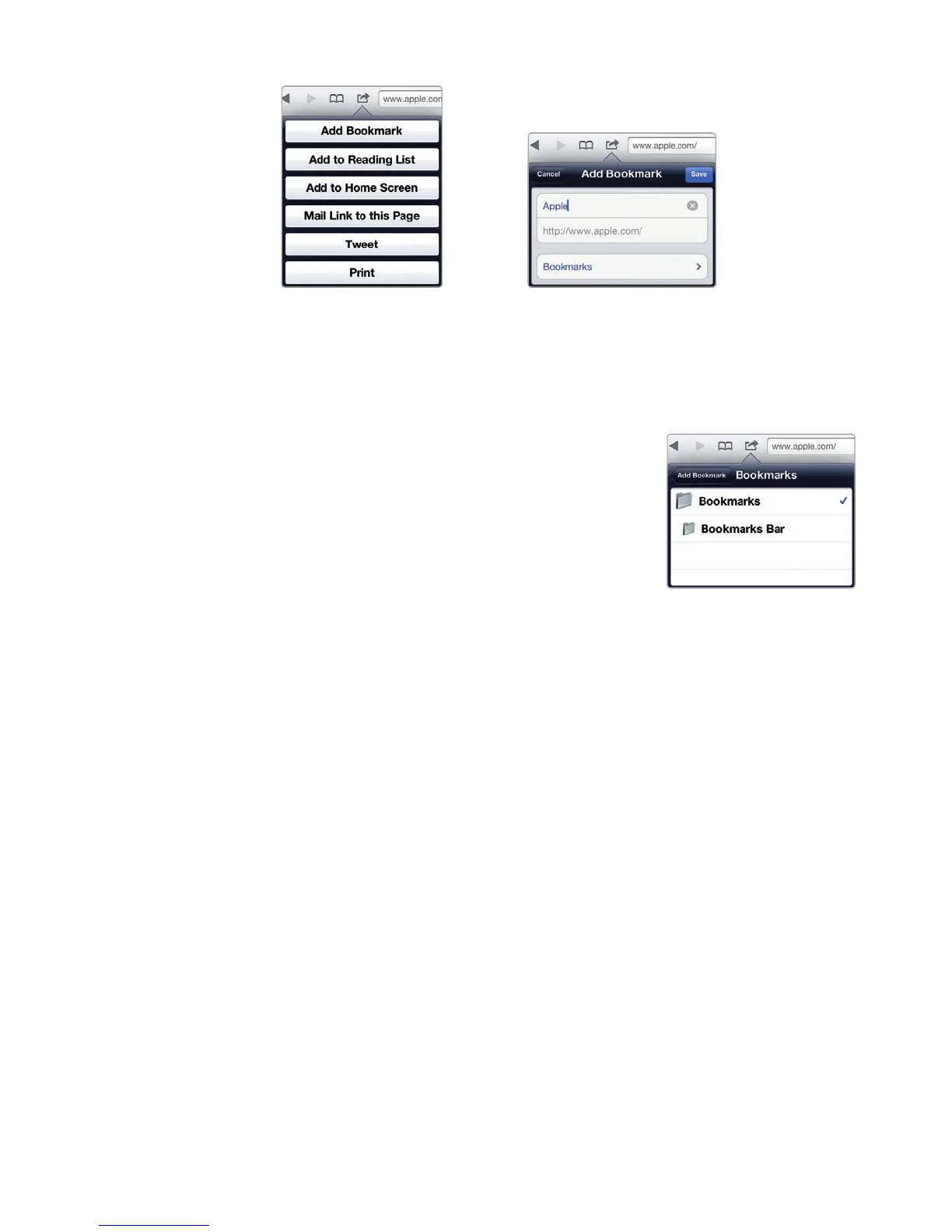
6. (Optional) Tap the Bookmarks icon, and
tap either Bookmarks or Bookmarks Bar,
as shown in Figure 13-5. Then tap the Add
Bookmark button in the upper-right corner
to return back to the Add Bookmark window.
7. Tap Save. Your bookmark gets saved in your
chosen location either in the Bookmarks
window or in the Bookmarks Bar.
Showing (or Hiding) the Bookmarks Bar
When you store bookmarks on the Bookmarks Bar, you can access them in two ways.
First, you can access them through the Bookmarks window. Second, you can access
them through the Bookmarks Bar, which appears at the top of Safari.
To save space, the Bookmarks Bar may not be visible, but you can make it
visible by following these steps:
1. From the Home screen, tap Settings. TheSettings screen appears.
2. Tap Safari. The Safari settings screen appears.
3. Tap the Always Show Bookmarks Bar on/off switch to turn it ON (or OFF if
you want to hide the Bookmarks Bar).
4. Press the Home button.
5. Tap Safari. The Safari screen appears, with (or without) the Bookmarks Bar.
FIGURE 13-3: The
Action icon displays
a menu of options for
saving a bookmark.
FIGURE 13-4: You can
type a descriptive name
for your bookmark.
FIGURE 13-5: You can
choose where to store
abookmark.



 To Next Page