Using Bookmarks withSafari
|
99
Deleting and Rearranging Your Bookmarks
After you store several bookmarks, you may later want to rearrange or delete them.
To rearrange or delete a bookmark, follow these steps:
1. From the Home screen, tap Safari. The Safari screen appears.
2. Tap the Bookmark icon (it looks like an open book). The Bookmarks window
appears.
3. (Optional) Tap a folder, such as the Bookmarks Bar folder, to rearrange book-
marks in that folder.
4. Tap Edit. Red circles with white dashes appear to the left of each bookmark
while three horizontal gray lines appear to the right of some bookmarks.
Q NOTE: You cannot rearrange the default bookmarks already stored in the
Bookmarks window, including the bookmarks for Apple, Google, and Yahoo!
You can, however, delete them.
5. (Optional) Tap and hold a fingertip over the icon with three horizontal gray
lines to the right of a bookmark that you want to rearrange. Then slide your
finger up or down to move the bookmark to a new location.
6. (Optional) Tap the red circle with the white dash to the left of a bookmark
you want to delete. A red Delete button appears. (You can also delete book-
marks by swiping to the left or right.)
7. (Optional) Tap Delete.
8. Tap Done.
Saving a Website as a Home Screen Icon
To make accessing your favorite websites even faster, you can store a website as an
icon on your Home screen. To do so, follow these steps:
1. From the Home screen, tap Safari. The Safari
screen appears.
2. Visit your favorite website.
3. Tap the Action icon (it looks like a square with
a curved arrow). A menu of options appears.
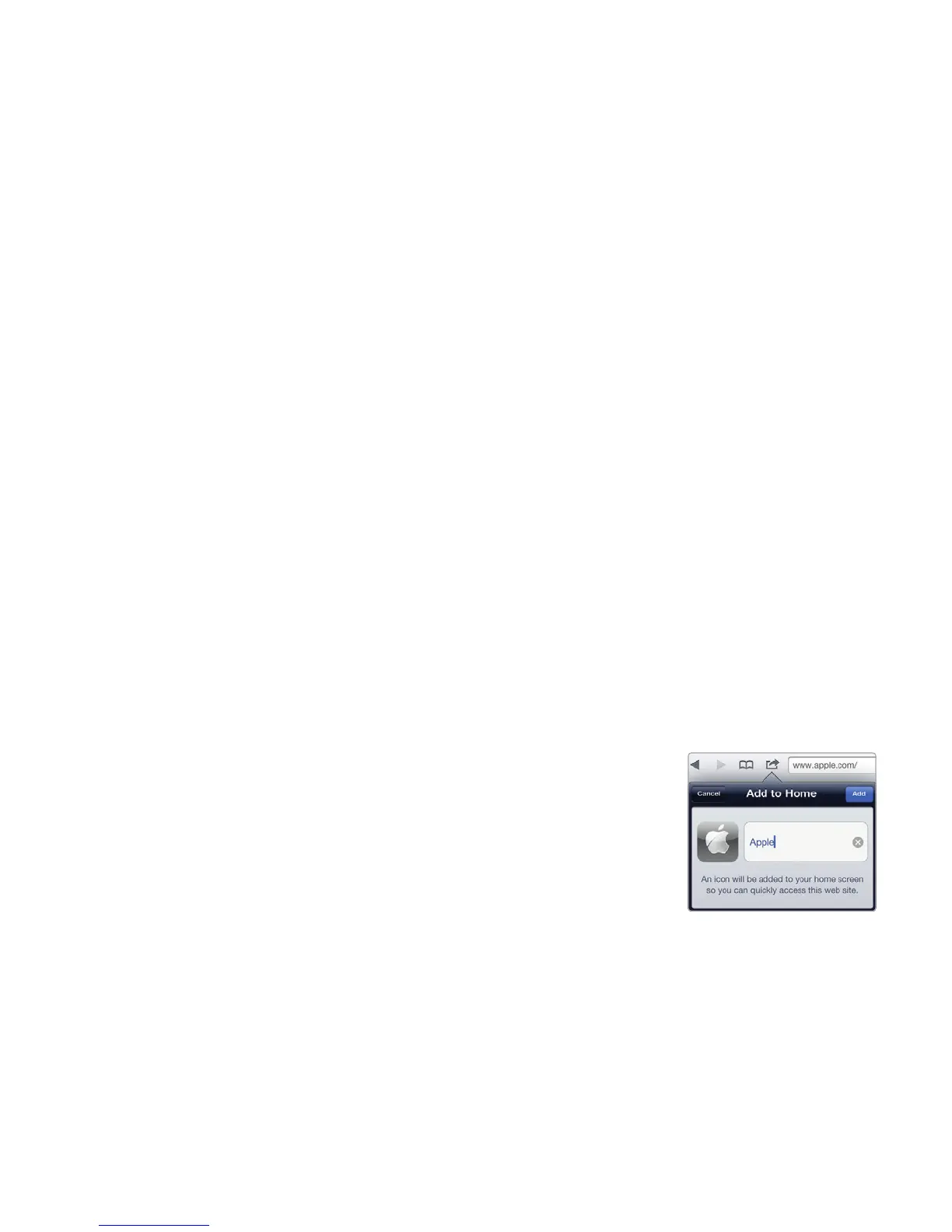
4. Tap Add to Home Screen. An Add to Home
window and a virtual keyboard appear, as
shown in Figure 13-6.
5. Type or edit a short descriptive name for your
website.
6. Tap Add. Your chosen website appears as an
icon on your Home screen.
FIGURE 13-6: Storing
a bookmarked site to
your Home screen.



 To Next Page