100
|
Chapter 13
Q NOTE: You can delete a bookmarked icon from your Home screen just like an
application: Hold your fingertip on the website icon until it starts wriggling
and displays a Close icon in its upper-left corner. Then tap the Close icon (it
looks like a big X), and press the Home button.
Creating Folders in the Bookmarks Window
The more bookmarks you add to the Bookmarks window, the more crowded it will
get. To keep bookmarks organized, you can create folders and then store different
bookmarks inside each folder. To create a bookmark folder, follow these steps:
1. From the Home screen, tap Safari. The
Safari screen appears.
2. Tap the Bookmark icon (it looks like an
open book). The Bookmarks window
appears.
3. Tap Edit. A New Folder button appears
in the upper-left corner of the Bookmarks
window.
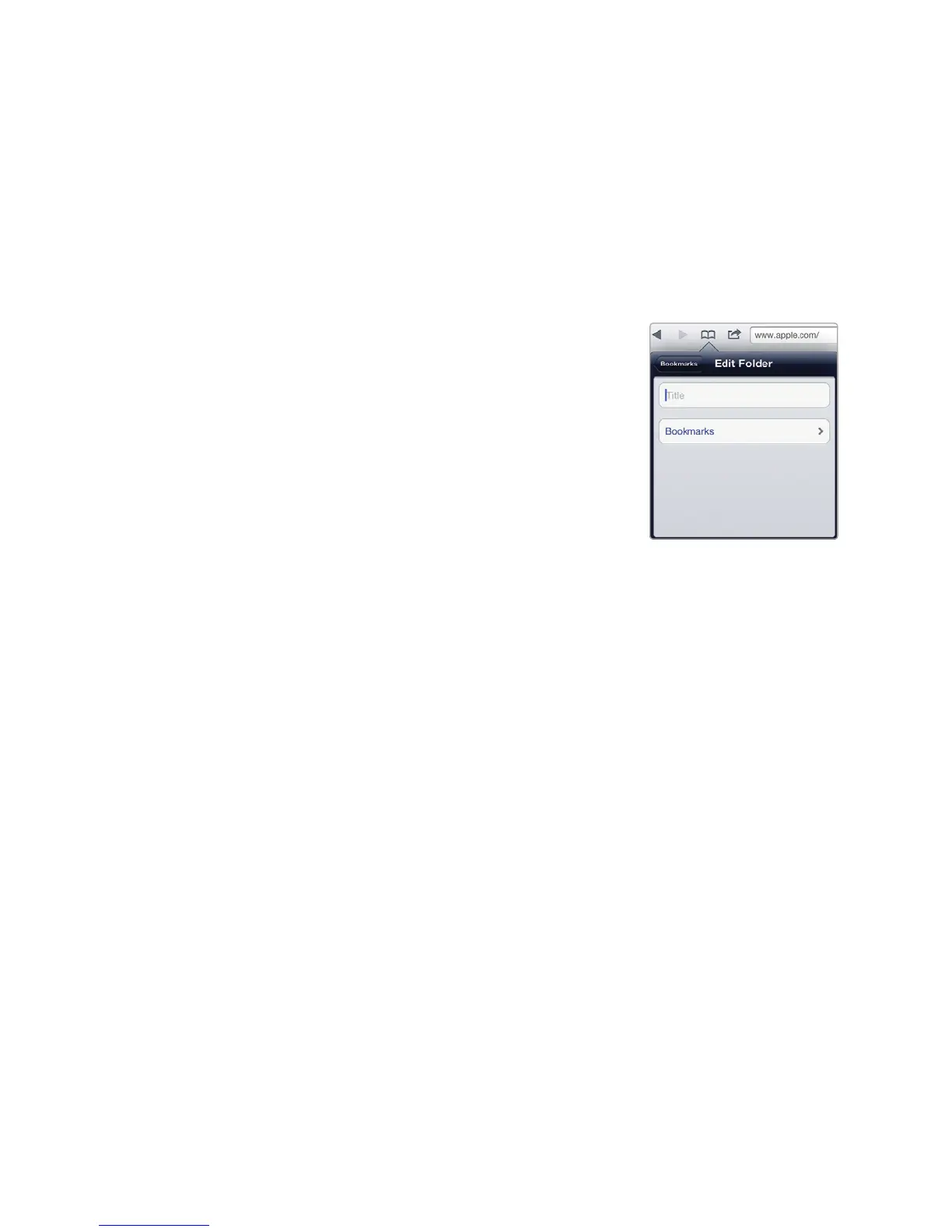
4. Tap New Folder. An Edit Folder window
appears with a virtual keyboard, as shown
in Figure 13-7.
5. Type a short descriptive name for your
folder, and tap the Done key on the vir-
tual keyboard. Your newly created folder
appears in the Bookmarks window.
6. Tap Done in the bookmarks pane.
Q NOTE: If you open the Bookmarks window and tap the Edit button, you can
rearrange, delete, or rename a folder. To rename a folder, just tap the Edit
button, and then tap the folder name.
Additional Ideas for Bookmarking Favorite
Websites
If you regularly visit certain websites, you can store these websites as icons on
theHome screen and then organize all the website icons on a separate pane
onthe Home screen. That way, you can switch to that Home screen pane to see
allyour important websites.
If you share an iPad with others, create folders with each person’s name, and
then let each person store their own favorite websites in these separate, named
folders. Then others don’t have to wade through bookmarks of websites that
they’ll never visit in a million years.
By saving bookmarks, you can browse the Web without ever needing to type
in a convoluted address again or dig through search engine listings—unless you
want to find something new.
FIGURE 13-7: You can cre-
ate and name a folder to
store bookmarks.



 To Next Page