Setting Up an Email Account
|
105
5. Tap Add Mail Account. A New Account window appears with the virtual
keyboard.
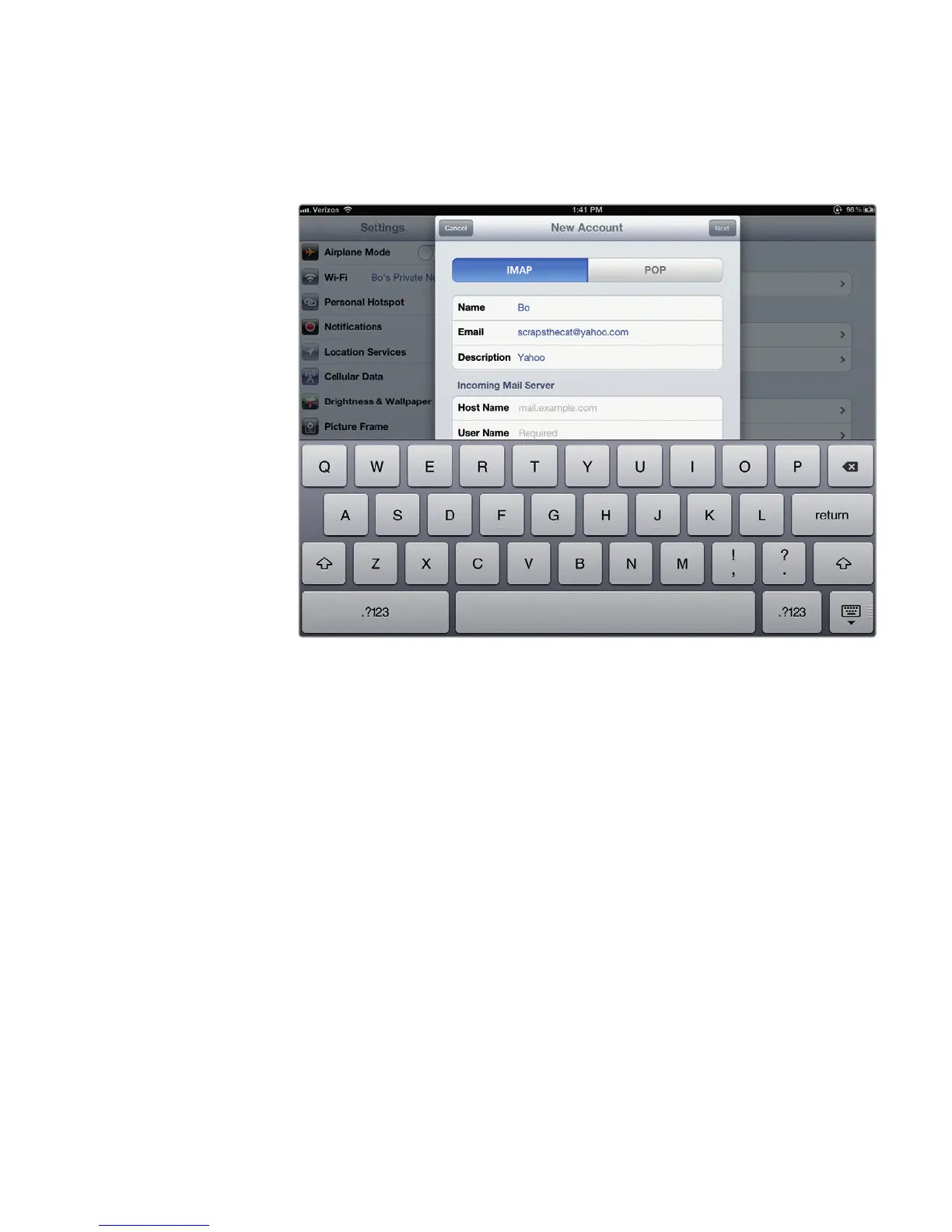
6. Type your name, email address, password, and description of your email
account, and tap Next. Another New Account window appears as shown in
Figure 14-6.
7. Tap the IMAP or POP button.
8. Scroll down and type your host name, username, and password for your
incoming and outgoing mail servers.
9. Tap Next.
10. Press the Home button. The Home screen appears.
11. Tap Mail. If you’re currently connected to the Internet, your iPad will retrieve
any messages for that email account.
Customizing Mail Accounts
After you have set up one or more email accounts, you might want to customize
the way they display information. These customizing options aren’t necessary,
but you might want to choose one or more settings to make your email account
uniquely your own. Some of the options you can modify are as follows:
> Show Defines how many messages to display
> Preview Defines how many lines of each message to display
FIGURE 14-6: The New Account window lets you define a name, email
address, password, and an optional description.



 To Next Page