104
|
Chapter 14
7. Press the Home button. The Home screen
appears.
8. Tap Mail. If you’re currently connected to the
Internet, your iPad will retrieve any messages
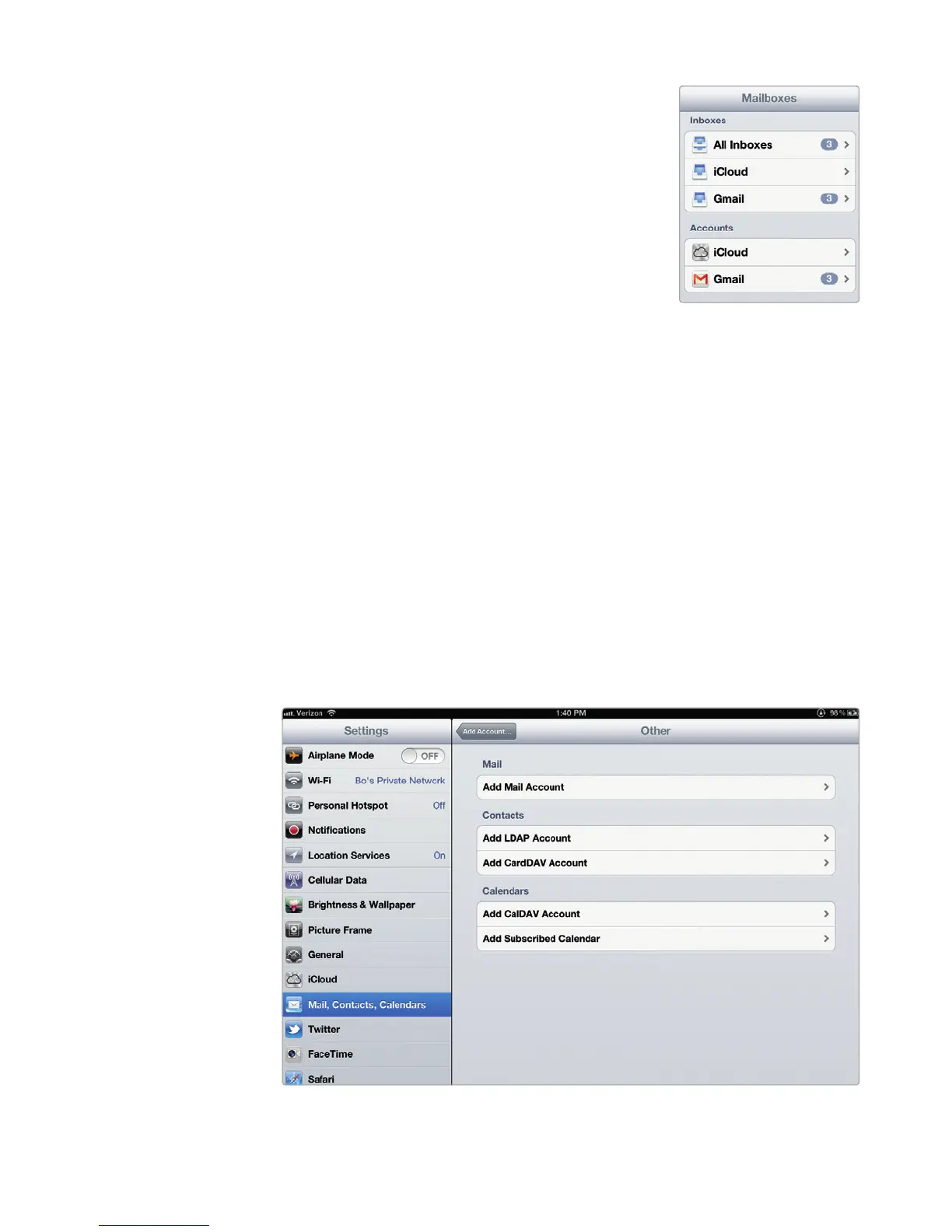
for that email account. With multiple email
accounts, you must choose which account you
want to open in Mail, as shown in Figure 14-4.
Q NOTE: If you don’t have an email address yet, you
can get a free one through any of the popular
email providers such as Hotmail, iCloud, Gmail,
orYahoo!.
Setting Up an Email Account Manually
If you need to set up an email account that isn’t from one of the more popular pro-
viders, you’ll need to type some additional information such as your incoming and
out going mail server settings. (If you have no idea what these settings are, you’ll
need to get them from your email provider or your Internet service provider.)
To set up an email account manually, follow these steps:
1. From the Home screen, tap Settings. The Settings screen appears.
2. Tap Mail, Contacts, Calendars. The Mail, Contacts, Calendars settings
screen appears.
3. Tap Add Account. The Add Account screen appears (shown earlier in
Figure14-1).
4. Tap Other. The Other screen appears, as shown in Figure 14-5.
FIGURE 14-4: The
Mailboxes screen
FIGURE 14-5: The Other screen lets you define email settings manually.



 To Next Page