Setting Up an Email Account
|
103
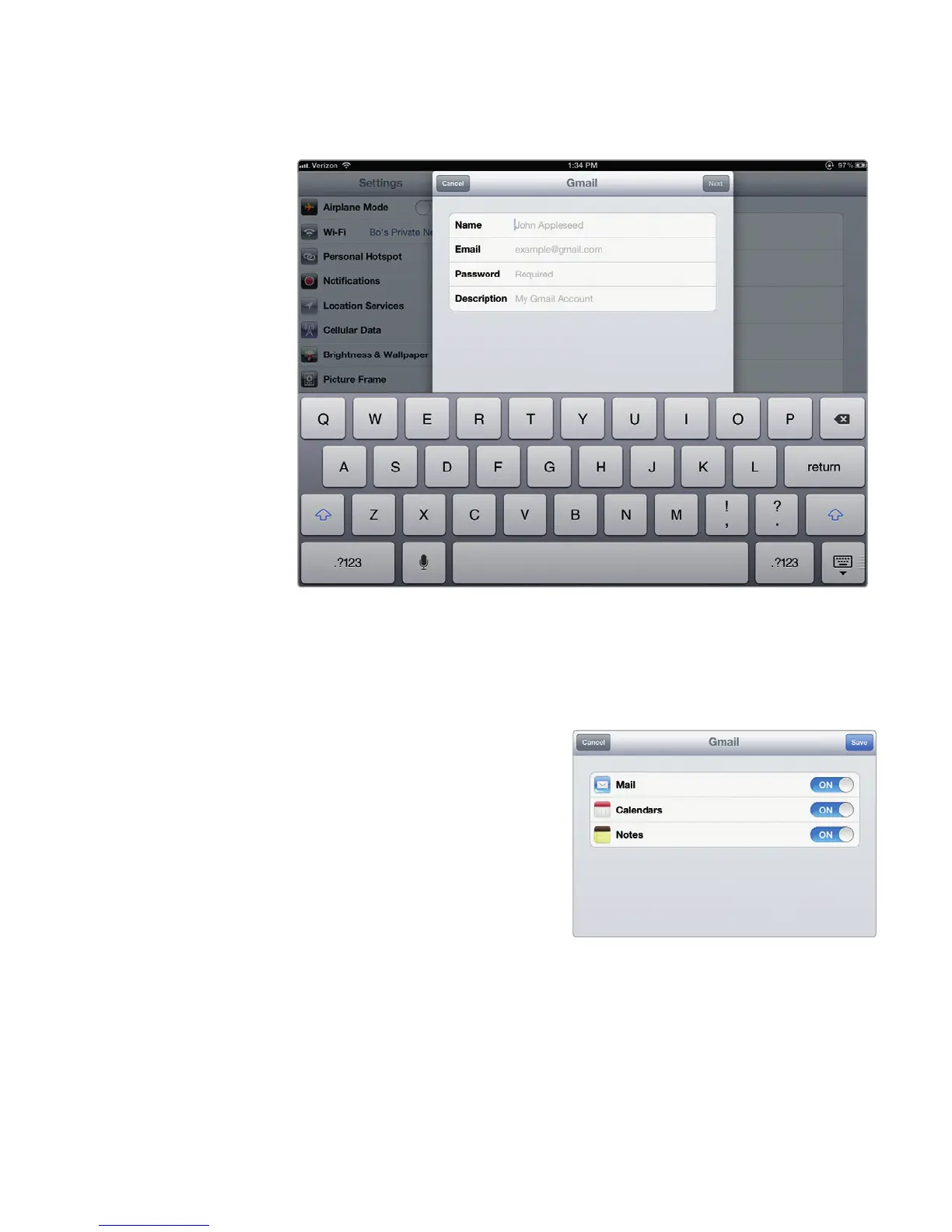
4. Tap the type of email account you want to add, such as Gmail or Hotmail. A
screen appears where you can type in your name, email address, password,
and optional description, as shown in Figure 14-2.
Q NOTE: If you start the Mail app for the first time without setting up an
account, you’ll be prompted with the same options shown in Figure 14-1.
5. Type your name, email
address, password, and
optional description of your
account, and tap Next in the
upper-right corner. Another
window appears, letting you
include Mail, Calendars, and
Notes from that account, as
shown in Figure 14-3.
6. Tap the on/off buttons for
Mail, Calendar, and Notes,
and tap the Save button.
FIGURE 14-2: The initial email account setup screen
FIGURE 14-3: You can include notes
and calendars with an email account.



 To Next Page