Reading, Organizing, and Sending Email
|
111
3. Tap the email account under Inboxes that you want to use, or just tap All
Inboxes to view all mail sent to all accounts. If you have set up only one email
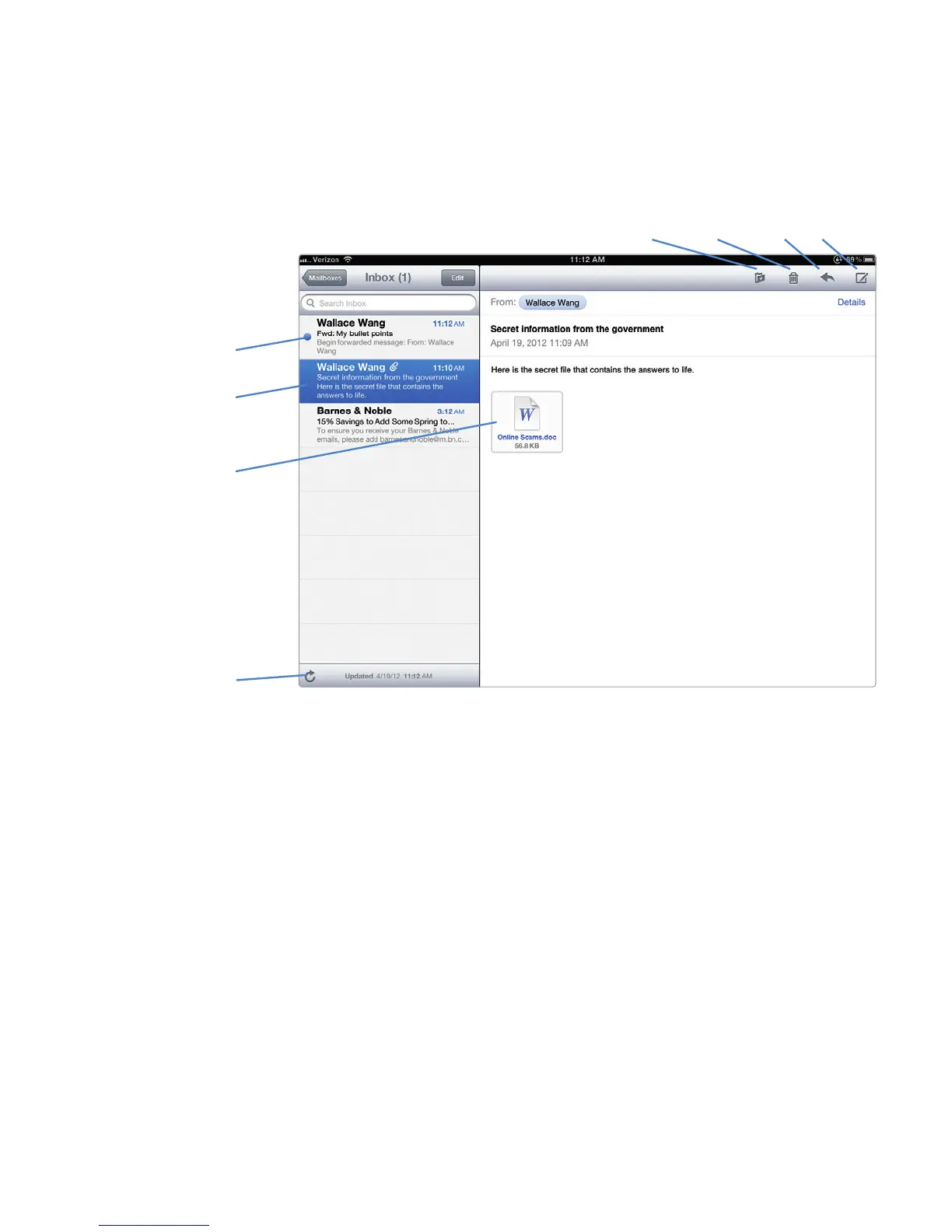
account, you can skip this step. A list of messages appears, as shown in Fig-
ure 15-2.
4. Tap the message you want to read. Your message appears in the right pane
of the screen.
Moving a Message to a Folder
Since your Inbox folder constantly receives messages, you may want to organize
them in different folders that you can create through your email provider. You may
also delete messages to keep your Inbox folder tidy. Deleting a message moves it
to the Trash folder. To permanently delete messages, you’ll need to delete all the
messages stored in the Trash folder.
Moving a Message
To move a single message to a different folder, follow these steps:
1. From the Home screen, tap Mail. If necessary, tap the button in the upper-
left corner of the screen to return all the way to the Mailboxes screen that
lists all of your Inboxes and Accounts (see Figure 15-1).
2. Tap an email account. A list of folders appears inthe left pane, as shown in
Figure 15-3.
FIGURE 15-2: The Inbox folder contains your messages.
Selected Message
Unread Message
Move Delete Reply Compose
Check Mail Now
Attachment



 To Next Page