Reading, Organizing, and Sending Email
|
115
4. (Optional) Type any additional text that you want to add to the message.
5. Tap Send. Your iPad sends your message.
Forwarding a Message
Forwarding a message can be handy when you want to resend something that
somebody sent you, such as a joke or interesting picture. To forward a message,
follow these steps:
1. Follow all the steps in “Reading Email” on page 110 to view the message
that you want to forward.
2. Tap the Reply icon (it looks like an arrow pointing to the left and appears in
the upper-right corner of the screen). A menu appears listing a Reply, Reply
All, Forward, and Print options (see Figure 15-6).
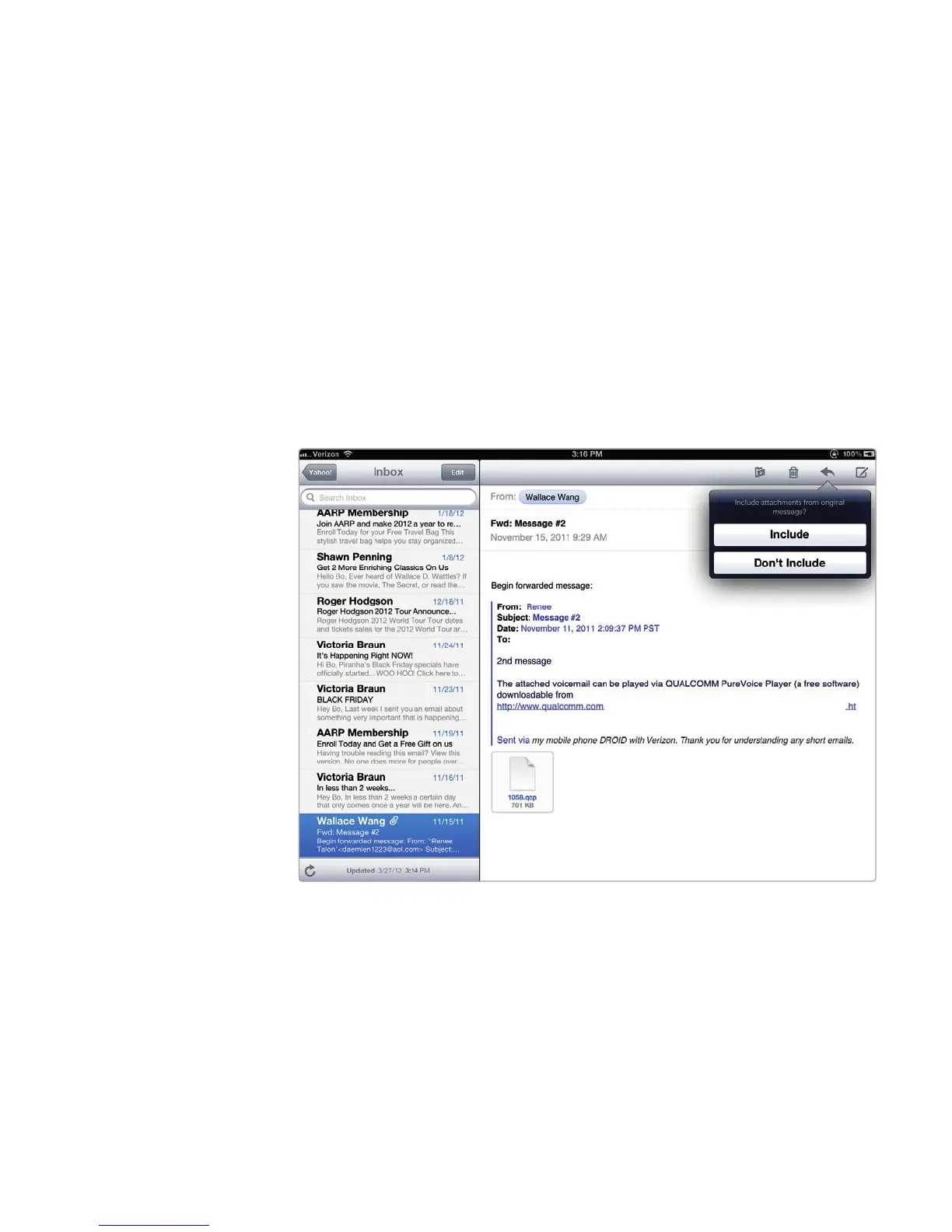
3. Tap Forward. If the message contains a file attachment, a window may pop
up asking if you want to include or not include the file attachment with your
forwarded copy of the message, as shown in Figure 15-8.
4. Tap Include or Don’t Include. A message window appears with a virtual
keyboard.
5. Tap the To field, and type an email address.
FIGURE 15-8: When you forward a message that contains an attached
file, you can choose whether to include it.



 To Next Page