114
|
Chapter 15
Replying to, Forwarding, or Printing an
Email Message
The simplest way to write a message is to reply to an existing message that you’ve
already received. That way, you can send the message back to the sender’s email
address to provide a little context with your response without having to type it all
over again. Another option is to forward a message. This lets you send a received
message to someone else. If you have a wireless printer, you can also print a mes-
sage so you have a copy you can review later.
Replying to a Message
To reply to a message, follow these steps:
1. Follow all the steps in “Reading Email” on
page 110 to view the message to which
you want to reply.
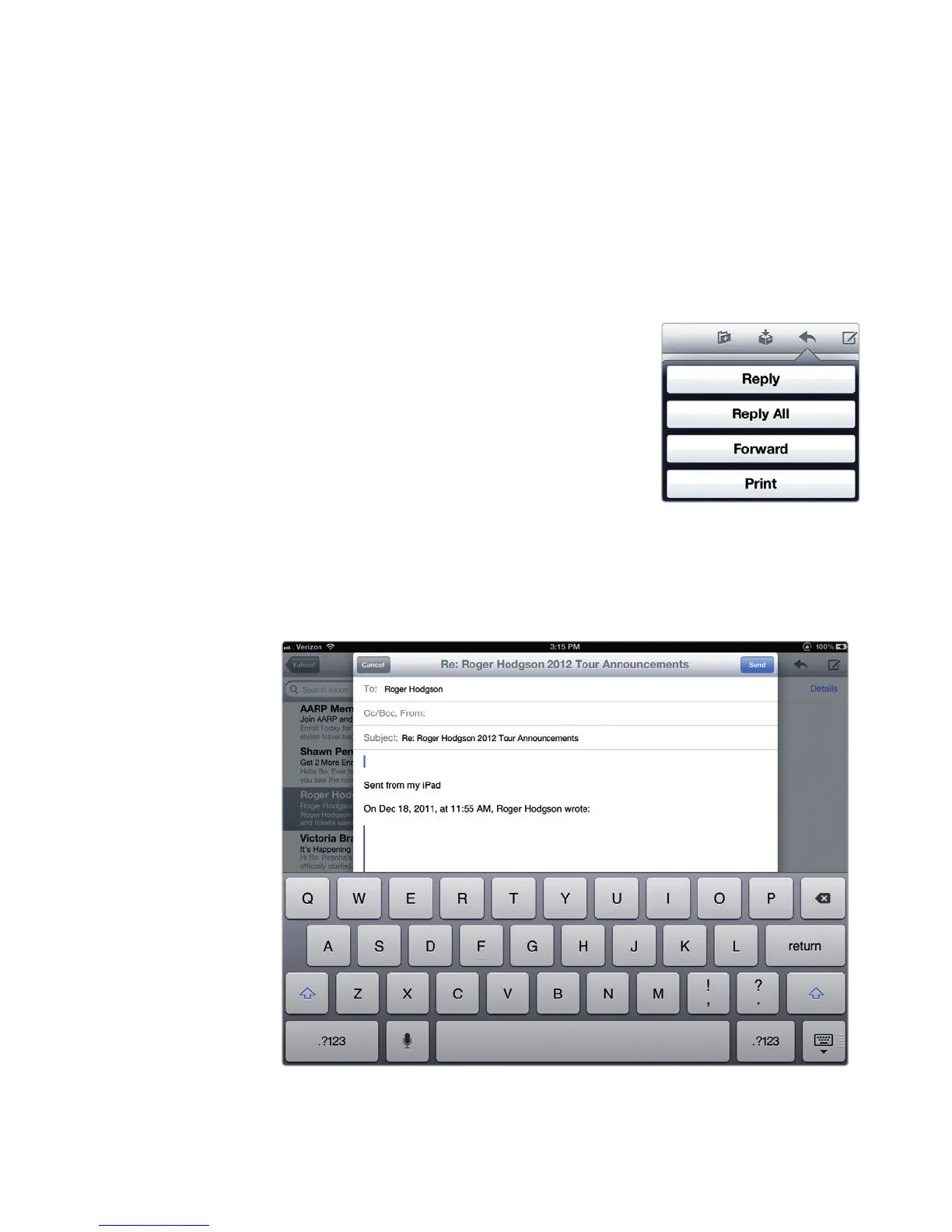
2. Tap the Reply icon (it looks like an arrow
pointing to the left and appears inthe upper-
right corner of the screen). A menu appears
listing Reply, Reply All, Forward, and Print
options, as shown inFigure15-6.
3. Tap Reply. A message window appears
along with a virtual keyboard, as shown in
Figure15-7.
FIGURE 15-6: Tapping
the Reply icon displays
Reply, Reply All, For-
ward, and Print buttons.
FIGURE 15-7: The message window already includes the recipient’s
email address.



 To Next Page