Reading, Organizing, and Sending Email
|
113
Moving (or Deleting) Messages
To move multiple messages to a folder (or delete
multiple messages instead), follow these steps:
1. Follow all the steps in “Reading Email” on
page 110 to view any message.
2. Tap the Edit button that appears in the upper-
right corner of the Inbox window. Small circles
appear to the left of each message.
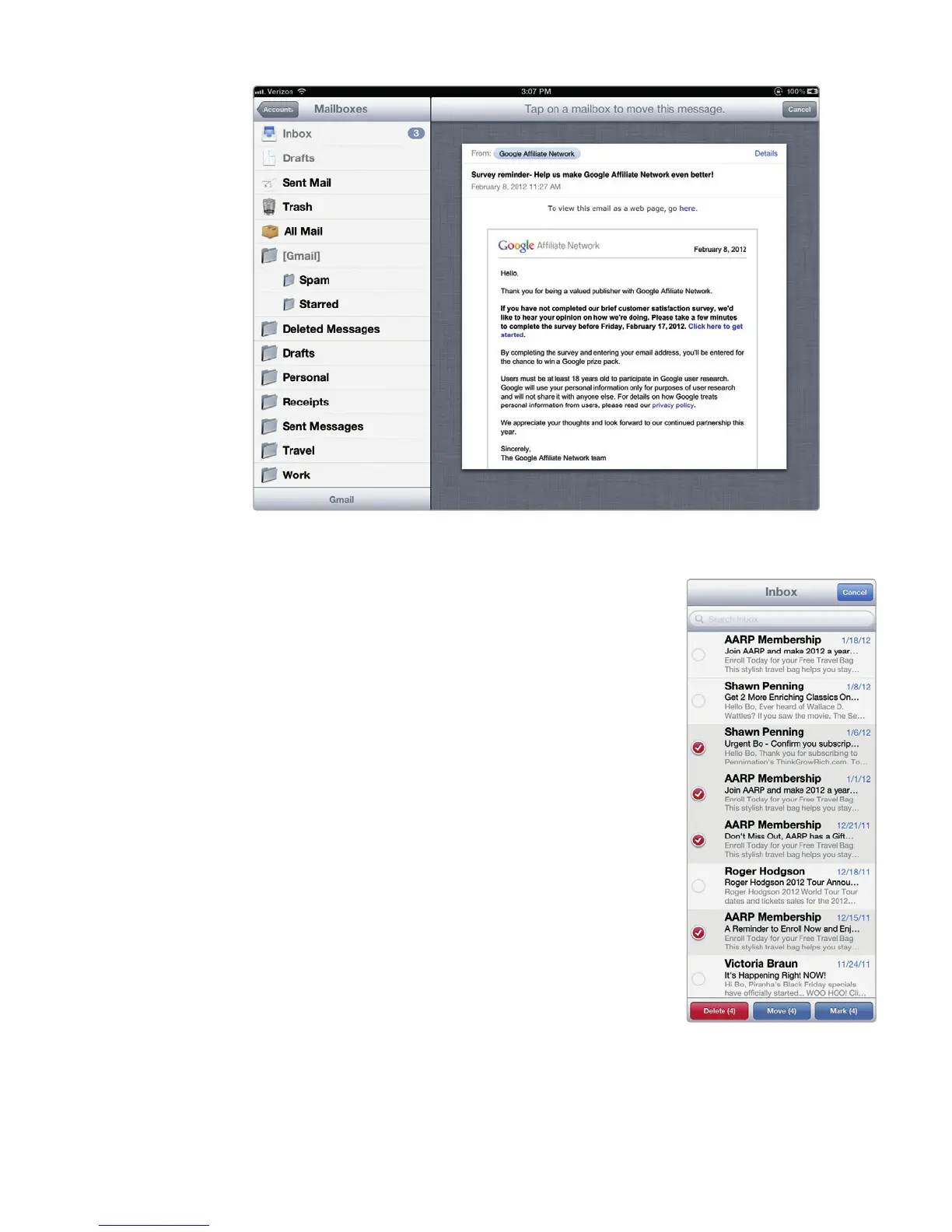
3. Tap the circle to the left of each message that
you want to move or delete. A checkmark
appears in the circle, as shown in Figure15-5.
4. Tap the Delete or Move button at the bot-
tom of the Inbox window. (If you tap the Move
button, you’ll need to tap a folder displayed
in the Inbox window to choose which folder
to move your selected messages to.)
Q NOTE: Instead of a Delete button, you may see
an Archive button with certain email accounts,
such as Gmail.
FIGURE 15-4: Tap the folder where you want to move the message.
FIGURE 15-5: You can
move or delete a sev-
eral messages at once
with the Edit button.



 To Next Page