126
|
Chapter 16
Transferring Movies and TV Shows to
YouriPad
To transfer movies and TV shows to your iPad, follow these steps:
1. Connect your iPad to your computer with the USB cable, and run the iTunes
program on your computer.
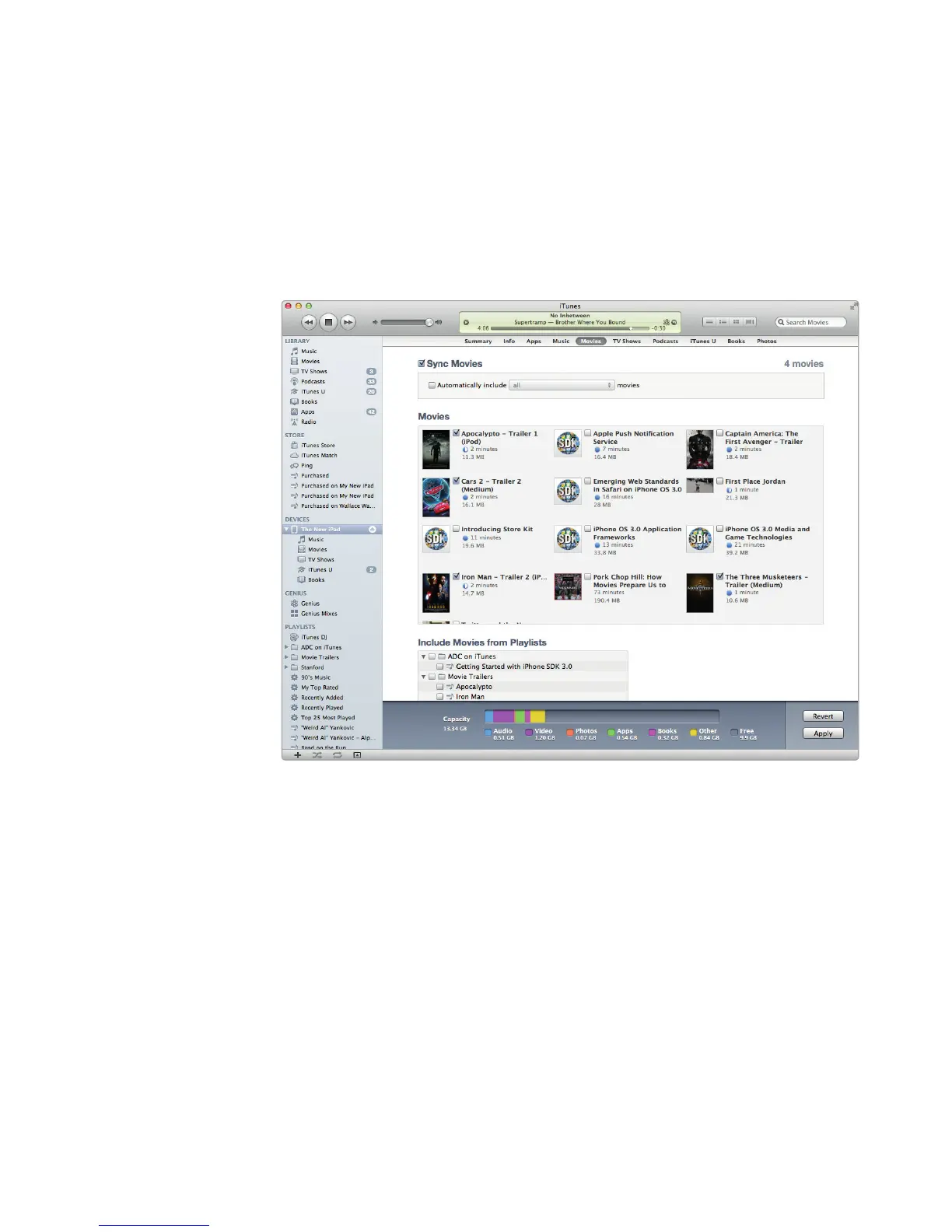
2. Choose your iPad in the sidebar, and then click the Movies tab. A list of your
stored movies appears, as shown in Figure 16-3.
3. Check (or uncheck) the Sync Movies checkbox.
4. (Optional) Check the Automatically include checkbox, and select an
option in the pop-up menu to choose movies based on how many recent
orunwatched movies you want to transfer, as shown in Figure 16-4. If the
Automatically include checkbox is unchecked, icons representing all your
movies appear, letting you select individual movies.
5. Click Apply to start transferring your selected movies to youriPad.
6. Click the TV Shows tab. The TV Shows screen appears, as shown in
Figure16-5.
7. Check (or uncheck) the Sync TV Shows checkbox. If you clear the Sync TV
Shows checkbox, you won’t be able to choose any other options. If you select
the Sync TV Shows checkbox, you’ll be able to select which TV shows and
which episodes to transfer.
FIGURE 16-3: The Movies tab lets you select any movies to transfer.



 To Next Page