Shopping on iTunes and the iBookstore
|
141
Q NOTE: You must download and install the free iBooks app before you can
browse the iBookstore. See Chapter 16 for instructions on installing it.
To browse the iBookstore, follow these steps:
1. From the Home screen, tap iBooks. The iBooks screen appears with all your
currently stored books on a shelf. (If you were reading an ebook, the iBooks
screen will show you the last page you read. To view the iBooks main screen,
just tap the Library button in the upper-left corner of the screen.)
2. Tap Store in the upper-left corner of the screen. The iBooks screen flips
around to reveal the iBookstore.
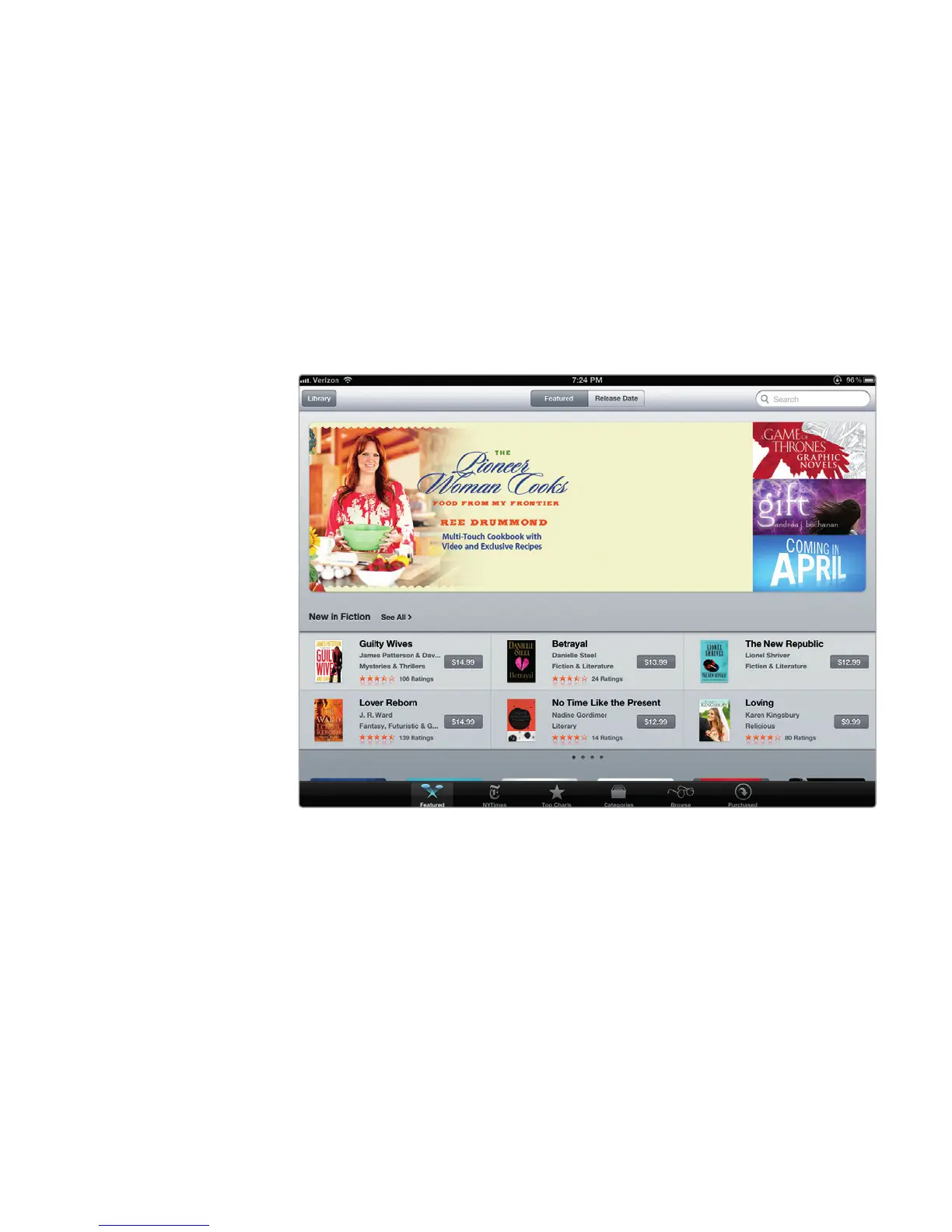
3. Tap Featured at the bottom of the iBookstore screen to see the latest
ebooks available, as shown in Figure 17-6.
4. Tap NYTimes at the bottom of the screen to see the latest New York Times
best sellers in the fiction and nonfiction categories.
5. Tap Top Charts at the bottom of the iBookstore screen to see the most
popular free and paid ebooks.
6. Tap Categories at the bottom of the iBookstore screen to see a list of book
categories, such as History, Humor, Parenting, and Reference.
7. Tap Browse at the bottom of the iBookstore screen to see a list of authors
and their books available on the iBookstore, as shown in Figure 17-7.
FIGURE 17-6: The iBookstore screen



 To Next Page