148
|
Chapter 18
To explore all the controls your iPad has for playing music, try the following:
1. From the Home screen, tap Music. The Music screen appears.
2. Choose a song to play through the Playlists, Songs, Artists, or Albums tab at
the bottom of the screen.
3. Tap Play/Pause to start playing your chosen song.
4. Tap Back. Your song starts playing from the beginning again. If you tap the
Back button a second time, you’ll choose the previous song in the list.
5. Tap Forward. The Music app displays the next song in the list.
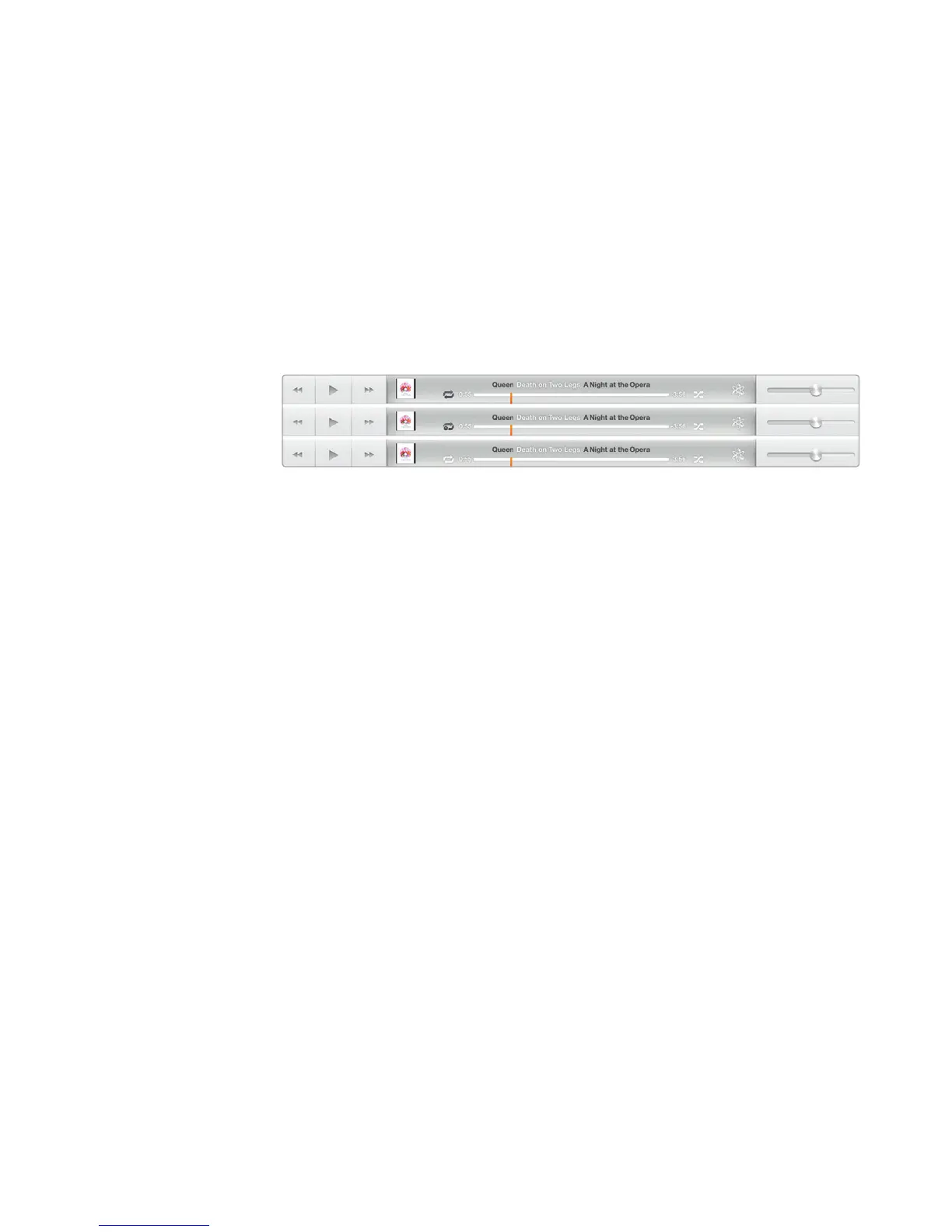
6. Tap Repeat. The first time you press the Repeat icon, it turns black and the
current album or playlist will loop, as shown in Figure 18-4. Tap Repeat a
second time, and a (1) appears in the icon. Now just the track repeats. Tap
Repeat once more to disable repeat, and the loop appears white.
7. Tap Shuffle. When the Shuffle icon appears all white, your songs play in
order. When the Shuffle icon appears all black, the Music app randomly
plays a different song from the list you initially chose from, such as Artists
orAlbums.
8. Slide the Playhead slider left and right to select which part of a song toplay.
9. Tap the Genius icon. The Music app will use the currently playing song to
create a new playlist of similar songs stored on your iPad.
10. Tap Pause/Play. Each time you tap this button, the Music app either pauses
your song or starts playing it.
11. Press the Home button to return to the Home screen.
Displaying Album Art
Many people like playing a song, switching to a different app, and letting the music
play in the background. However, if you like displaying album art while a song is
playing, you can choose to have the album art fill the entire screen or just part of
itso you can still see the controls for manipulating the currently playing song.
To see the different ways to view album art for a song, do the following:
1. Find a song or audio file you want to play and tap it, as discussed in “Finding
a Song to Play” on page 146. The song’s album art appears on screen. If
you don’t have the album art, a set of music notes appears.
2. Tap the album art image. The album art image fills the screen. Tap the album
art image again. Each time you tap it, it toggles between filling the entire
screen or filling most of the screen while displaying controls for playing the
song, as shown in Figure 18-5.
FIGURE 18-4: You can choose to repeat a song, album, or playlist.


 To Next Page
 Loading...